BirdWeather PUC Owner's Manual
Download PDFWelcome to Your PUC
The BirdWeather PUC is a weatherproof acoustic and environmental monitor. Leave it in your backyard as a live station that streams every detection to BirdWeather around the clock, or take it into the field as a recorder that saves soundscapes to its SD card for you to upload later.
Stuck? Start with Troubleshooting, or email support@birdweather.com.
What's in the box
The box includes the BirdWeather PUC, a micro SD card (pre-installed), USB-C rubber plugs, USB-C o-rings, and a quick start guide.
1. Getting to Know Your PUC
One button and its lights: the basics to know before you set up.
Turning your PUC on and off
To power the PUC on, hold down the button until it turns green.
To power the PUC off, hold down the button until it turns red.
One button, two modes
We designed the PUC to be super simple to use. With a single button, you choose how it runs each time you turn it on:
| Mode | How to start it | What it does |
|---|---|---|
| Live Station | Turn the PUC on within range of your WiFi network. Nothing else to do. | Streams soundscapes to BirdWeather for identification as they're recorded. Click the button and it double-blinks blue to show it's live. |
| Recorder | Turn the PUC on, then click the button while the blue WiFi-searching lights are circling. | Records to the built-in SD card, for upload later. It double-blinks green to confirm. |
You can also fix the PUC in one mode with the Mode setting in the app (see Station Mode).
The lights you'll see during setup
The button on top of the PUC shows you what it's doing. While you're setting up, these are the ones to know:
| Light | What it means |
|---|---|
| Green, while holding the button | Powering on. |
| Blue, slow steady blink (about once a second) | WiFi setup mode: ready to pair in the app. |
| Blue, circling | Looking for a WiFi network it knows. Double-click the button to switch to setup mode. |
| Blue double-blink | Live: connected to BirdWeather. You're set up. |
| Red, while holding the button | Powering off. |
For every light, including the SD card and firmware ones, see What the lights mean in Troubleshooting.
2. Pairing with WiFi
Pair your PUC with your WiFi network using the BirdWeather app. It takes a few minutes.
Get the app
The BirdWeather app is where you set up your PUC, see its detections and change its settings. Download it from the App Store or Google Play. If you already have it, make sure it's the latest version: this guide shows app version 2.34.
First-time setup
Your PUC connects to 2.4 GHz WiFi networks. Before you start, make sure one is available, that your PUC and phone are both in range of it, and that your phone's Bluetooth is on: the app finds the PUC over Bluetooth. The PUC scans for 2.4 GHz networks itself, so your phone doesn't need to be on one.
Power your PUC first: plug in a USB-C cable, or fit three AA batteries (see Powering Your PUC).
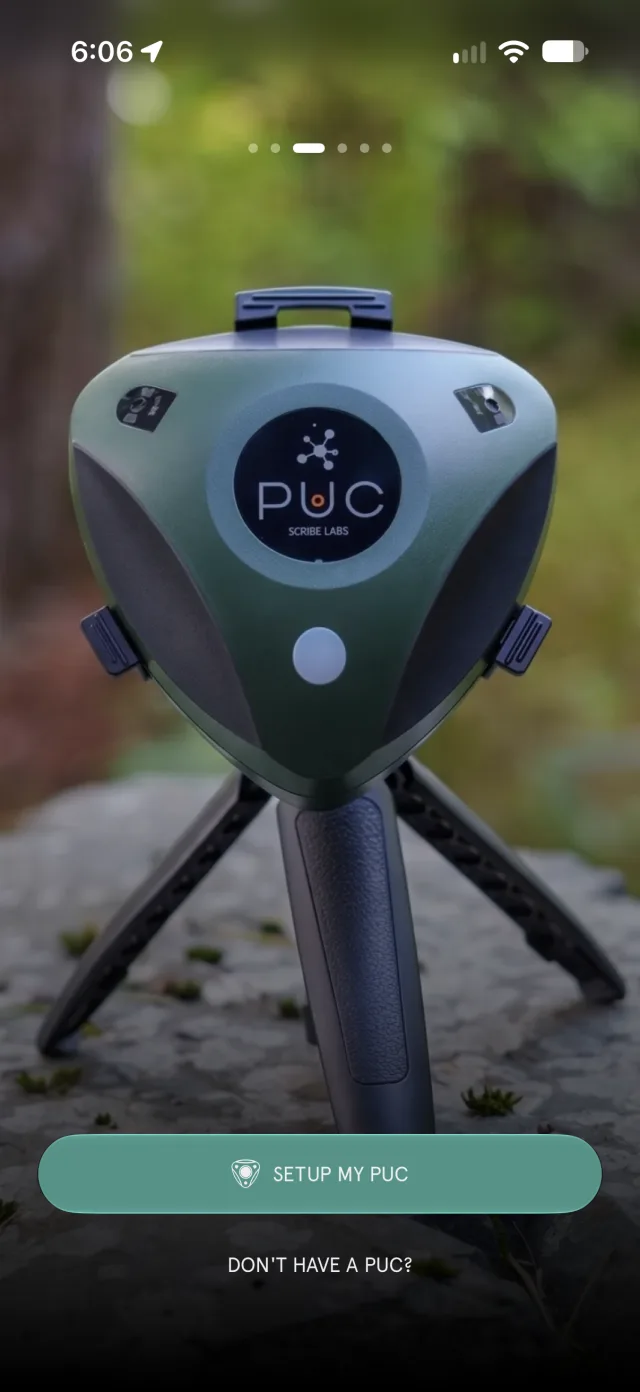
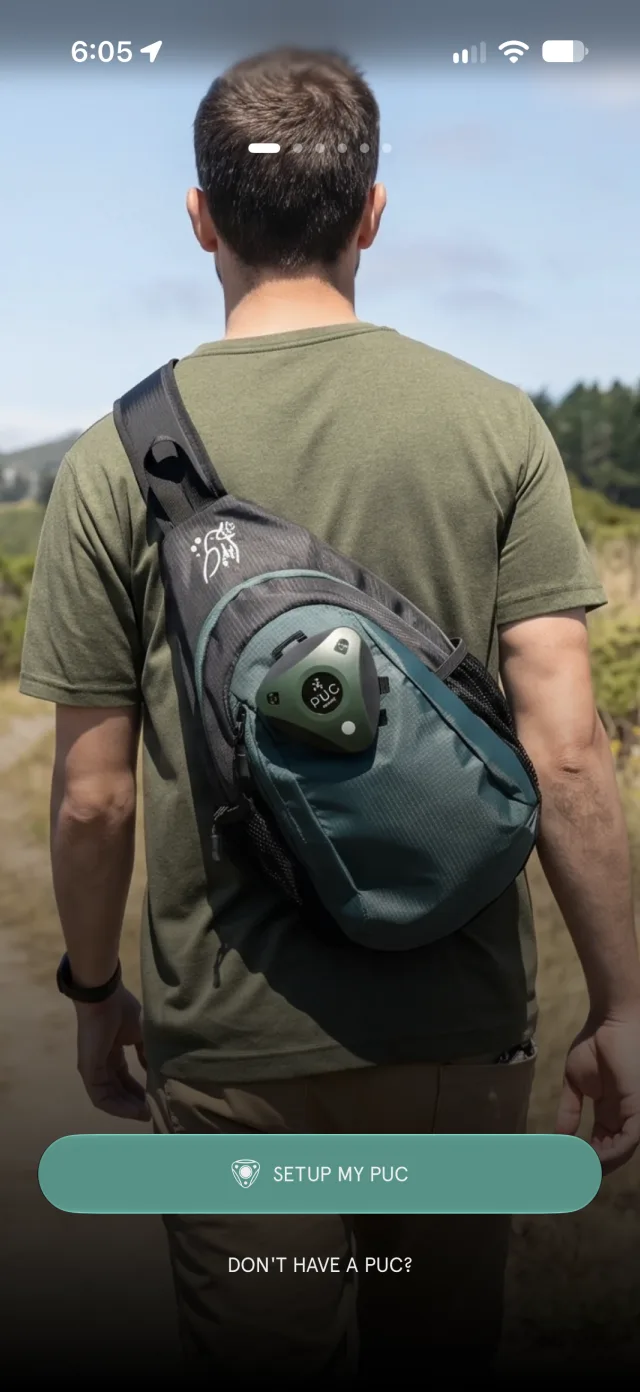
- Open the BirdWeather app and tap Setup my PUC. (No PUC yet? Tap Don't have a PUC? to explore other stations.)
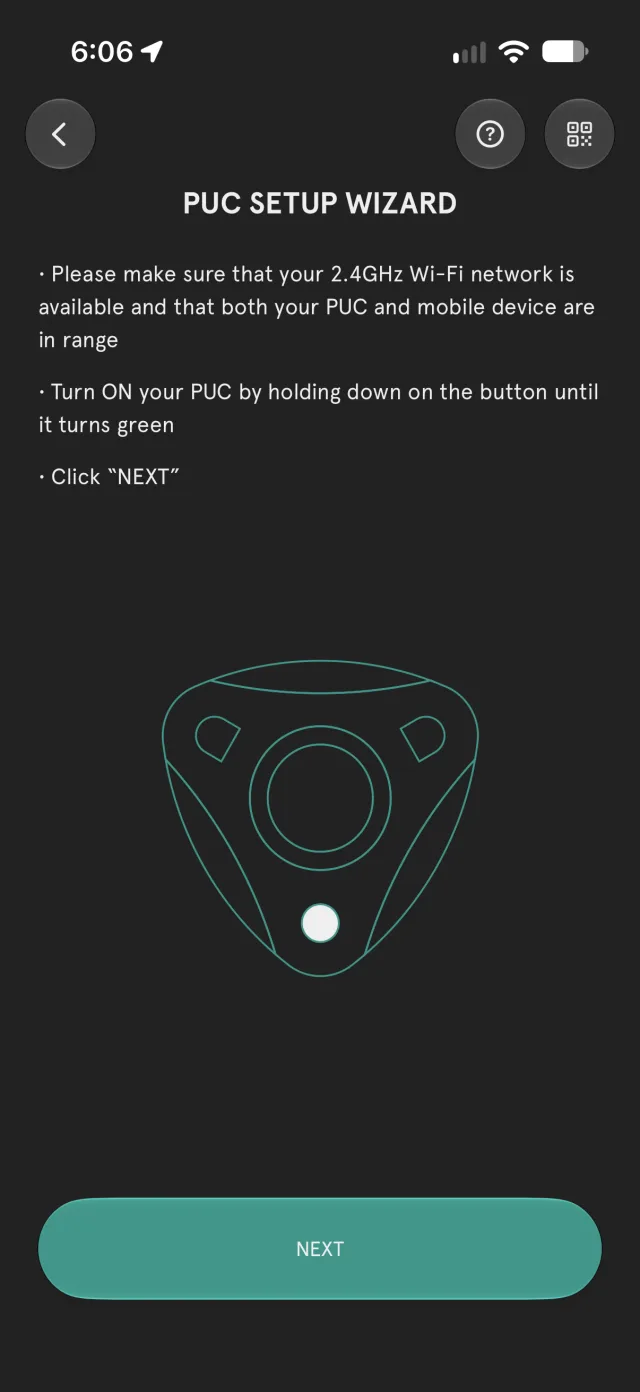
- The PUC Setup Wizard opens. Turn your PUC on by holding the button until it turns green, then tap Next.
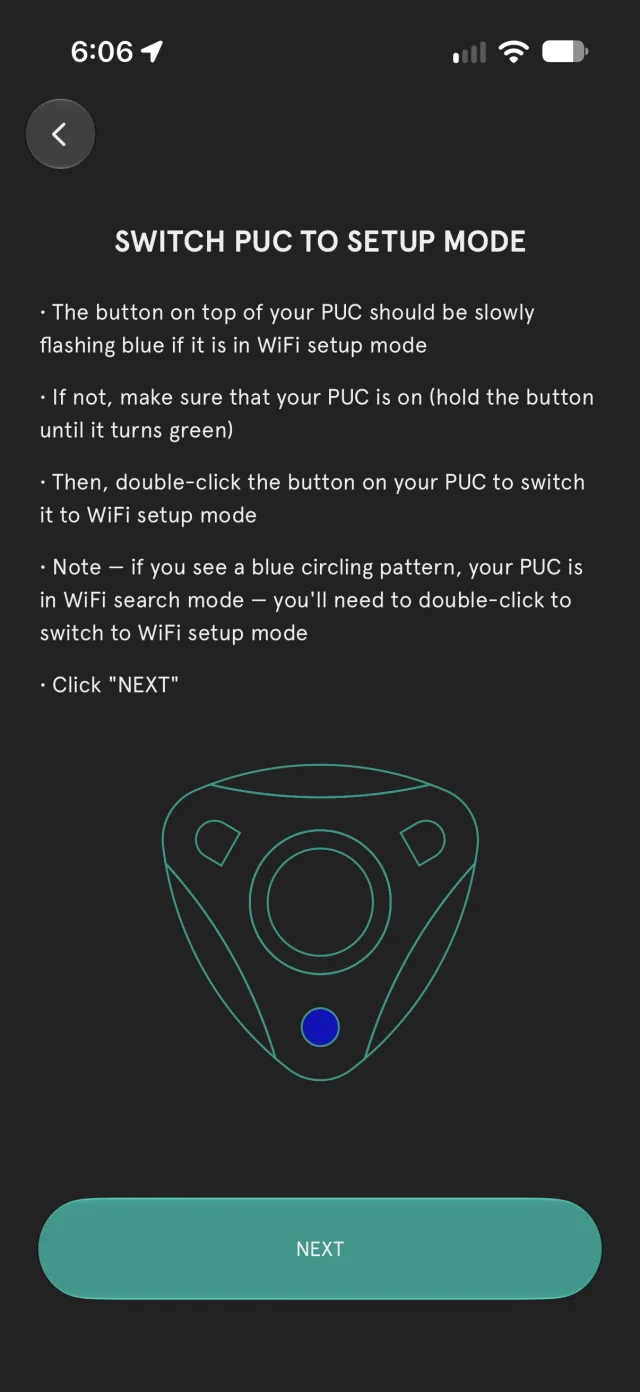
- Switch the PUC to WiFi setup mode: the button should be slowly flashing blue. If the blue lights are circling instead (WiFi search mode), double-click the button to switch to setup mode. Tap Next.
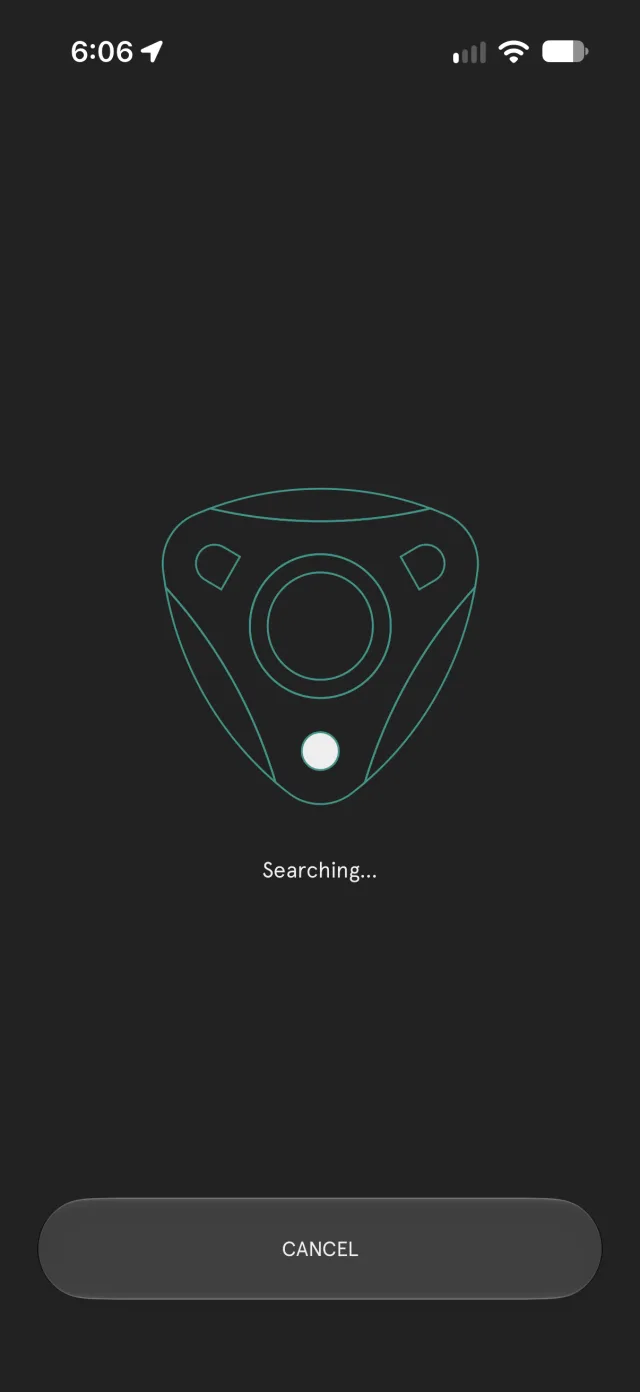
- The app finds your PUC and shows Select network: the 2.4 GHz WiFi networks the PUC can see. Pick yours, enter its password and tap Connect. If yours isn't listed, tap the refresh icon to scan again. For a hidden network, tap Other network and enter its name and password.
- When you see Setup Finished, tap Complete. The PUC double-blinks blue: it's now a live station. Until its GPS gets a fix, the app shows an estimated location.
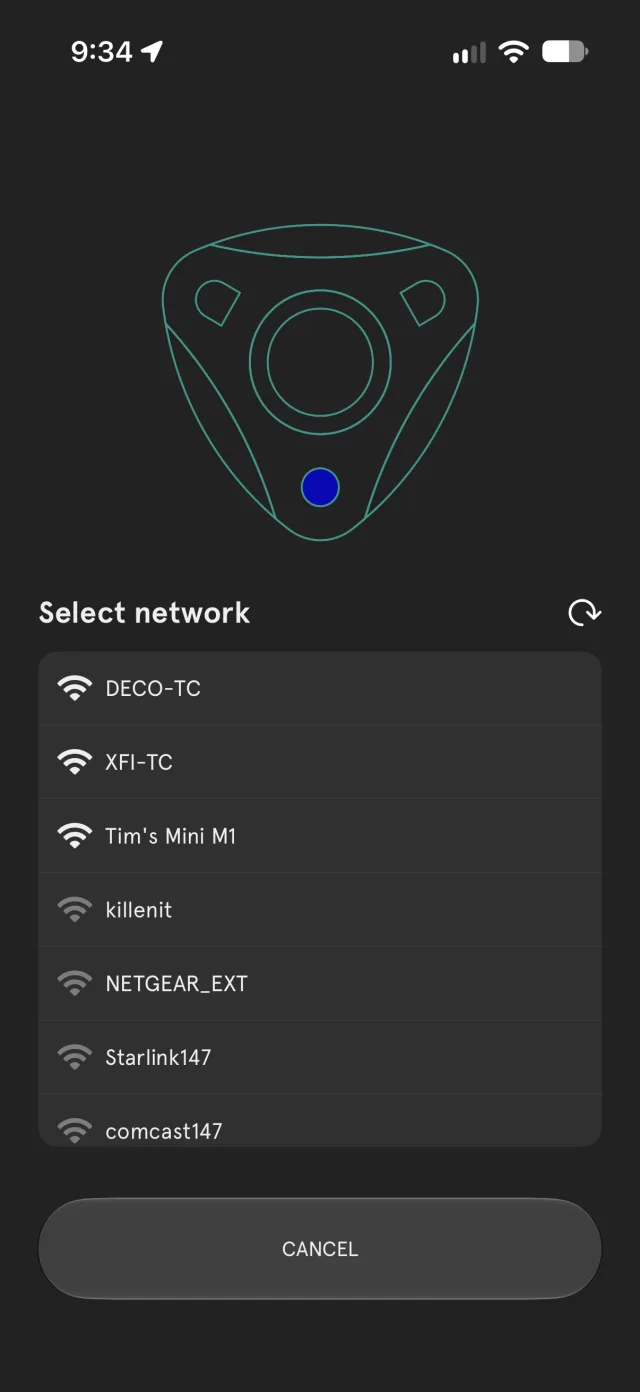

If the app can't find your PUC, see Setup can't find my PUC.
Changing networks, or adding another PUC
To move your PUC to a different WiFi network, put it back into WiFi setup mode: with the PUC powered on, double-click its button until it blinks blue slowly. Then tap Setup my PUC (at the bottom of PUC Settings) and follow the wizard.
Setup my PUC is also how you add a second (or third…) PUC to your phone.
3. 24×7 Live Station
Most PUCs live in a backyard, streaming every soundscape to BirdWeather day and night. These settings and tips keep a live station online and listening well.
Where to put it
Mounting: the clip-on adapter that comes with the PUC has a standard tripod thread, so you can use a mount like this one.
Shade: direct sunlight heats the PUC's casing and skews its temperature readings. A shaded spot is best.
Heavy rain: where your PUC will be exposed to heavy rain, it does better mounted more vertically than horizontally. That stops water pooling on top of the small microphone ports, which can reduce microphone sensitivity.
Angle: angling the PUC slightly downward keeps water out of the USB-C port while maintaining good microphone sensitivity. If you're powering it by cable, angling the port downwards (yes, the PUC logo ends up upside down) helps water drain away. The app's Motion tab shows the PUC's pitch and roll, so you can check the angle without climbing back up (see Motion and orientation).
Waterproofing the USB-C port (the extra bits bag)
Underneath your PUC is a little bag of rubber bits. If you're only planning to run on AA batteries, tuck them away somewhere safe. If you're planning to power the PUC over USB-C, read on.
Your PUC comes with a USB-C rubber plug already installed, plus a handful of spares in case you lose one. When no cable is connected, keep the port plugged outdoors to keep it clean. The port is waterproof, so moisture isn't a worry, but it isn't mud-proof.
The bag also contains custom o-rings. Use one to seal the USB-C cable against the PUC's port, with little or no gap between the two.


Recommended settings
| Setup | Mode | Recording Mode | GPS Mode |
|---|---|---|---|
| USB-C powered | Automatic | Continuous (or Smart) | Low-Power |
| Battery powered | Automatic | Continuous (or Smart) | Static |
If you can, power a live station from USB-C: it's a bit like magic, and the PUC stays online 24×7. On batteries, use lithium-ion rechargeables or lithium AAs (see Powering Your PUC).
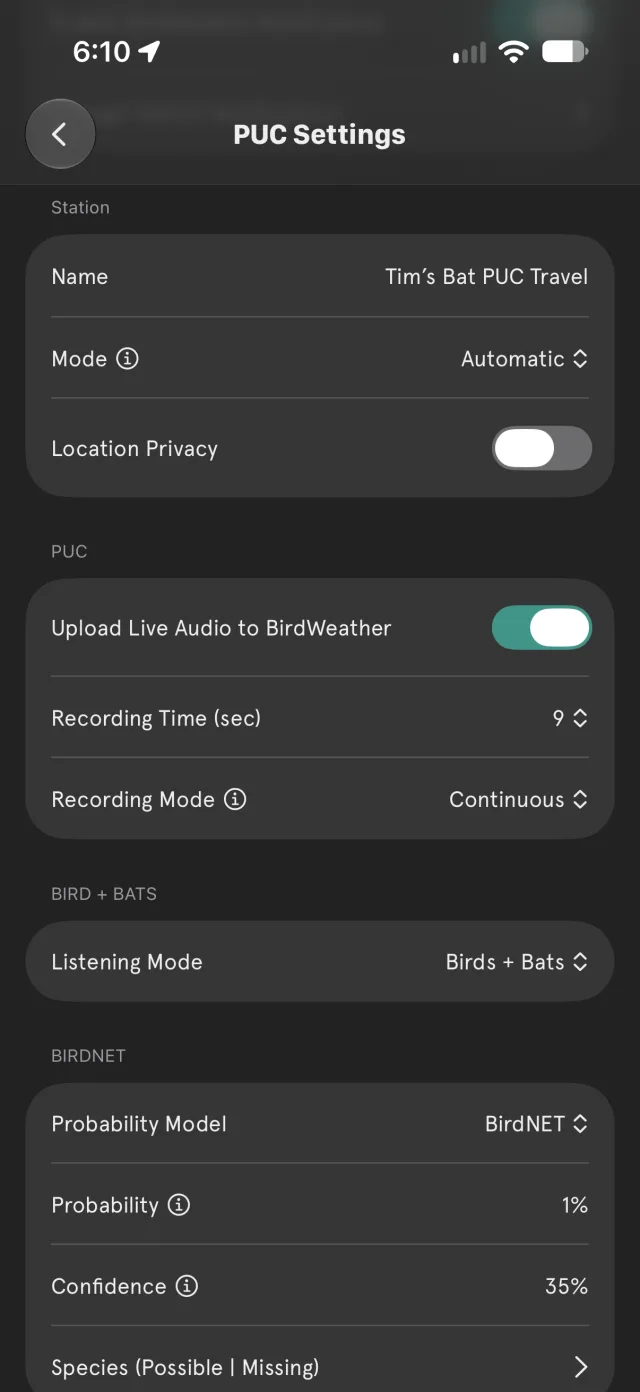
Station Mode
Set under Station → Mode in PUC Settings:
- Automatic (default): the PUC looks for WiFi at power-up and runs as a live station, unless you click the button to choose SD recording (see One button, two modes).
- Live Only: keeps the PUC a live station, continuously scanning for WiFi if it loses it. Handy through power or WiFi outages.
- Record Only: the PUC only stores soundscapes and sensor data on its SD card.
Recording Mode and schedules
Set under PUC → Recording Mode in PUC Settings:
- Continuous (default): records all the time.
- Smart: connects and disconnects from WiFi to save battery power. Some routers don't cope well with this (see Dropping offline in Smart mode).
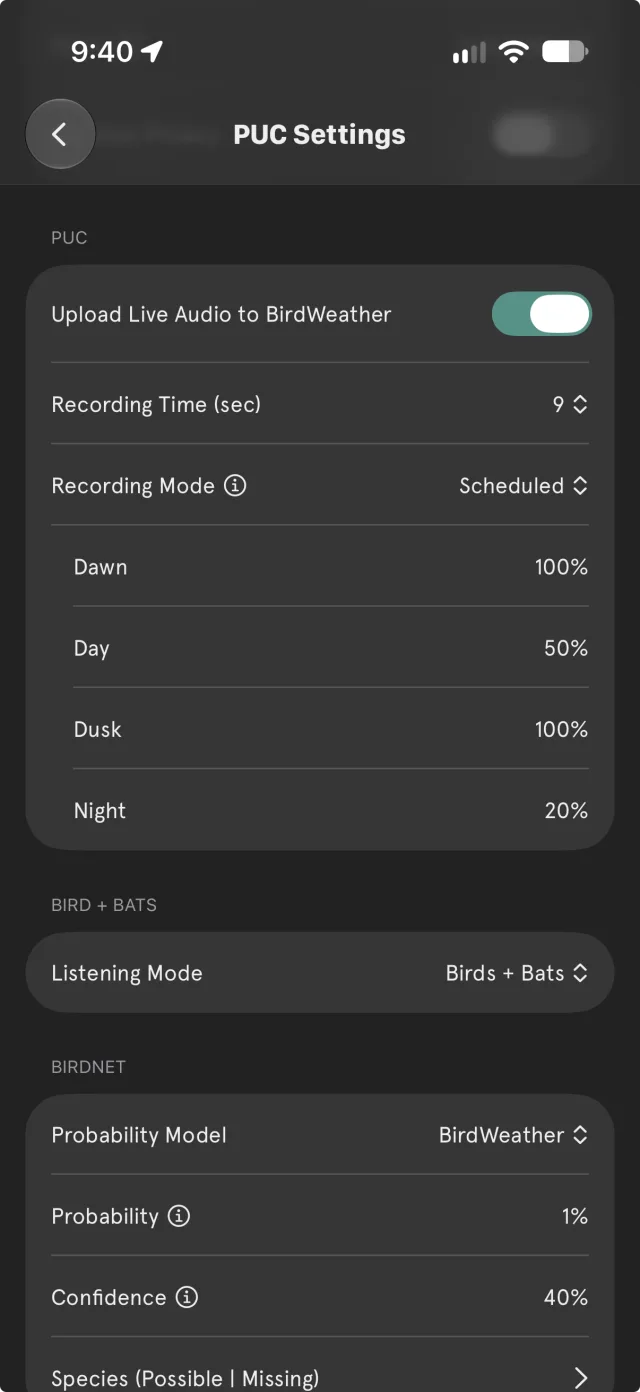
- Scheduled: records for a set share of each part of the day, to save battery.
Choose Scheduled and four rows appear underneath: Dawn, Day, Dusk and Night. Set the percentage of time the PUC records in each. The PUC works out sunrise and sunset itself; Dawn is the 3 hours around sunrise and Dusk the 3 hours around sunset.
Recording Time, just above, sets the length of each soundscape (9 seconds by default).
GPS modes
Set under Advanced Settings → GPS → Mode:
- Low-Power (default): suitable for most uses.
- Continuous: for high-precision location tracking.
- Static: best for fixed installations. You can also enter the latitude and longitude yourself if the PUC can't get a GPS fix.
4. Powering Your PUC
The PUC runs on three AA batteries or from its USB-C port. For a 24×7 live station, USB-C is the way to go; batteries are best for recording trips and as a backup. The Status tab in the app shows the current power source and voltage (see The Status tab).
USB-C power supplies
You can power the PUC through its USB-C port, but not every USB-C charger is happy powering it for long periods at its very low power draw.
The PUC's USB-C port is waterproof, but most USB-A/USB-C adapters aren't, so be mindful if your adapter or charger is likely to get wet. For an outdoor-rated AC adapter, we recommend this one; for solar, this panel has been working great on our own backyard PUCs (see USB-C solar power).
Use a relatively new USB-C cable. Older cables can fit loosely in the port, giving a poor connection and intermittent problems. Seal the connection with one of the included o-rings (see Waterproofing the USB-C port).
AA batteries
You can use any type of AA battery in your PUC (alkaline, lithium or lithium-ion), but we highly recommend lithium-ion rechargeables. They work very well with the PUC and won't leak if left in for long periods.
Because batteries vary so much in type and operating voltage, the BirdWeather app reports the combined (3× AA) voltage.
The PUC can't charge batteries through its USB-C port, so charge rechargeables externally. It is completely safe to leave batteries installed while the PUC runs on USB-C. They act as a backup, much like a UPS: if USB-C power is lost, the PUC switches to the batteries automatically and keeps running. For a backup set, use lithium-ion rechargeables or lithium AAs, not alkalines (see below).
Typical battery life on current firmware, running as a live station and posting every soundscape for analysis:
| Battery | Typical life |
|---|---|
| Amazon Basics alkaline | ~26 hrs |
| CZVV lithium-ion rechargeable | ~36 hrs |
| Golden lithium-ion rechargeable | ~40 hrs |
| Energizer lithium | ~48 hrs |
USB-C power banks
In theory, the PUC works with just about any USB-A or USB-C power bank that can deliver 5 V at 1 W or more. The trick is making sure it's waterproof and that the cables are well sealed at both ends against rain and debris. On the PUC side, use the rubber o-rings that came with it.
We highly recommend the Voltaic V50, which has an Always On mode that does exactly what it says.
Some power banks (and some wall chargers) switch off after a while even with the PUC connected and running, because the PUC draws so little power. If that happens, turn on Power Bank Mode in Advanced Settings: the PUC then draws a little more power continuously to keep them on.
USB-C solar power
- This low-cost 3 W solar panel (sold for outdoor wireless security cameras, with a built-in 6000 mAh battery) has been working nicely.
- This 5 W solar panel has also worked very well over six months of testing.
- The team at Voltaic have a nice write-up on using the PUC with their solar battery: Voltaic solar setup.
5. The BirdWeather App
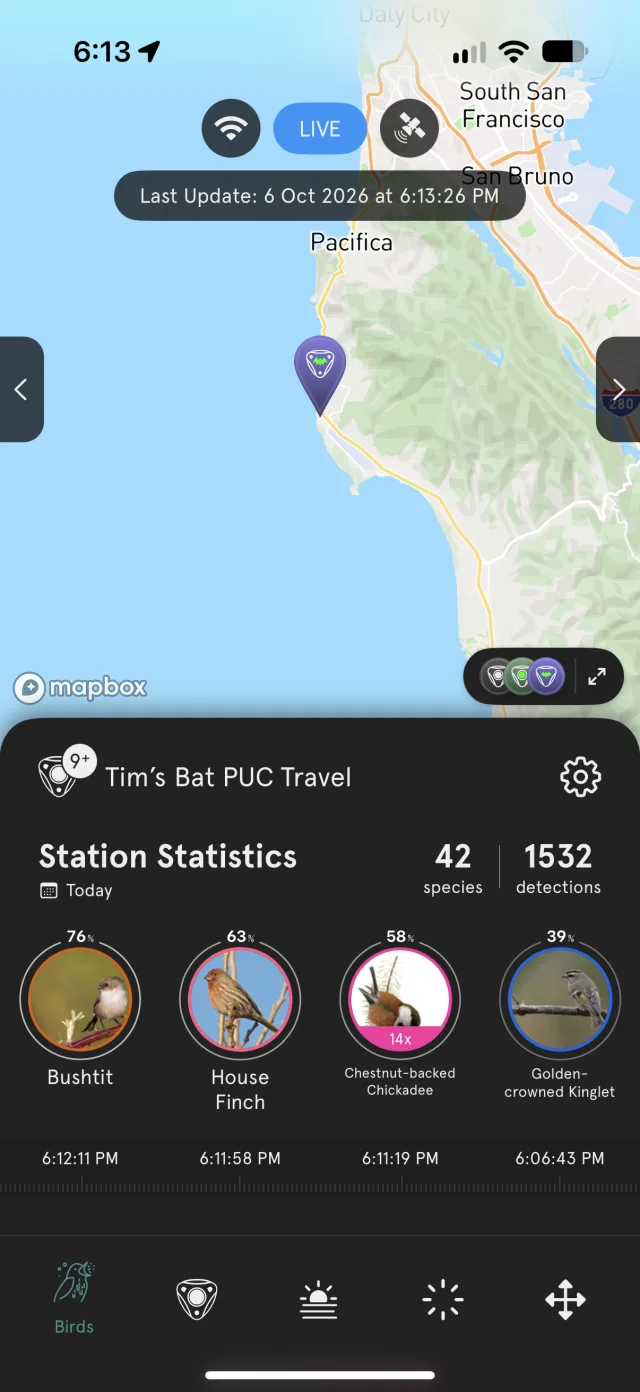
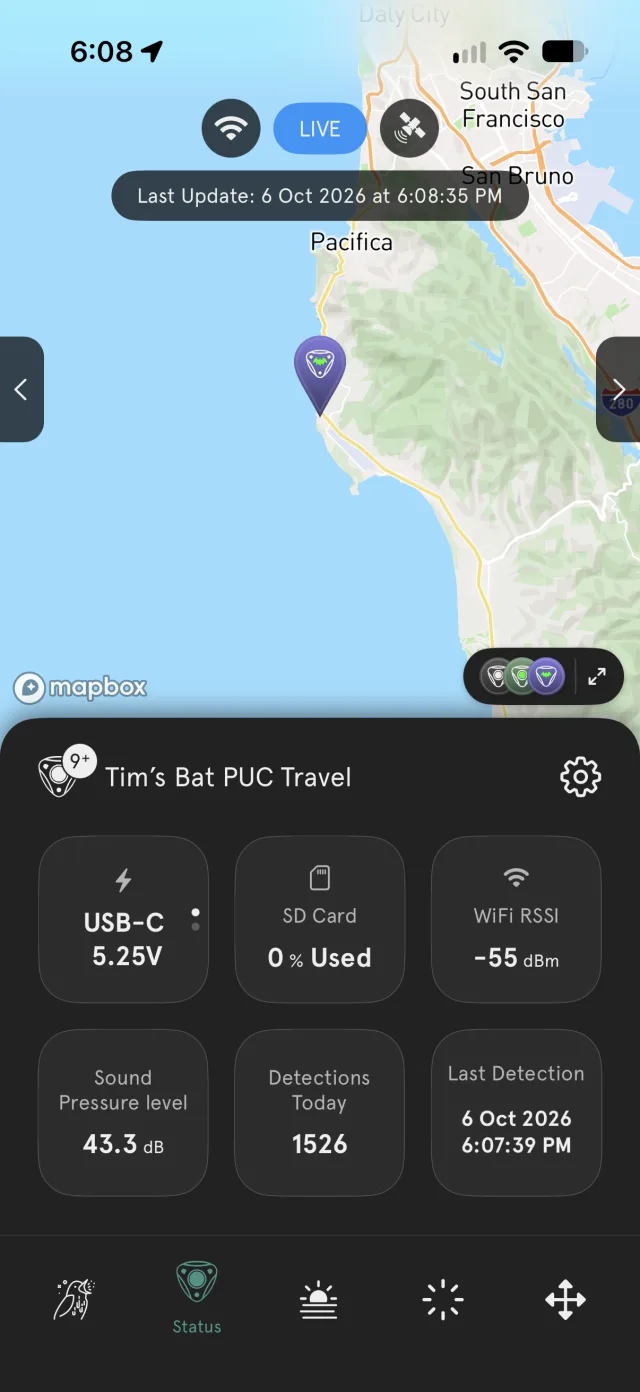
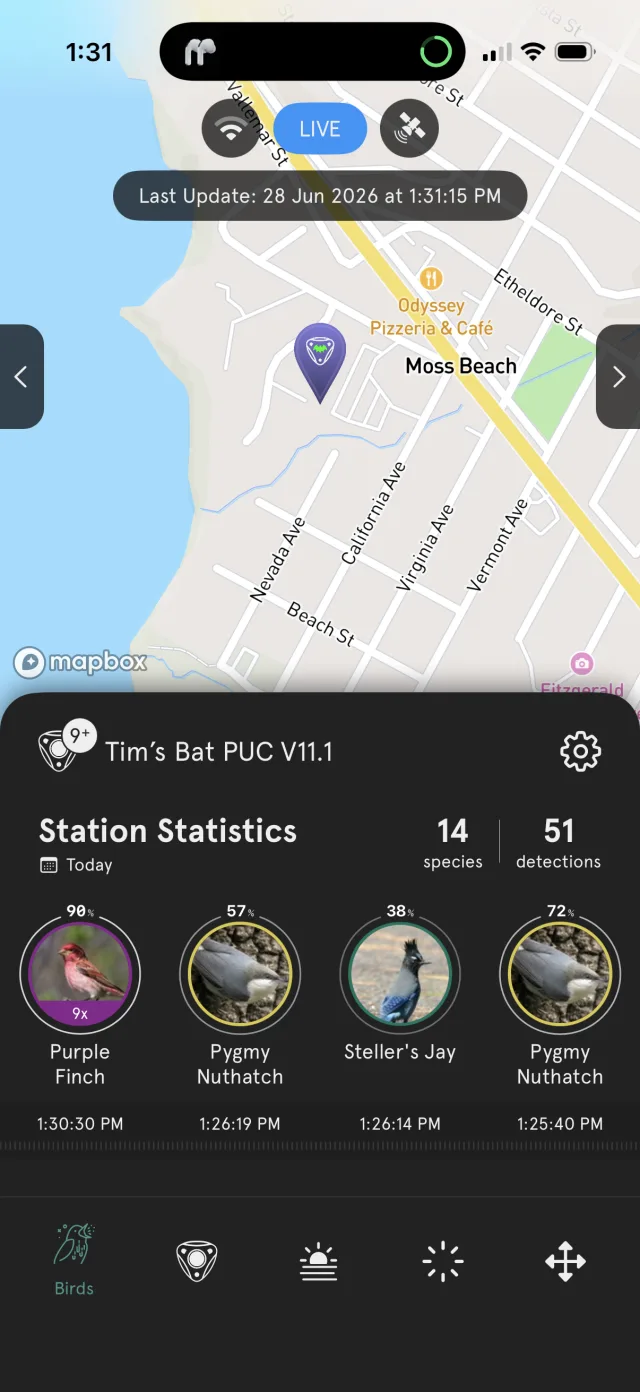
Your station's screen has a map at the top and a panel underneath, with five tabs along the bottom: Birds, Status, Environment, Light and Motion. The badges at the top show whether the PUC is connected to WiFi, whether it's LIVE, and its GPS, with the time of the last update.
Your detections
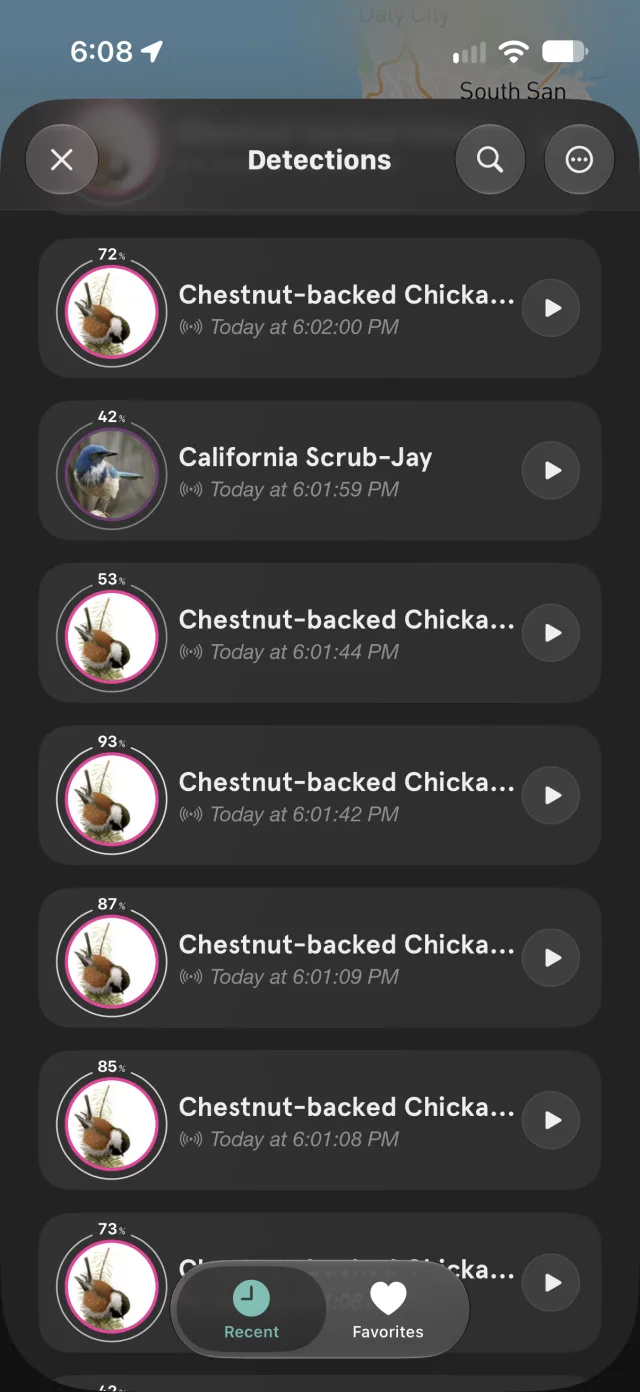
The Birds tab shows today's Station Statistics (species and detections) and your most recent detections, each with the time it was heard and a confidence ring.
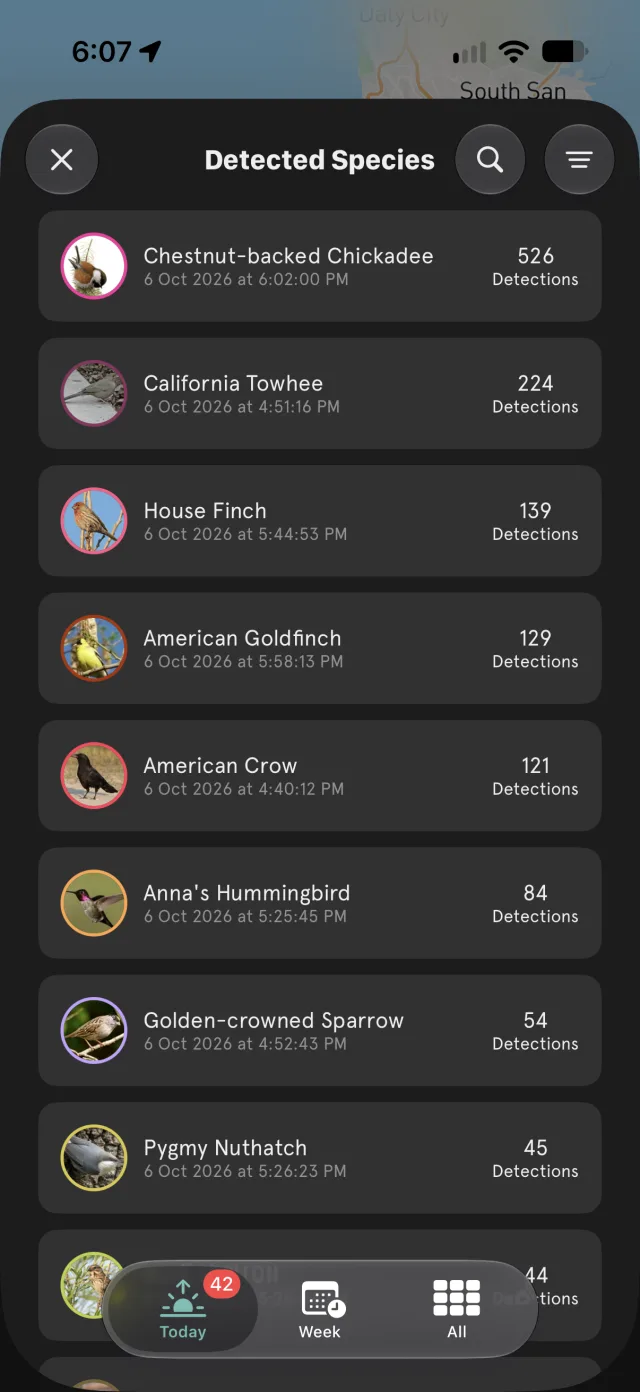
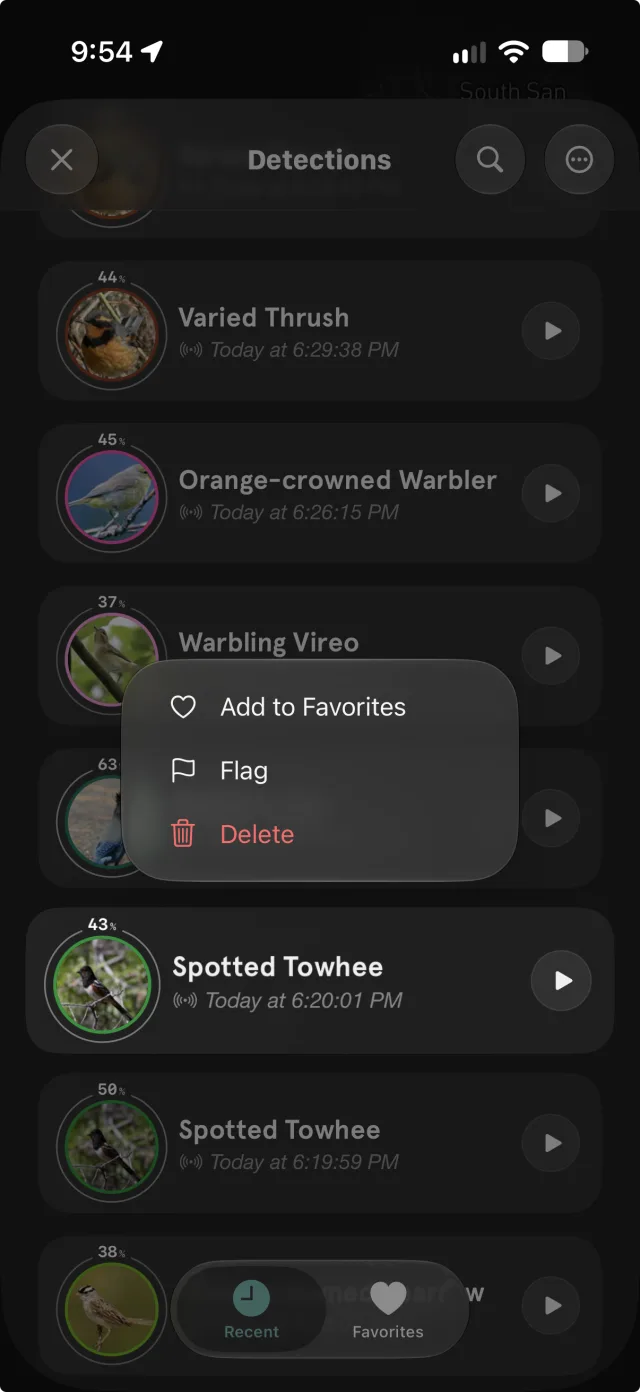
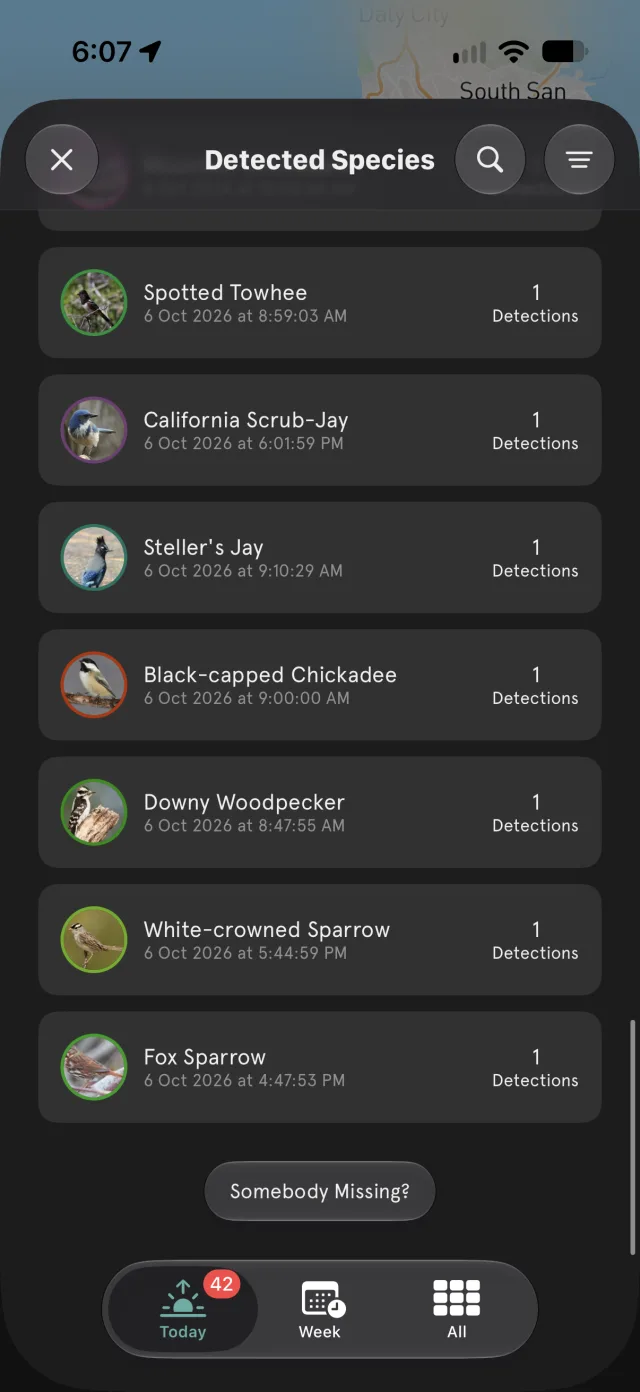
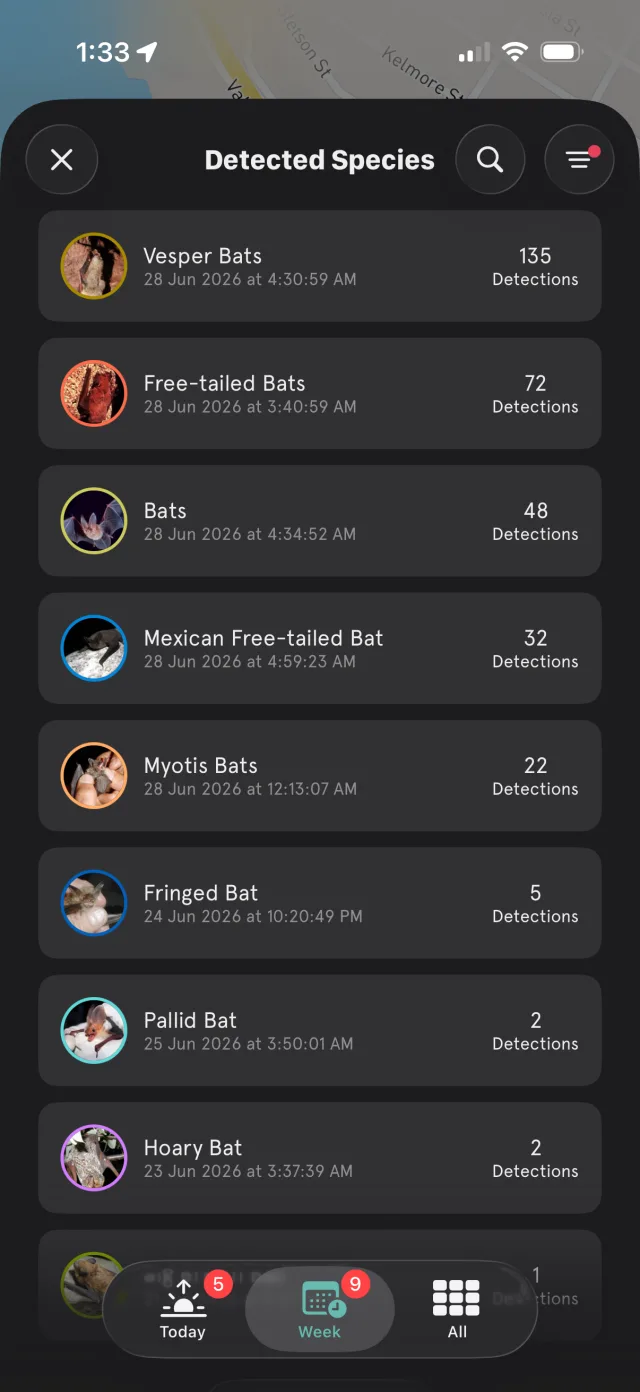
Tap the number under species (or under detections) to open Detected Species, or tap a bird's thumbnail to go straight to that species' detections. Detected Species lists every species your PUC has heard, ranked by number of detections, with Today, Week and All along the bottom. Tap a species to see each of its detections, and tap play to hear one. Press and hold a detection to Add to Favorites; your favorites collect under Favorites at the bottom of the list, next to Recent.
Playback and volume
Tap a detection to open the Soundscape player: the species, its confidence, the soundscape's spectrogram, and play controls. Tap the expand icon on the spectrogram for a full-screen view.
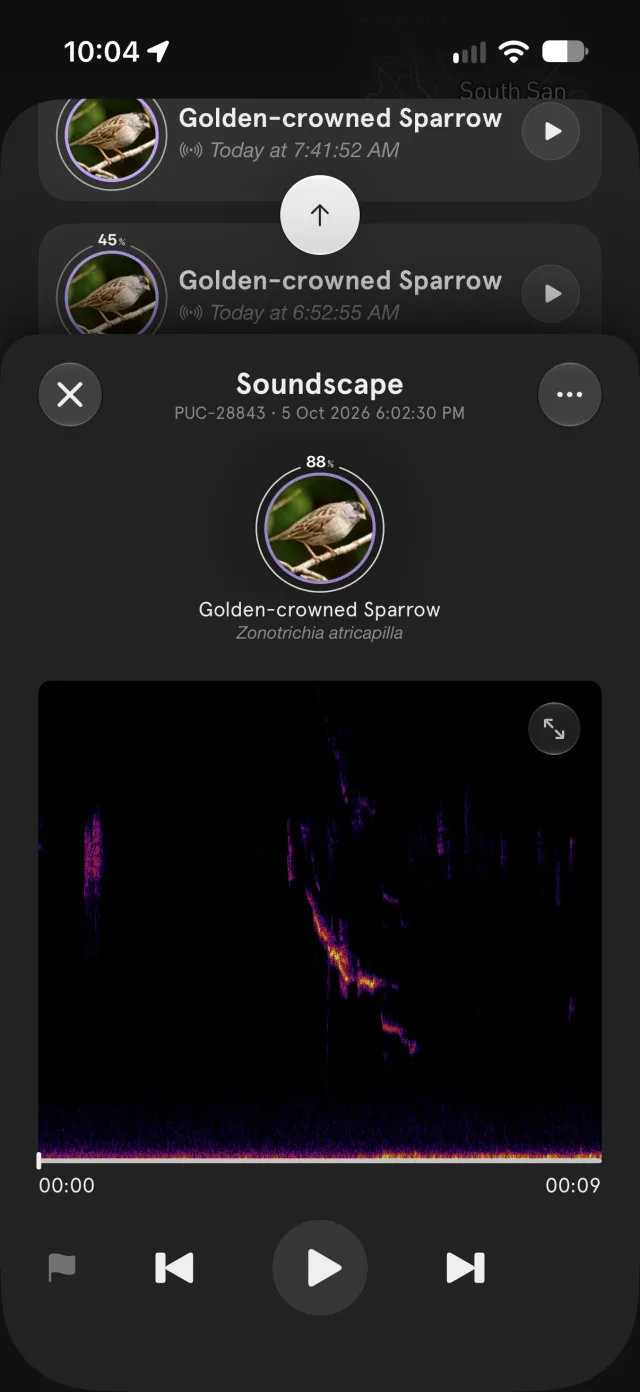
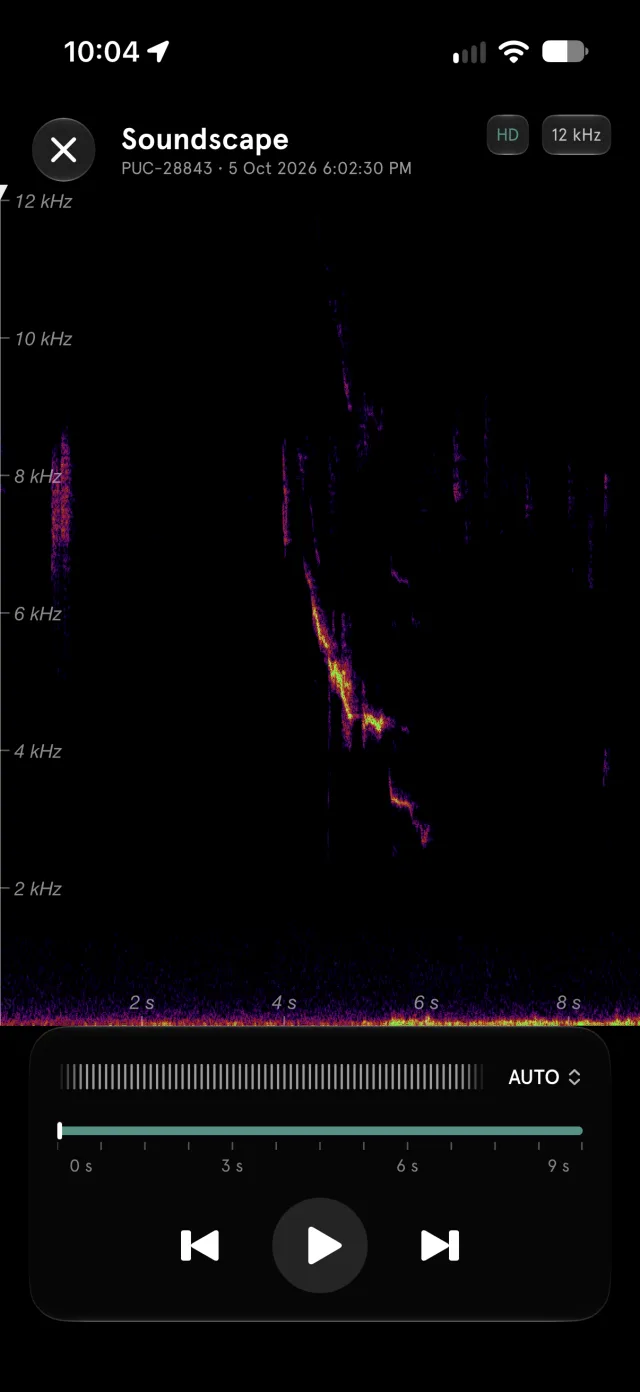
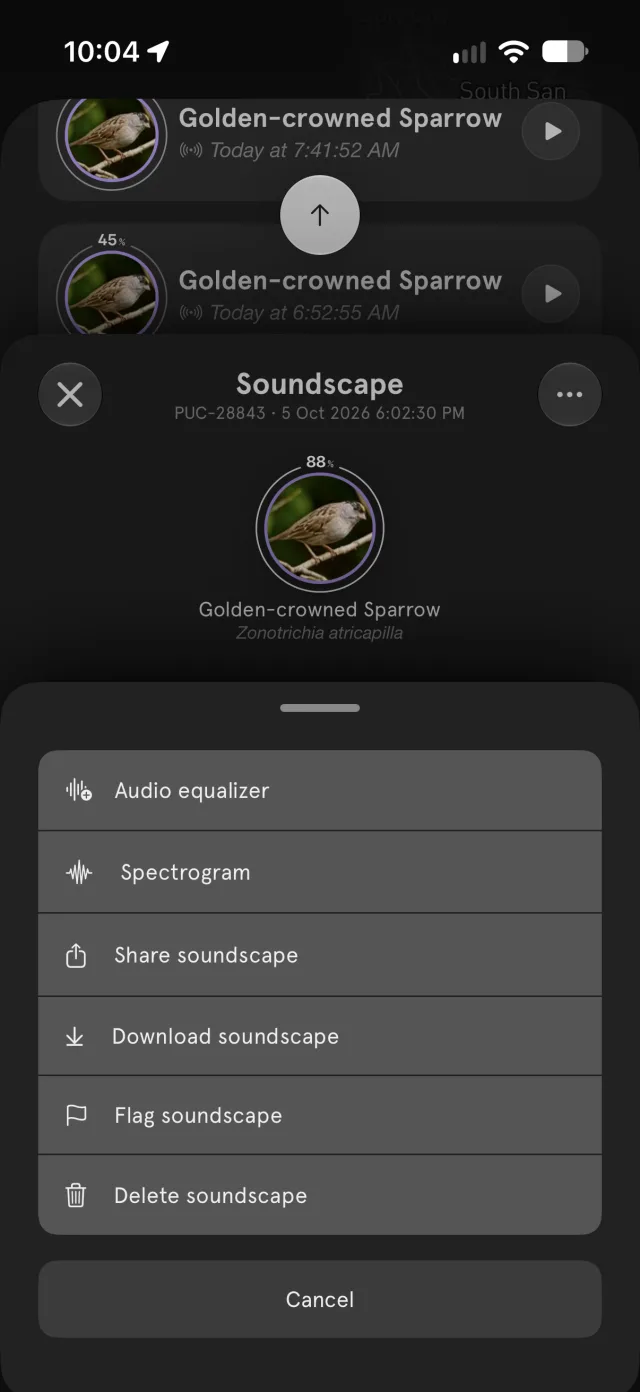
Tap … (top right) for more: Audio equalizer, Spectrogram, Share soundscape, Download soundscape, Flag soundscape and Delete soundscape.
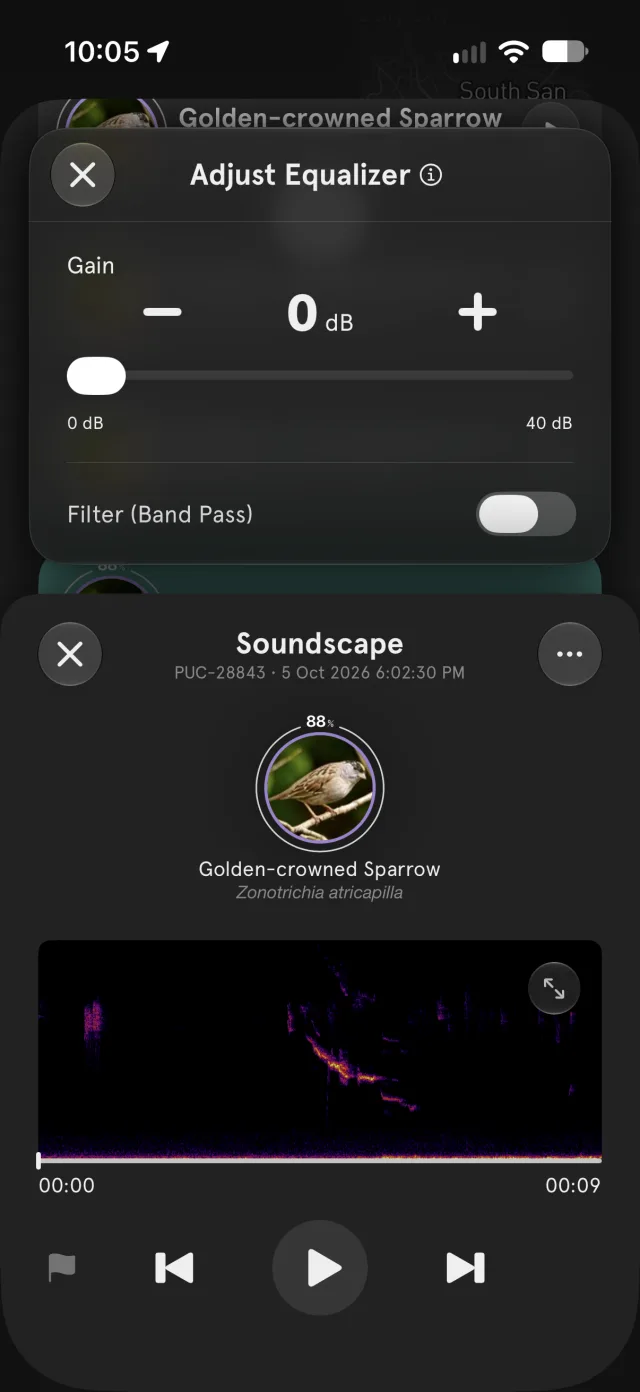
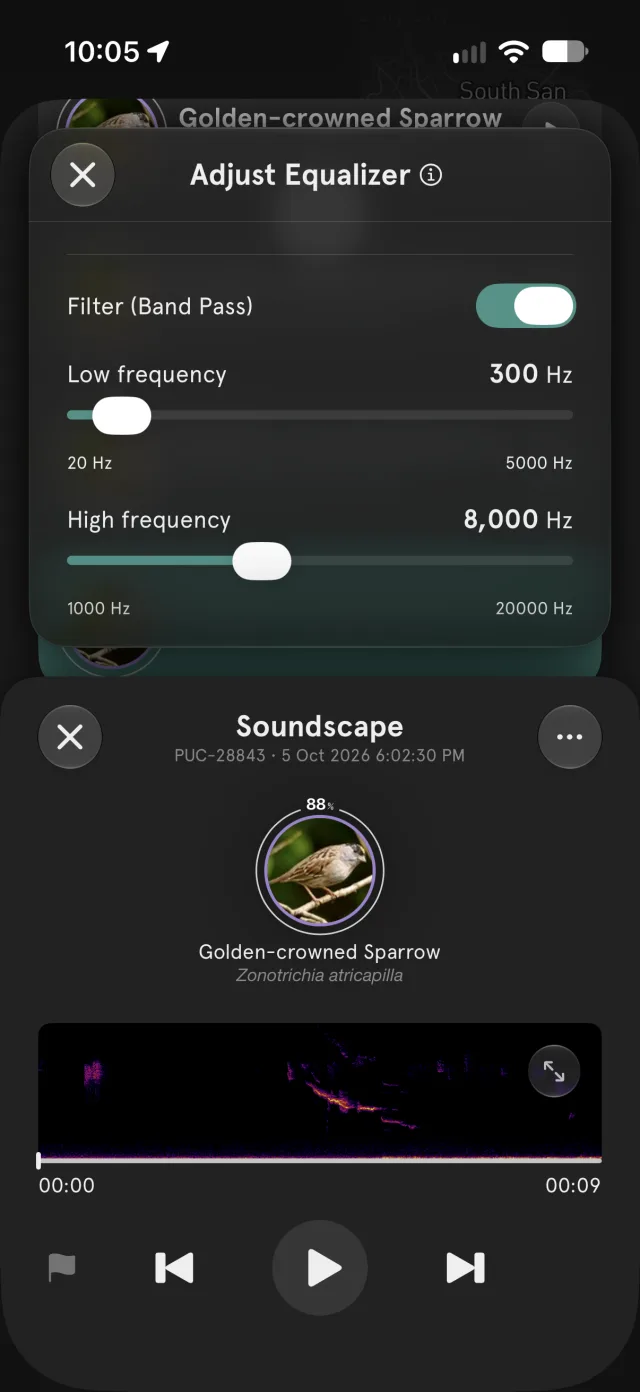
To make a quiet soundscape easier to hear, open Audio equalizer:
- Gain: turn the volume up, by up to 40 dB.
- Filter (Band Pass): keep only the sound between a Low frequency and a High frequency, to cut out rumble or hiss outside the bird's range.
The Status tab
The Status tab is your PUC's health check:
- Power: the source (USB-C or batteries) and its voltage.
- SD Card: how full the card is. Tap for the SD Card panel.
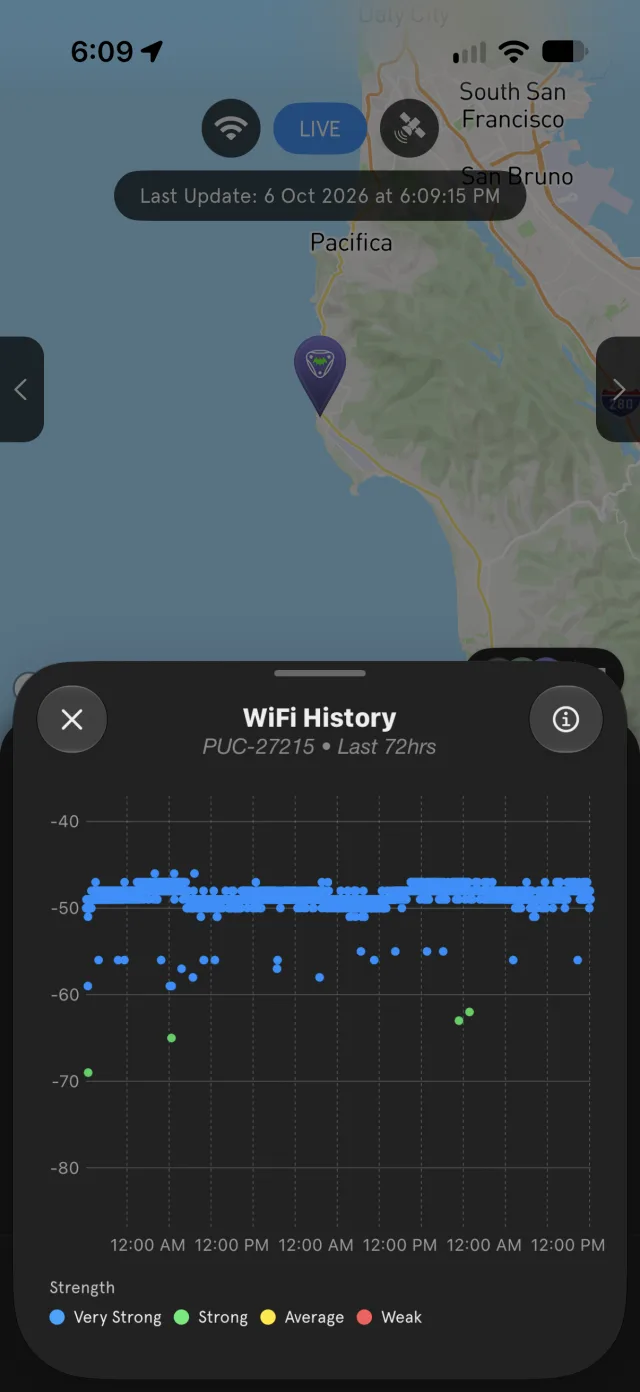
- WiFi RSSI: signal strength in dBm, where closer to zero is better. 3 bars is above −60, 2 bars −60 to −70, 1 bar −70 to −80, and no bars below −80 dBm.
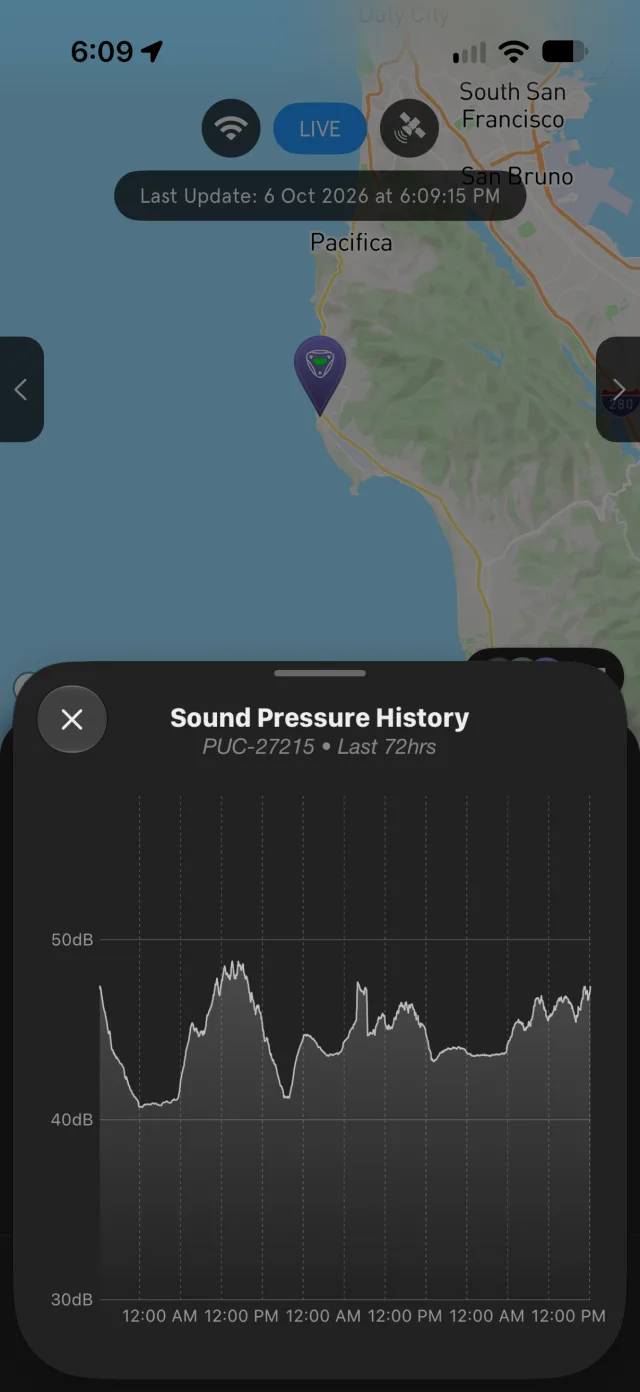
- Sound Pressure Level: how loud it is around the PUC, in dB.
- Detections Today and Last Detection.
Tap a tile to see its last 72 hours.
Confidence, probability and score
- Probability: the likelihood of a species being at your location at this time of year, from the Probability Model.
- Confidence: how confident the BirdNET AI is that a sound is a given species.
- Score: an arithmetic combination of confidence and probability, roughly how certain we are that a detection is correct.
Choose the Probability Model under BirdNET in PUC Settings:
- BirdNET (default): the probability model from the BirdNET team.
- BirdWeather: extends the BirdNET model with iNaturalist data, to correct places where BirdNET's model reaches too far or not far enough for a species.
Set the Probability and Confidence thresholds in the same section. They work as filters on your PUC's detections, and changes apply retroactively.
Renaming your PUC
Your PUC's default name is its station number (for example PUC-1732), but you can change it to something more personal. Open PUC Settings (the gear icon) and edit Name under Station. Please be nice.
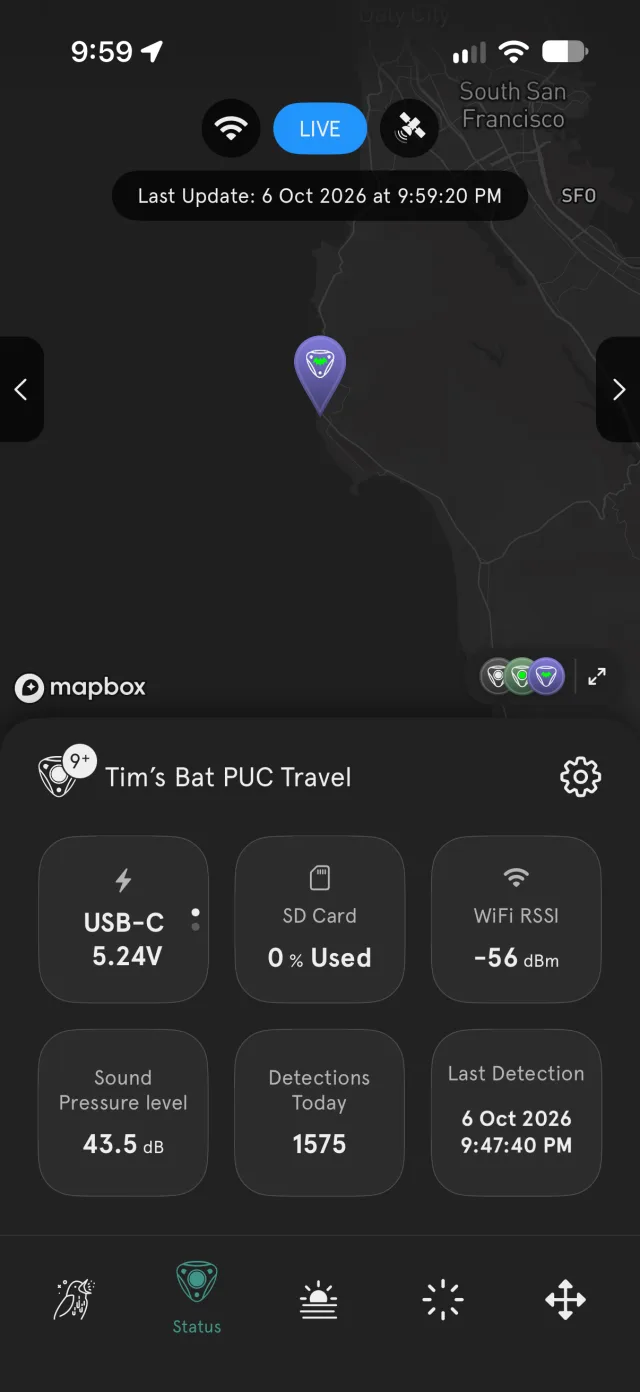
Following a PUC (or your own on a second phone)
You can follow any BirdWeather station, including your own PUC on a second phone. Don't use Setup my PUC for this. Instead:
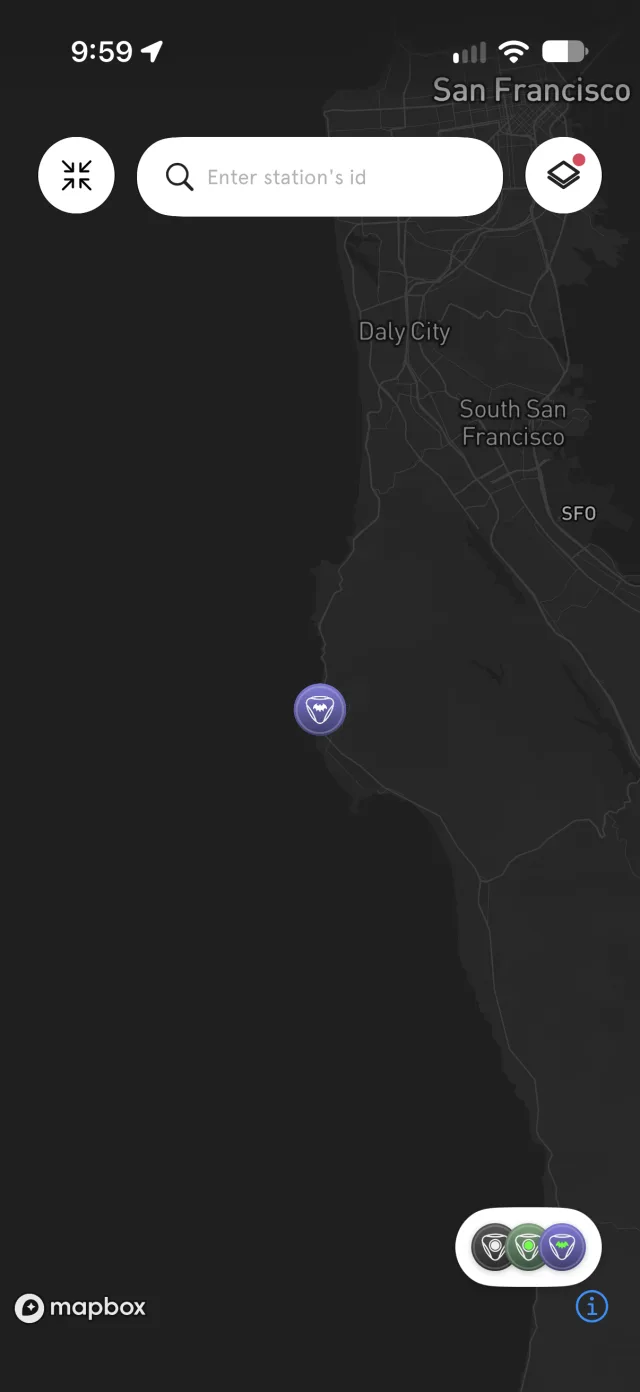
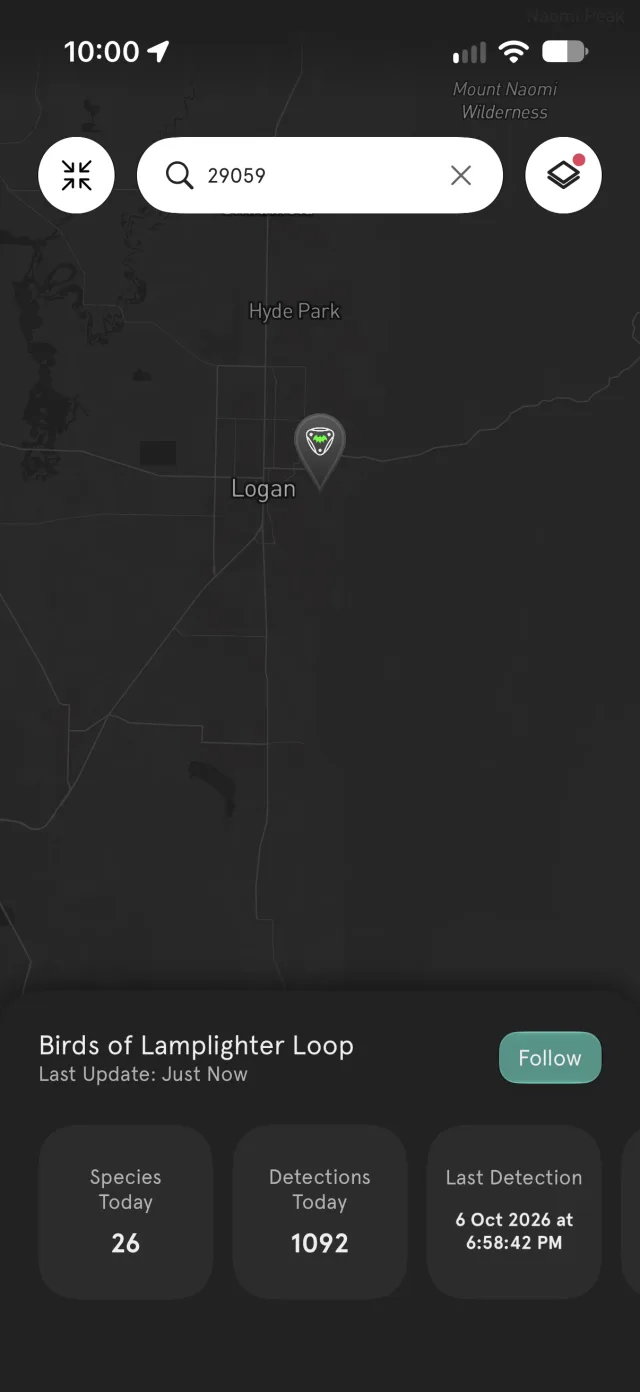
- Tap the little collection of station icons in the lower-right corner of the map. The map opens full screen.
- Enter the station's ID (the number in PUC-####) in the search box.
- The station's card appears: tap Follow.
You'll then see all of its data alongside your own.
Settings reference
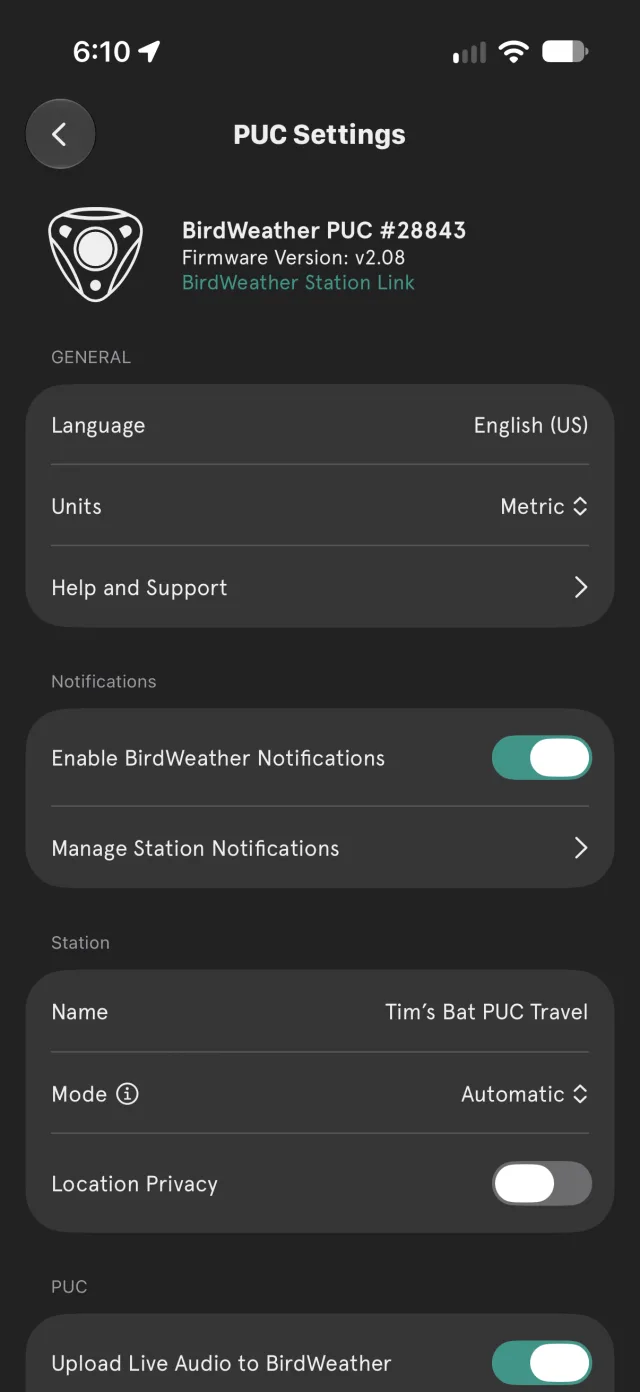
Tap the gear icon on your station's panel to open PUC Settings. The top of the page shows your PUC's number, its firmware version and a link to its BirdWeather station page.
General
- Language and Units (metric or imperial).
- Help and Support
Notifications
- Enable BirdWeather Notifications: turns the app's notifications on or off.
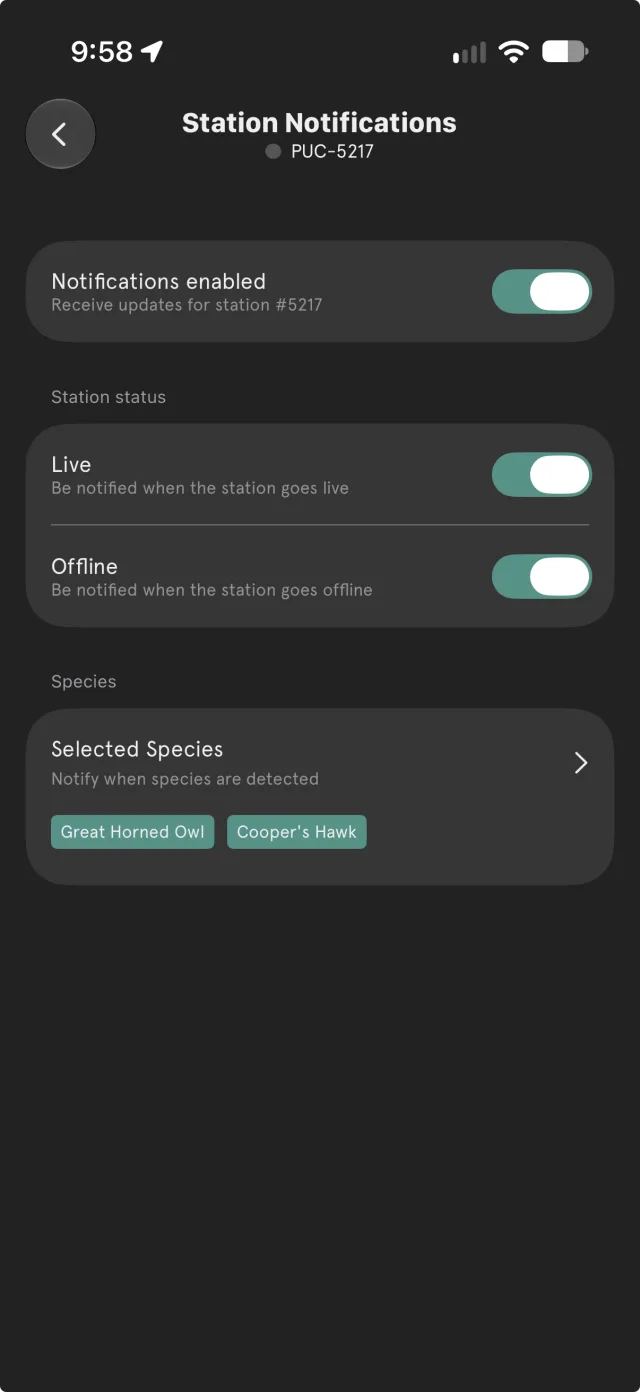
- Manage Station Notifications: choose what each station tells you about:
- Live and Offline: when the station goes live or goes offline.
- Selected Species: when a species you've picked is detected, say a Great Horned Owl or a Cooper's Hawk.
Station
- Name: see Renaming your PUC.
- Mode: see Station Mode.
- Location Privacy: when on, obscures your PUC's location.
PUC
- Upload Live Audio to BirdWeather: required for detections, but also a quick way to "mute" your PUC.
- Recording Time and Recording Mode, with the Dawn/Day/Dusk/Night schedule when it's set to Scheduled: see Recording Mode and schedules.
Bird + Bats (Bat Edition only)
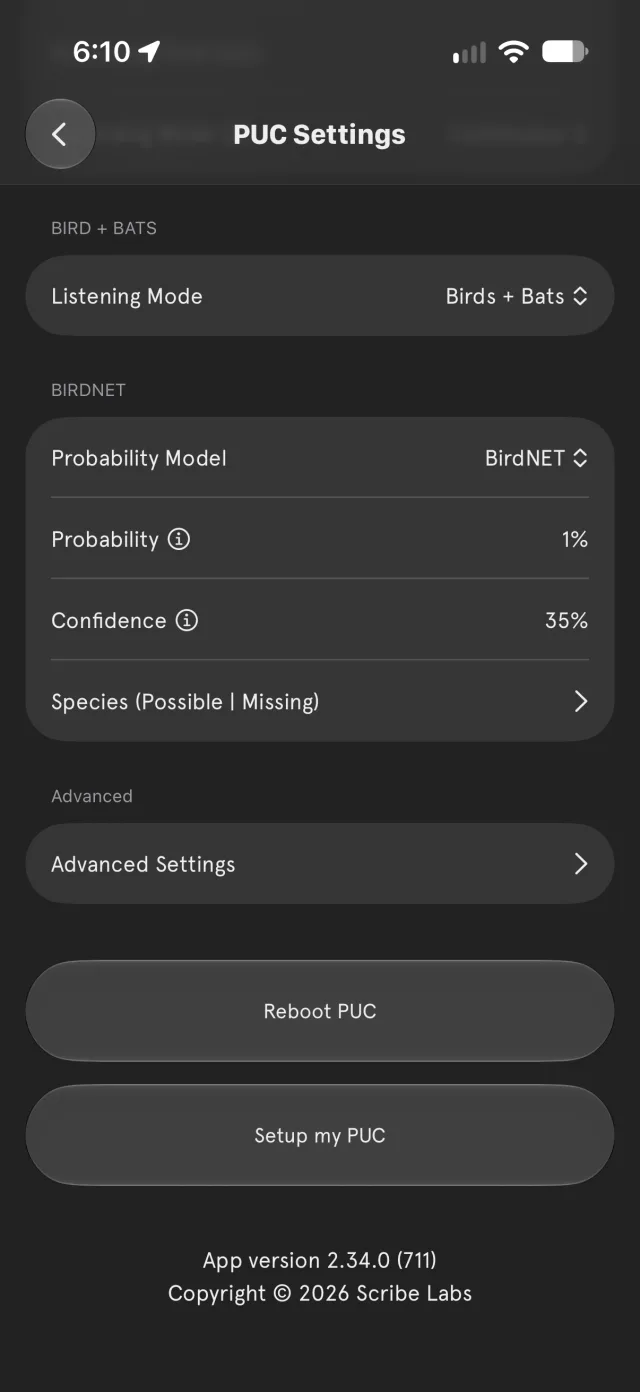
- Listening Mode: Birds Only, Birds + Bats or Bats Only. See Listening modes.
BirdNET
- Probability Model, Probability and Confidence: see Confidence, probability and score.
- Species (Possible | Missing): opens the hidden species explorer (see No detections, or missing obvious bird calls).
Reboot PUC and Setup my PUC
- Reboot PUC restarts your PUC if it is currently live. It won't reboot a PUC that is powered off or offline.
- Setup my PUC adds another PUC to your phone, or moves a PUC to a different WiFi network (see Changing networks).
Advanced Settings
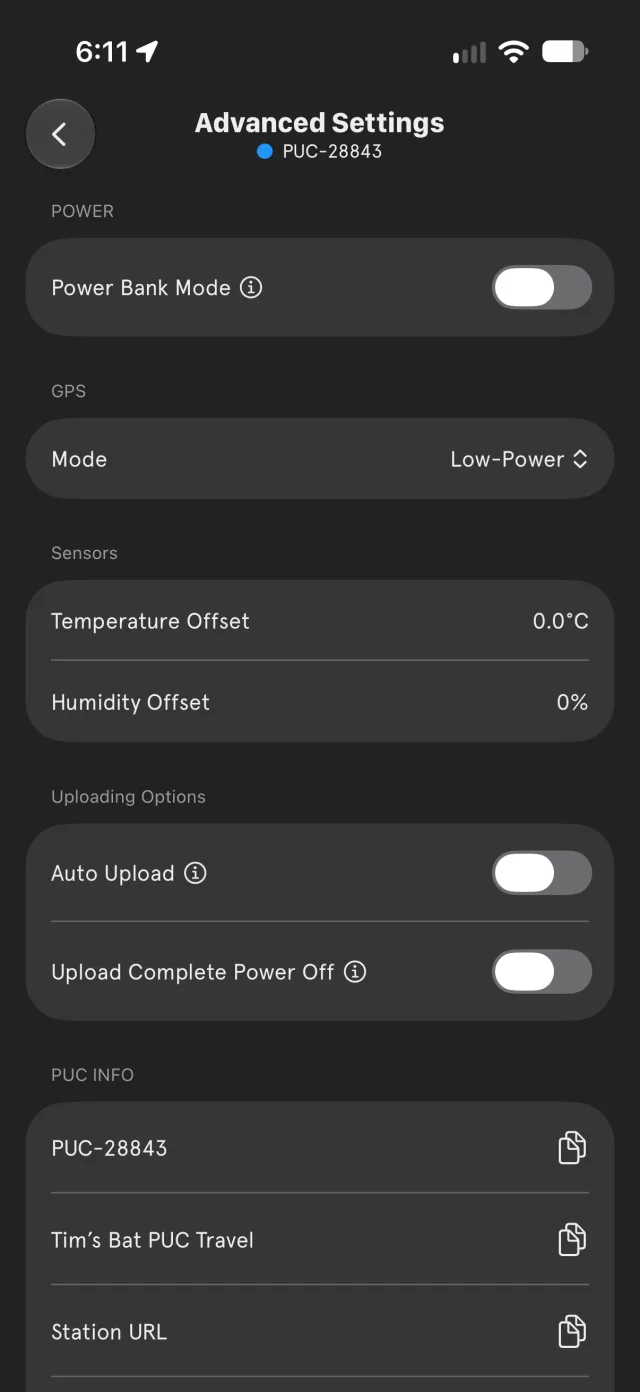
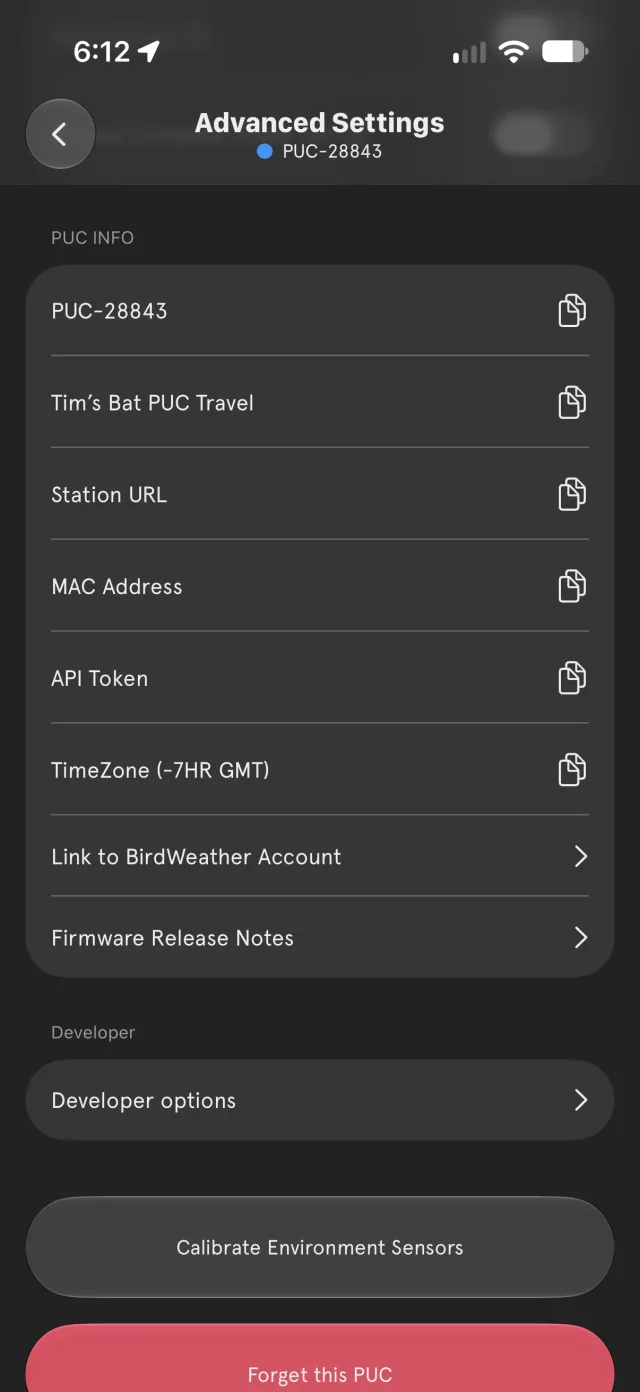
- Power Bank Mode: see USB-C power banks.
- GPS Mode: see GPS modes.
- Temperature Offset and Humidity Offset: correct your PUC's temperature or humidity if they consistently read high or low.
- Auto Upload: uploads SD card recordings automatically when the PUC is back on WiFi. Upload Complete Power Off: turns the PUC off when that upload finishes. See Uploading from the SD card.
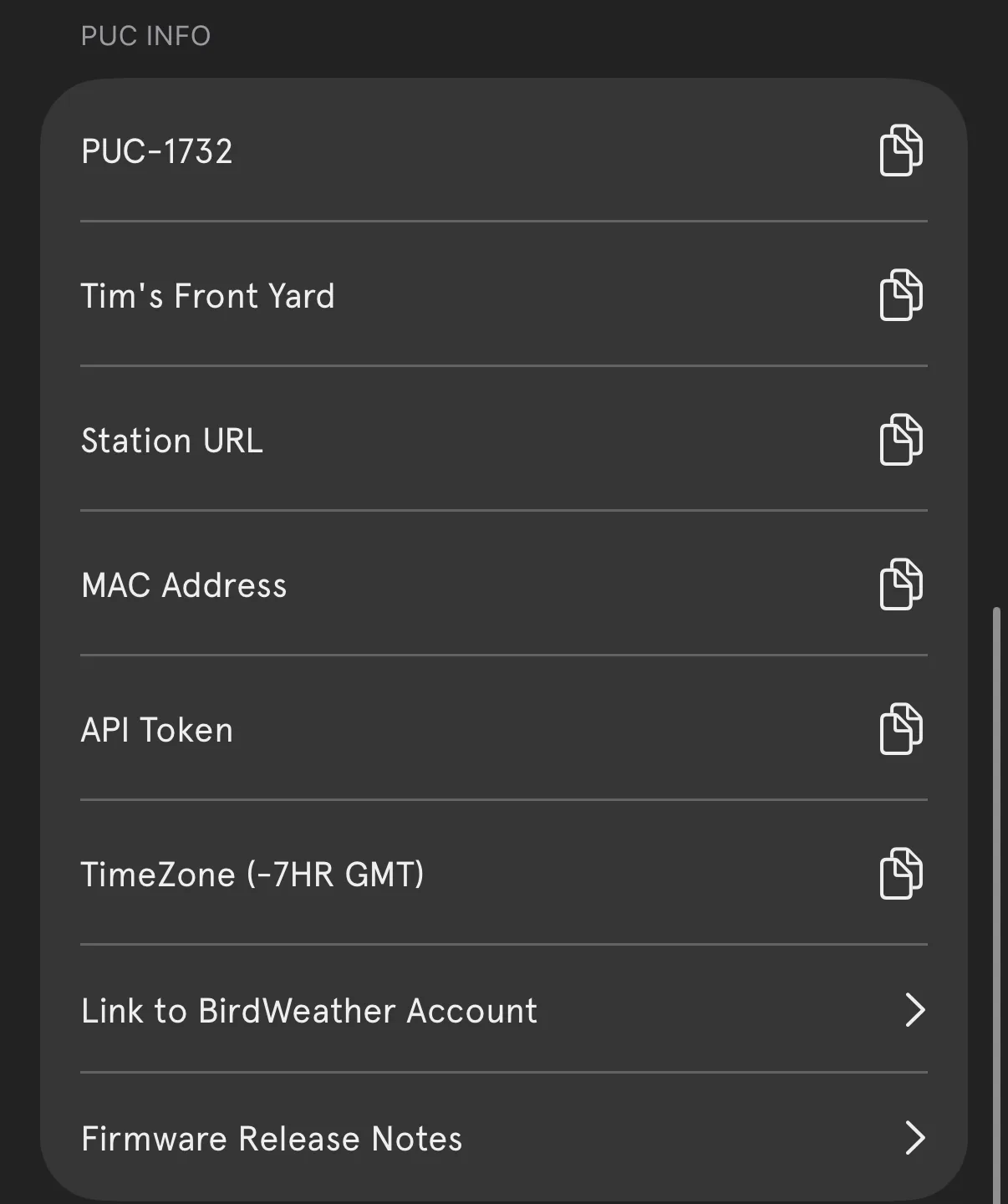
- PUC Info: your PUC's number, name, station URL, MAC address, API token and time zone, each with a copy button; Link to BirdWeather Account; and the Firmware Release Notes.
- Calibrate Environment Sensors: see Air quality readings.
- Forget this PUC: removes your PUC from your phone. The PUC itself stays connected to WiFi.
6. Your Data on the Web
Everything your PUC hears is also on the BirdWeather web app, alongside every other station. You don't need an account to explore; a free login lets you export data and download soundscapes.
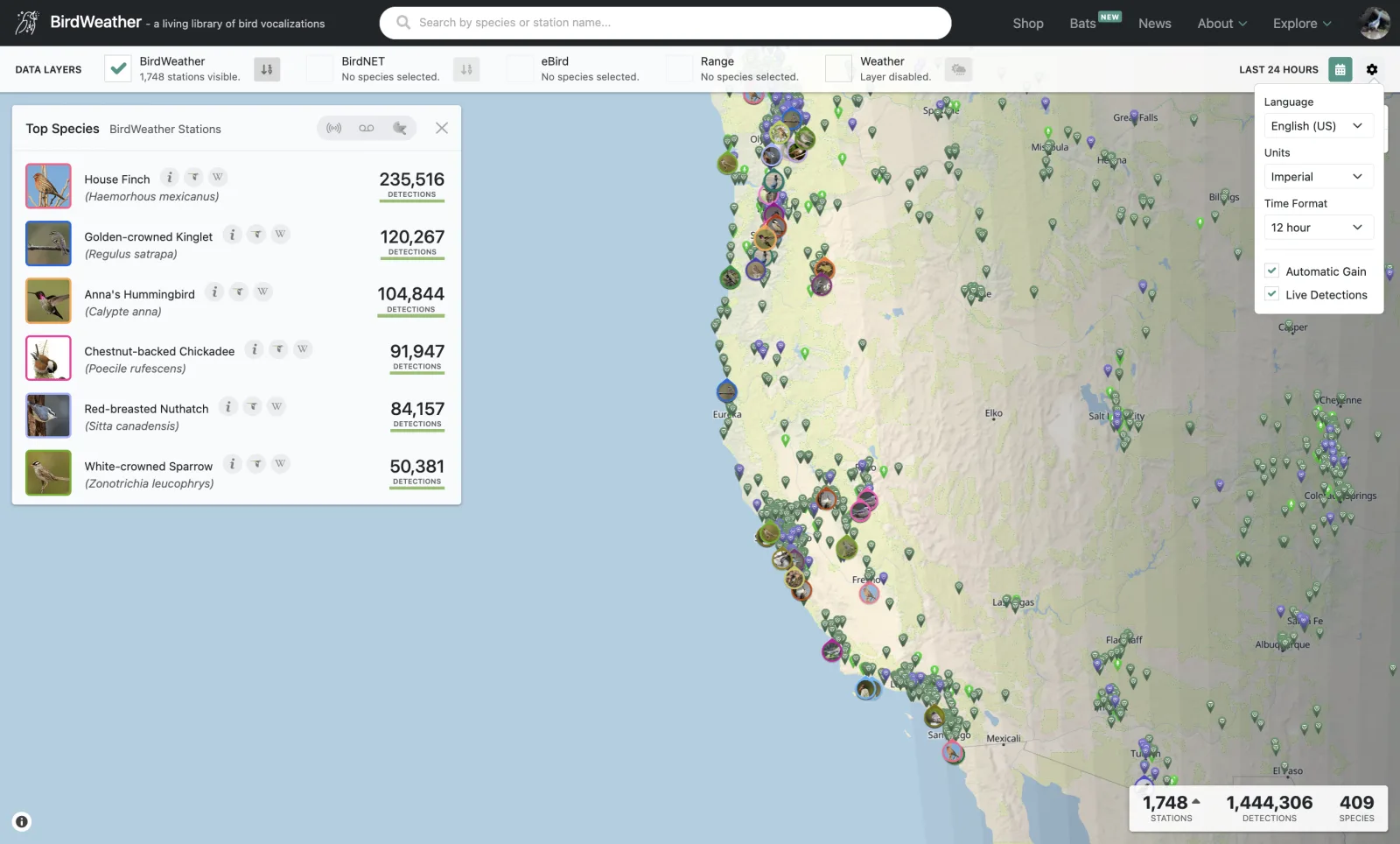
The Live Map
The Live Map shows every BirdWeather station, with the Top Species for the stations in view and running totals of stations, detections and species in the corner. Search for a species or a station name in the search bar at the top.
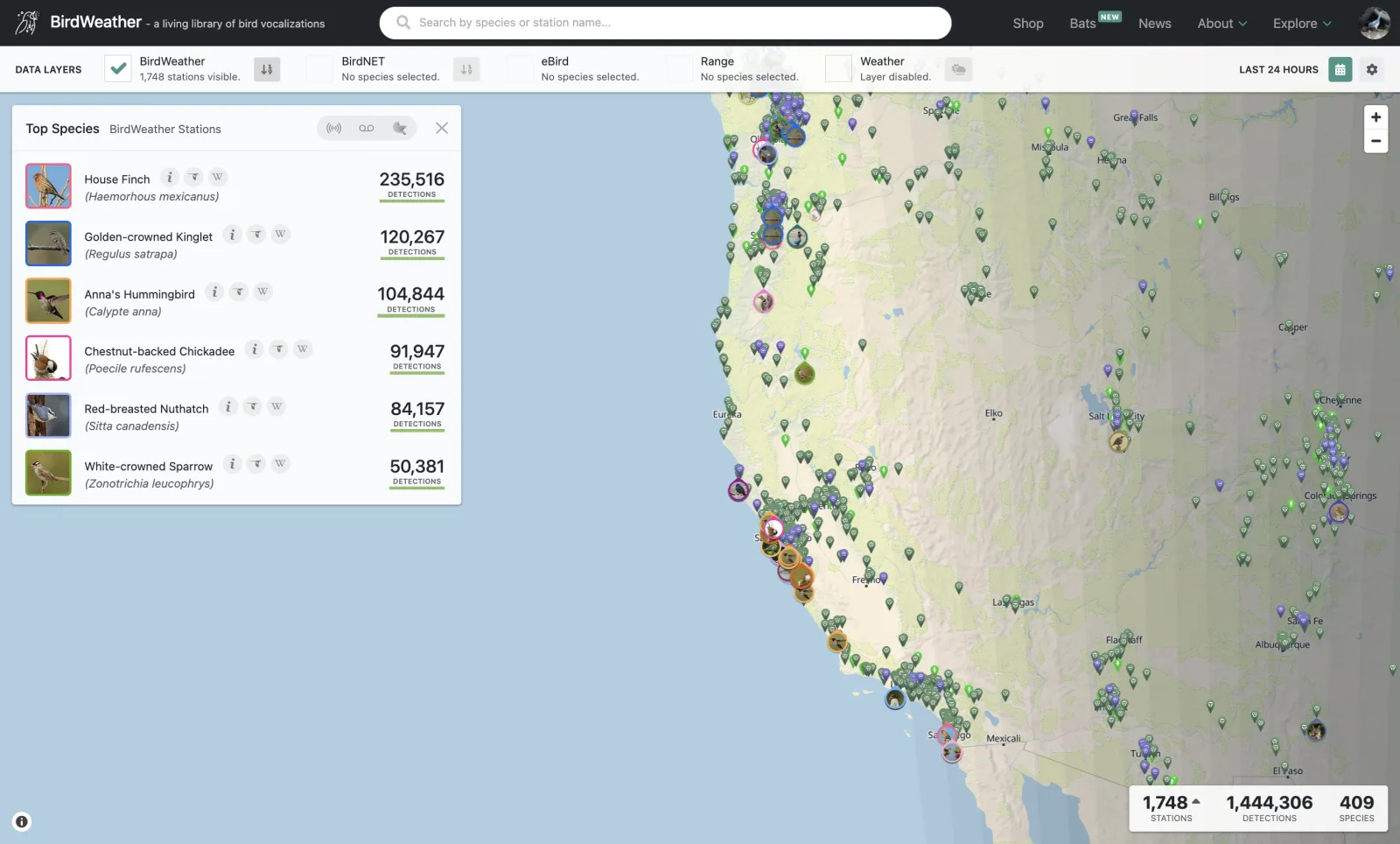
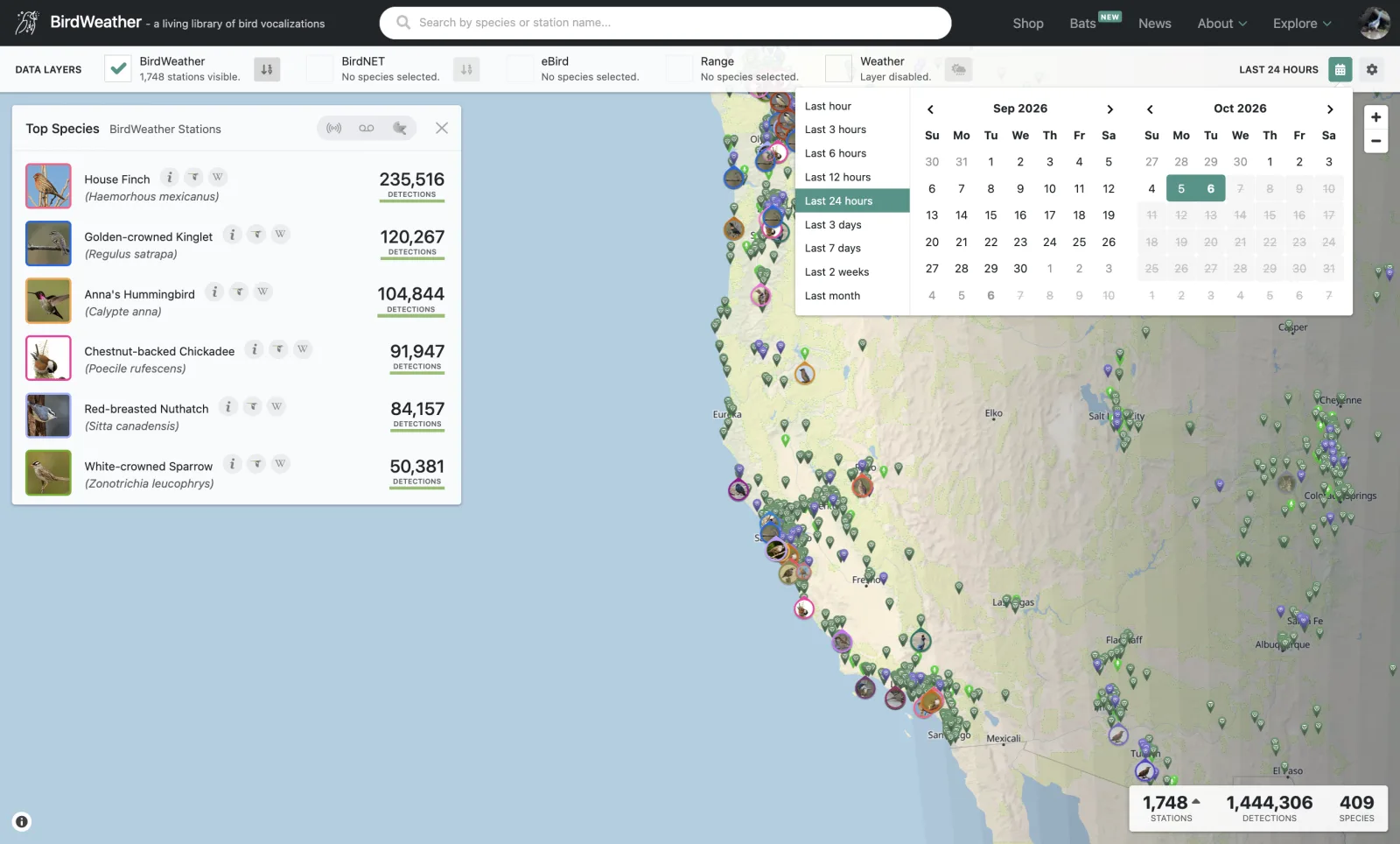
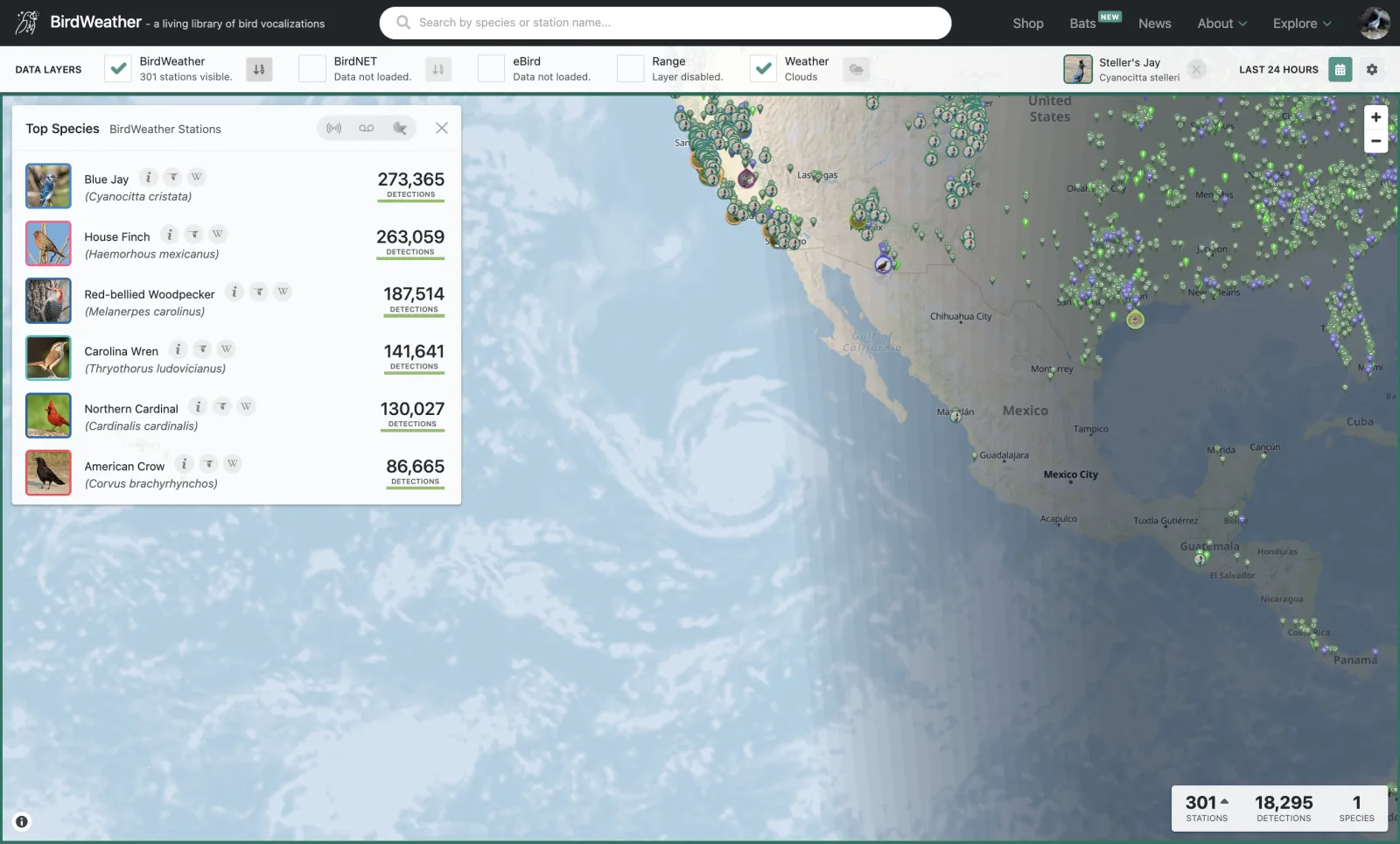
Along the top, Data Layers switch on extra information: BirdWeather stations, BirdNET, eBird, species Range and Weather. On the right, choose the time period (from the last hour to the last month, or pick dates on the calendar), and use the gear for language, units, time format, automatic gain and live detections.
Following a species
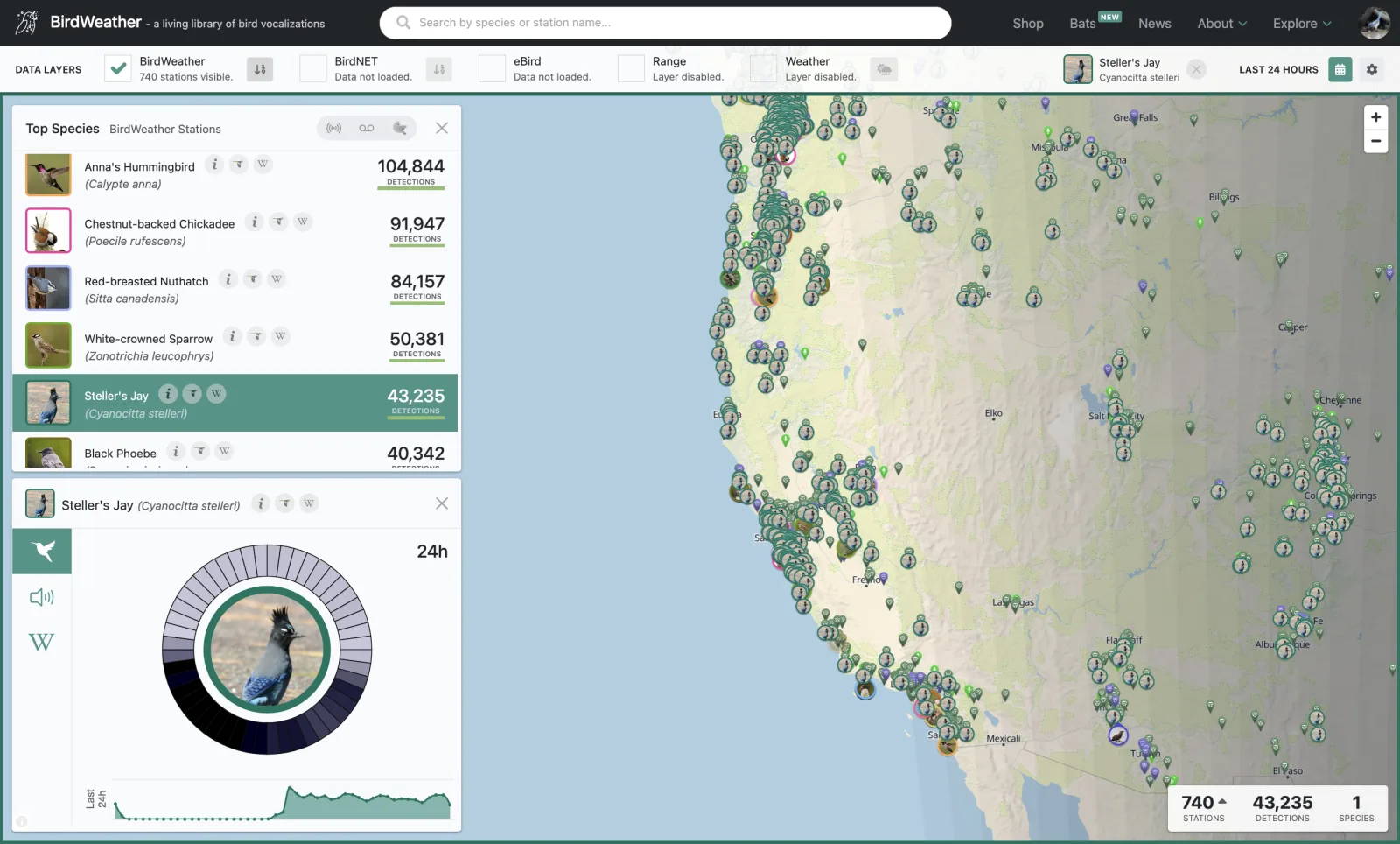
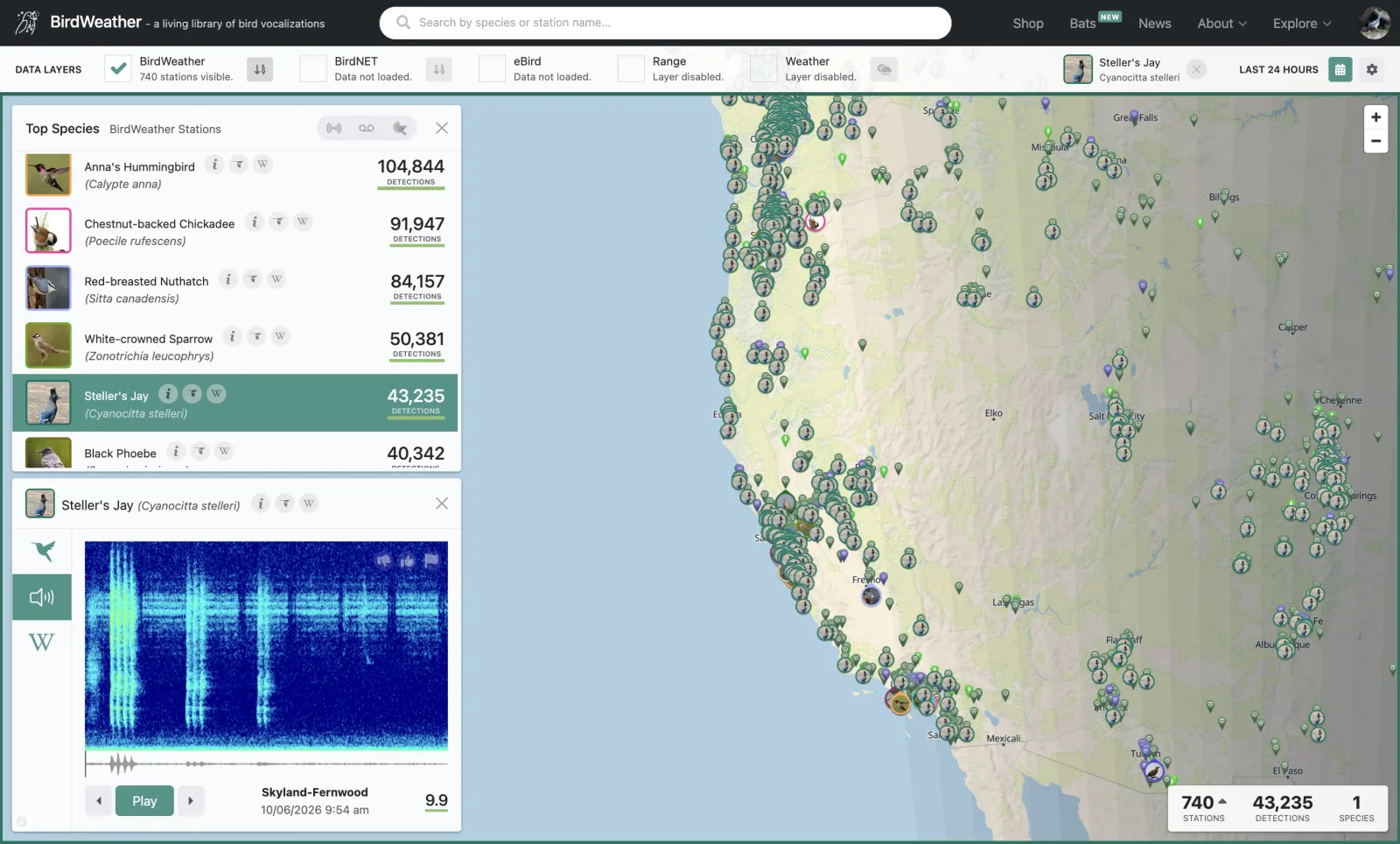
Click a species in Top Species (or search for it) and the map shows only the stations that heard it. A card opens with its activity over the last 24 hours. Switch to the speaker tab to hear recent recordings with their spectrograms.
Bats on the map
Bat detections from Bat Edition stations have their own map, at app.birdweather.com/bats. See Bats on the Live Map in the Bat Edition chapter.
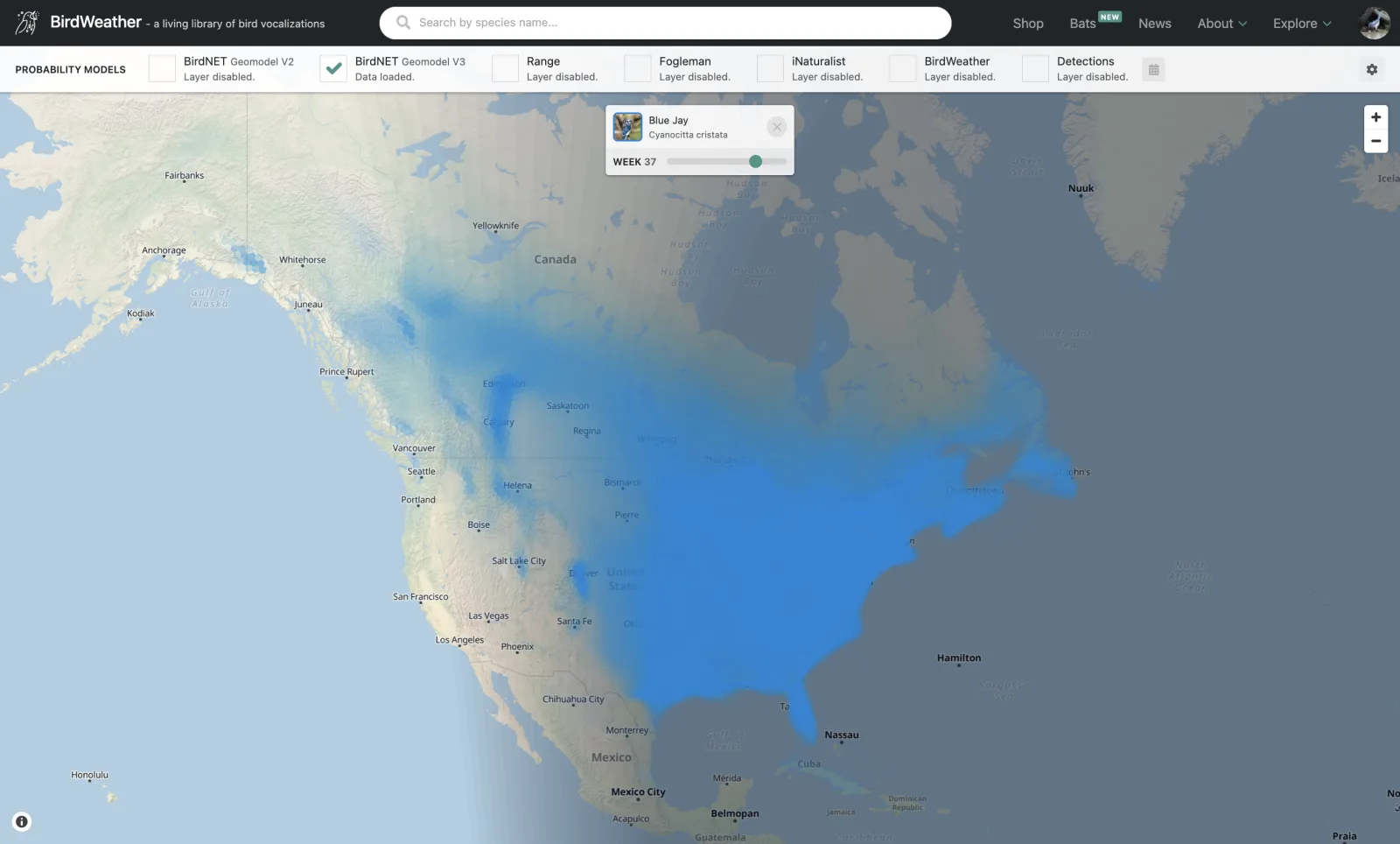
Probability maps
See where and when a species is expected, week by week, at app.birdweather.com/probabilities. Pick a species and drag the week slider. The layers along the top include the BirdNET geomodels, Range, iNaturalist, BirdWeather and Detections. Use it to see what your chosen Probability Model expects for a species at your location, and why the Probability filter might be hiding it: the BirdNET Geomodel V2 layer is the app's BirdNET model, and the BirdWeather layer is the BirdWeather model.
Detections Explorer
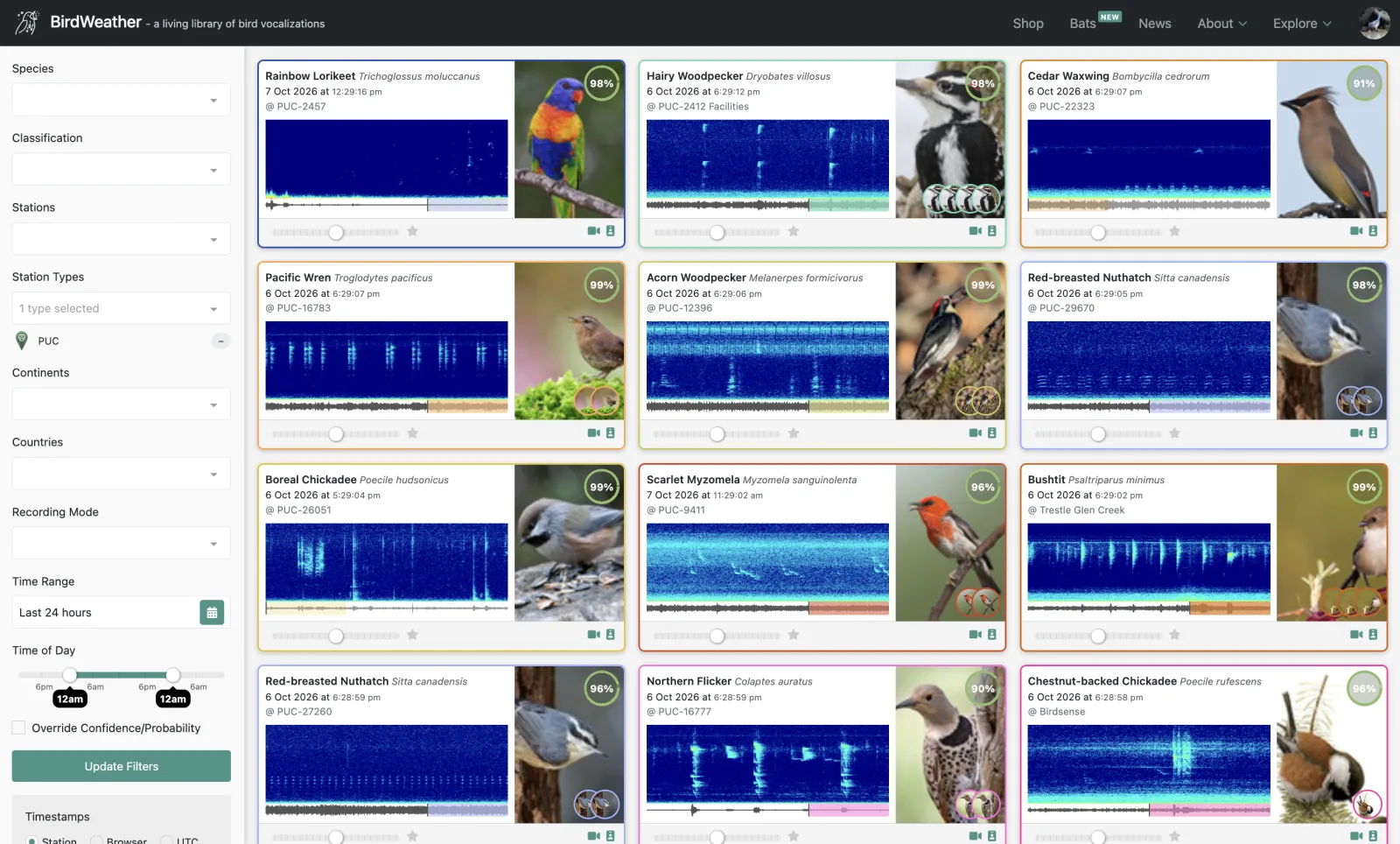
Browse recent detections from every station as cards, each with its spectrogram, a photo and the confidence, at app.birdweather.com/detections. Filter by species, station, region, recording mode and time on the left.
Data Explorer
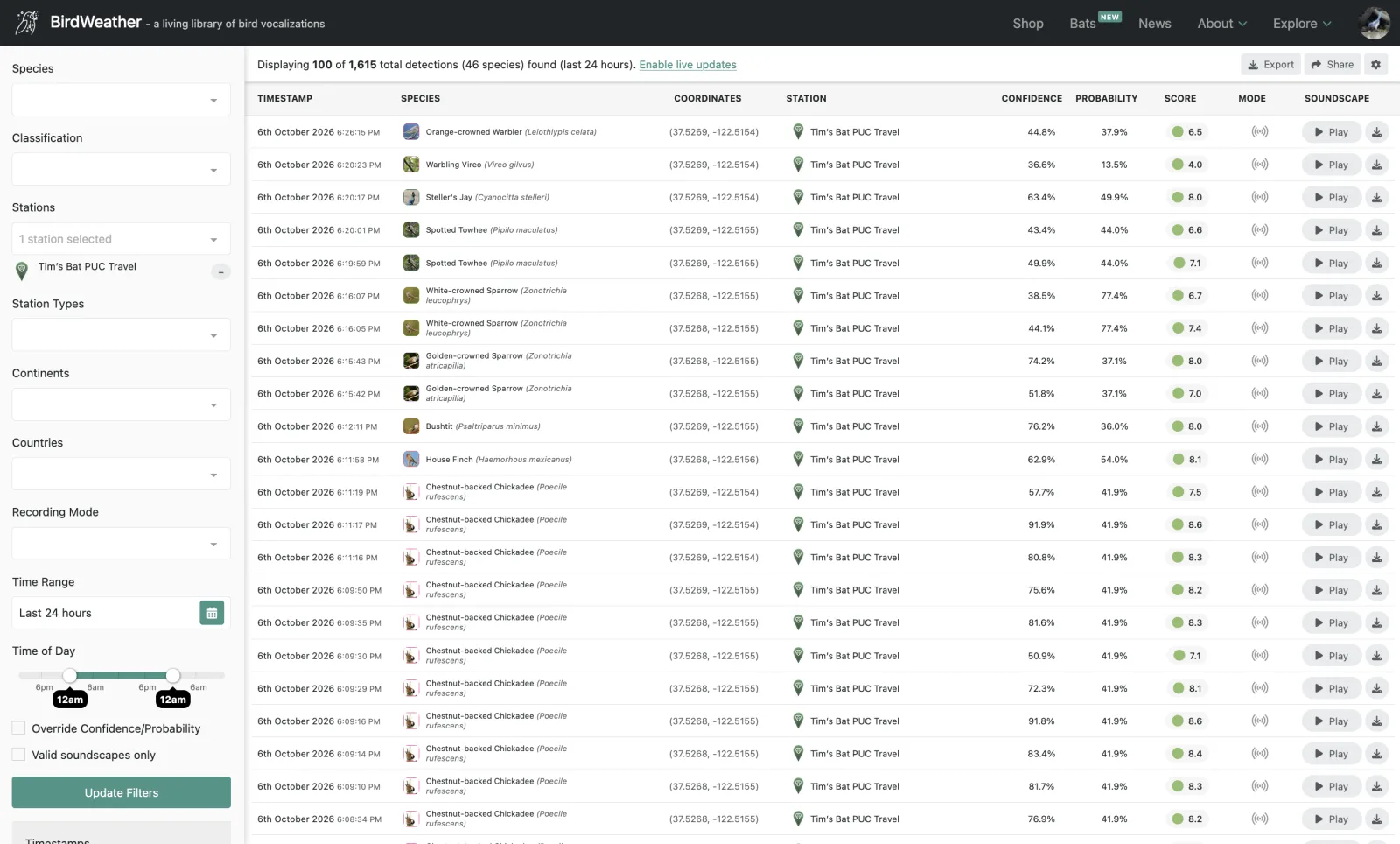
The Data Explorer lists detections as a table: time, species, coordinates, station, confidence, probability, score and recording mode, with a play button and download for each soundscape.
- Find your PUC in the Stations filter on the left.
- Narrow it down by species, time range, time of day, recording mode and more, then click Update Filters.
- Use Export (top right) to download a CSV of your detections, or Share it.
7. Away from WiFi
Away from WiFi, on a hike, at a field site or a cabin, the PUC records soundscapes and sensor data to its SD card. When you're back in WiFi range, you upload them and they're analyzed just like live detections.
Putting the PUC in SD Recording mode
- Turn your PUC on (hold the button until it turns green).
- While the blue WiFi-searching lights are circling, click the button. The lights circle green, then the PUC double-blinks green to confirm it's recording to the SD card. It remembers this choice if power is lost.
- When you're done recording, turn the PUC off (hold the button until it turns red).
Recommended settings for a recording trip on batteries:
| Setup | Mode | Recording Mode | GPS Mode |
|---|---|---|---|
| Away from WiFi | Automatic (or Record Only) | Scheduled | Static, with coordinates |
Use lithium-ion rechargeable or lithium AA batteries (see AA batteries).
Uploading from the SD card
Back within WiFi range, turn your PUC on. It connects as a live station, and you can upload what's on the card:
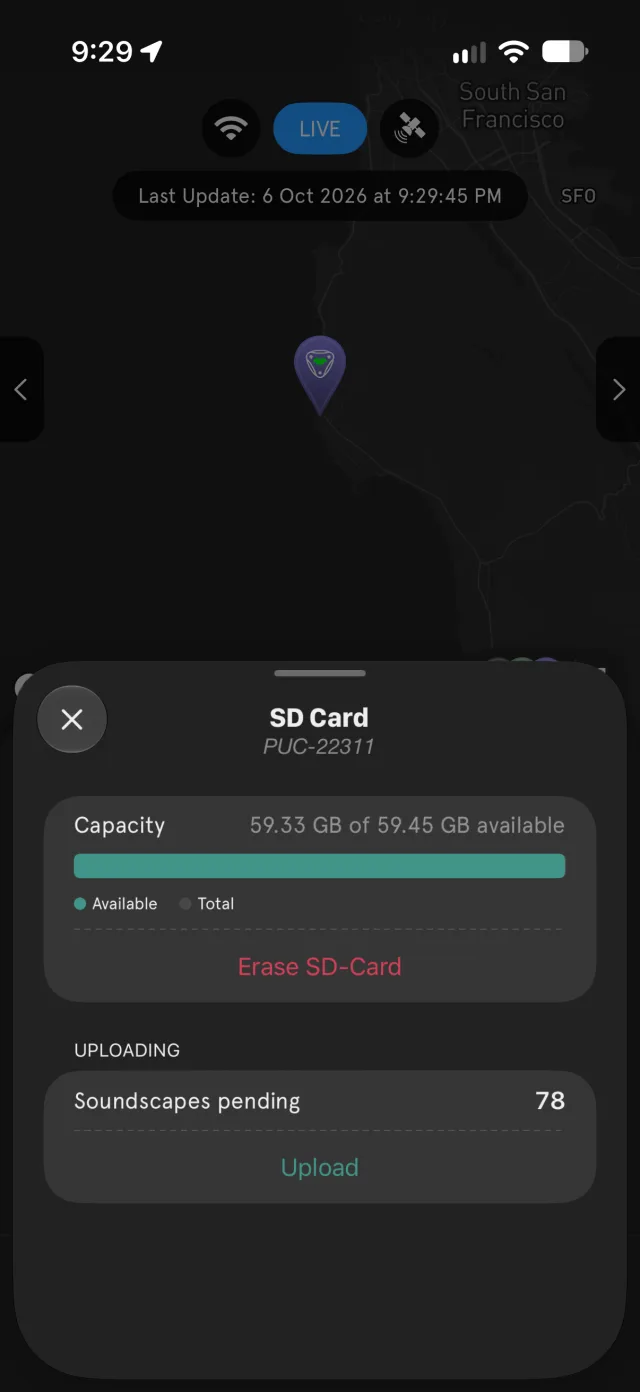
- On the Status tab, tap the SD Card tile. The SD Card panel shows how many Soundscapes pending are on the card.
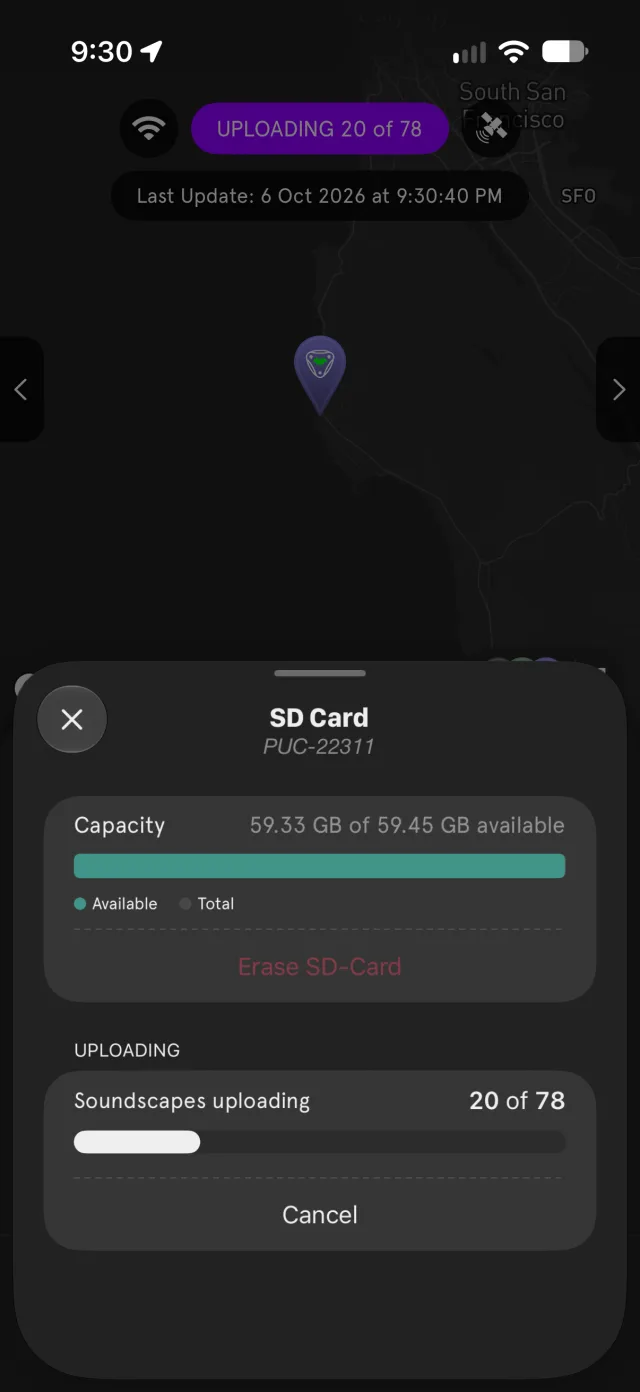
- Tap Upload. The panel shows the progress (for example, 20 of 78), and the badge at the top of your station's screen changes from LIVE to UPLOADING. Tap Cancel to stop.
On the PUC itself, the lights circle purple while it uploads, and a click of the button gives a purple double-blink.
A day of recording is about 2 GB, so a long trip can take a while to upload. Keep the PUC on USB-C power and in good WiFi range until it's done.
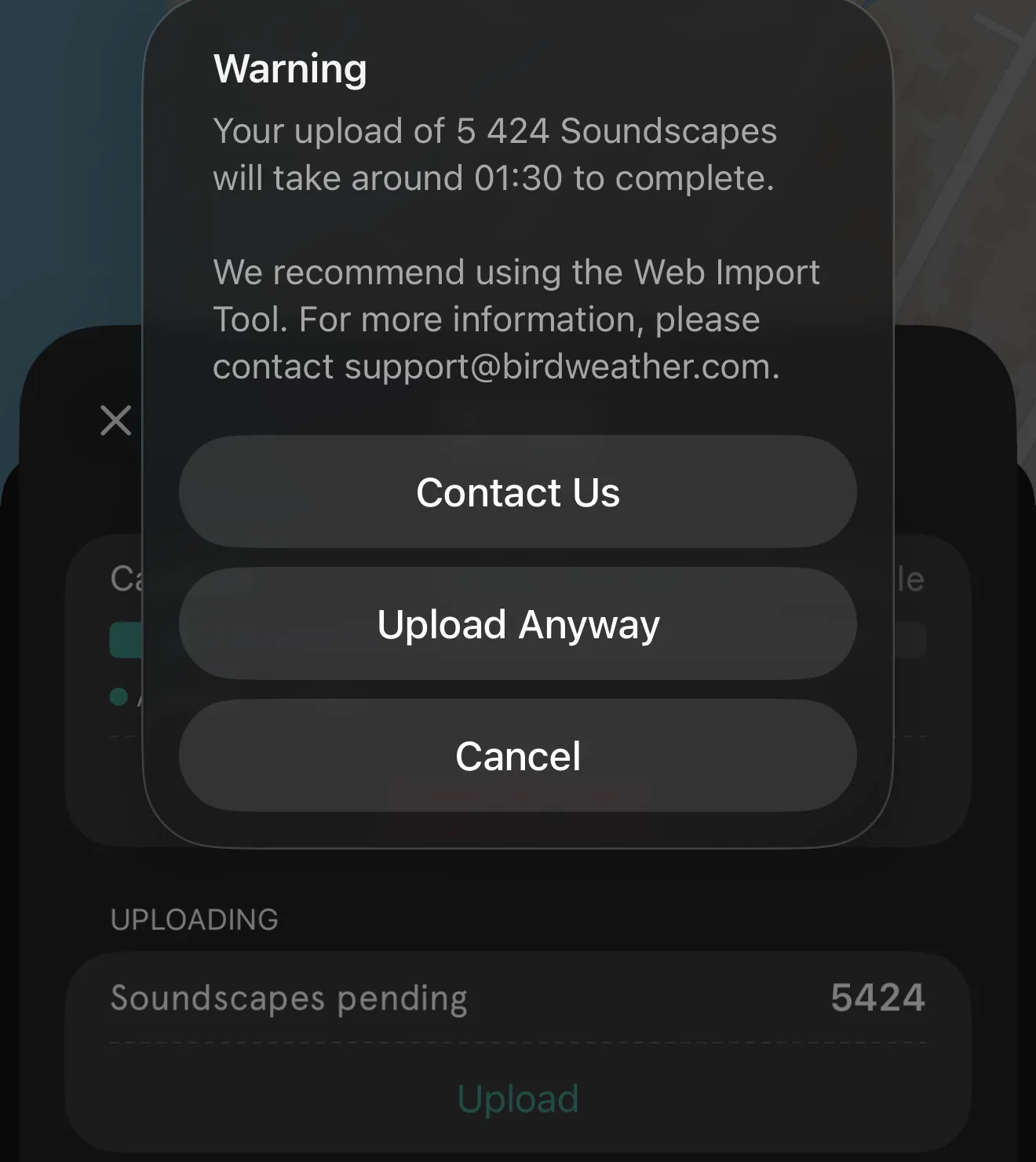
If there's a lot on the card, the app tells you how long the upload will take and recommends the Web Import tool instead, which uploads the card from a computer. Tap Upload Anyway to upload through the PUC, Cancel to stop, or Contact Us to get in touch with support.
Two switches under Advanced Settings → Uploading Options can do this for you:
- Auto Upload: uploads the SD card's recordings automatically once the PUC is back on WiFi, without tapping Upload.
- Upload Complete Power Off: turns the PUC off when the upload finishes, so a battery-powered PUC doesn't sit live draining its batteries after a trip.
Uploading from a computer (Web Import)
You can also upload the SD card's contents from a computer with the Web Import tool. The app recommends it for big uploads, and it also helps if uploading through the PUC isn't working.
- Sign in to your BirdWeather account at app.birdweather.com/login, or create one.
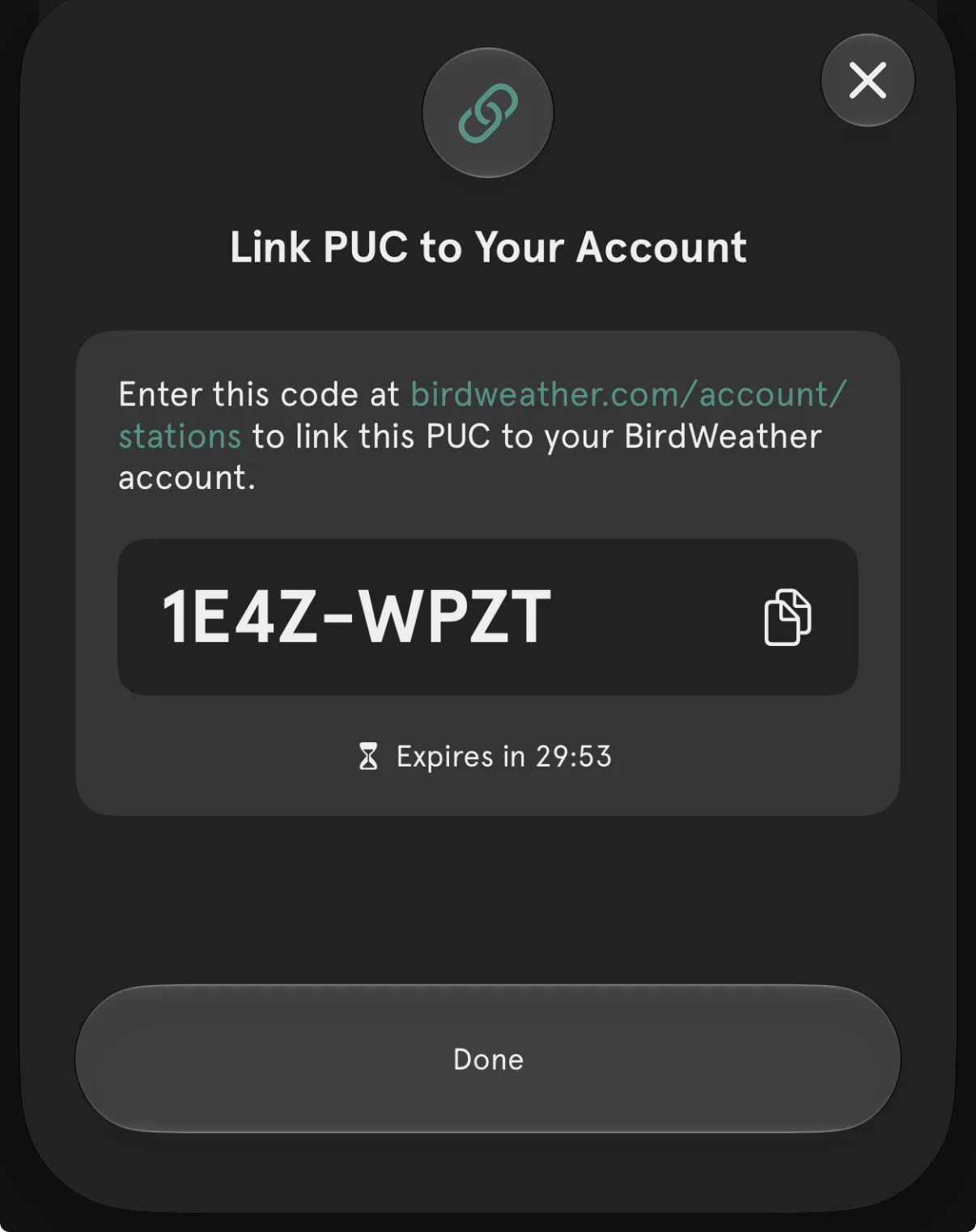
- Link your PUC to your account. In the app, open Advanced Settings and, under PUC Info, tap Link to BirdWeather Account. The app shows a code that's valid for 30 minutes: enter it at birdweather.com/account/stations. (If that's not an option, email us your PUC-#### and we'll link it for you.)
- Remove the SD card (see Where the SD card lives) and connect it to your computer with a card reader.
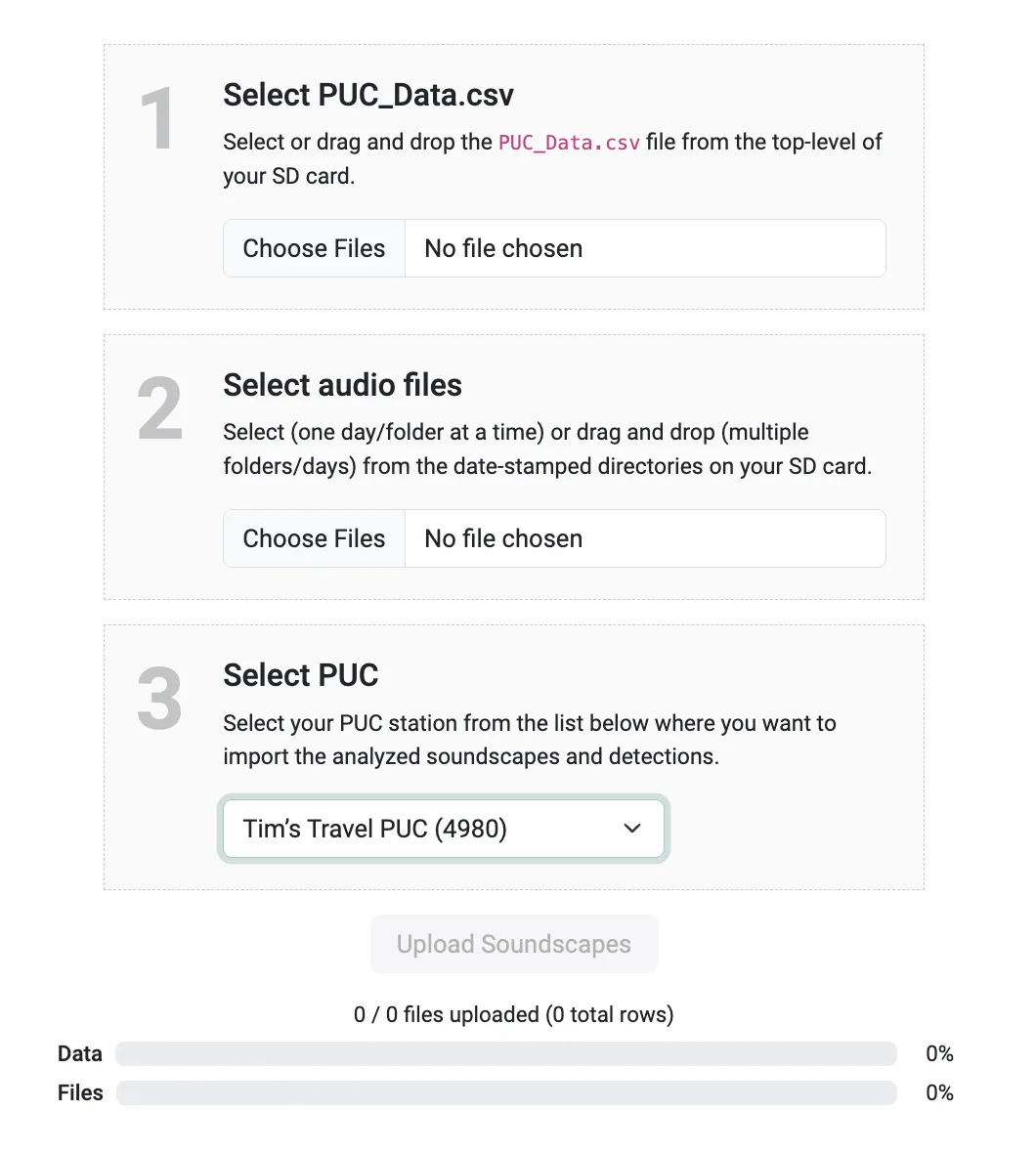
- Open app.birdweather.com/tools/import, then:
- Select PUC_Data.csv: choose (or drag in) the
PUC_Data.csvfile from the top level of the SD card. - Select audio files: choose one day's folder at a time, or drag in several of the date-stamped folders at once.
- Select PUC: pick the station to import the soundscapes and detections into.
- Click Upload Soundscapes. The Data and Files bars show the progress.
- Select PUC_Data.csv: choose (or drag in) the
Where the SD card lives
Your PUC's micro SD card is in the battery compartment. To remove it, slide the card door down; it then hinges upwards (be gentle).


Reading the SD card on a computer
Remove the card (see Where the SD card lives) and use a micro SD card reader or adapter. If you've recorded away from WiFi, you'll find a fair number of FLAC files: these are the soundscapes the PUC recorded. There's also a PUC_Data.csv file, with an entry for each soundscape listing its filename, GPS and sensor data.
There's nothing special about the SD card. Feel free to swap in a blank one if you want several weeks of recordings. With default settings, the PUC averages about 2 GB a day.
Erasing the SD card
Tap Erase SD-Card in the SD Card panel (from the SD Card tile on the Status tab). The PUC's lights circle orange/blue while it erases the card.
Using a mobile hotspot
You can absolutely use your PUC with a mobile hotspot (on 2.4 GHz). Put the PUC into WiFi setup mode (double-click the button until it blinks blue slowly), tap Setup my PUC, pick your hotspot from the list of networks, and enter its password.
You'll need to repeat this when you're back home, as the PUC won't automatically remember your home network.
On an iPhone this can be tricky, because iPhones prefer other Apple devices on their hotspot. This sequence works consistently:
- Open the BirdWeather app.
- Start Setup my PUC. The first scan will list networks, but not your iPhone's hotspot.
- Switch to the iPhone's Personal Hotspot settings (leave the BirdWeather app running in the background).
- Turn off both Allow Others to Join and Maximize Compatibility.
- Turn Maximize Compatibility back on.
- Turn Allow Others to Join back on.
- Return to the BirdWeather app and tap refresh. Your hotspot should now appear.
8. Environmental Sensors
Besides listening, the PUC measures its surroundings. You'll find the readings on the app's Environment, Light and Motion tabs.
What the PUC measures
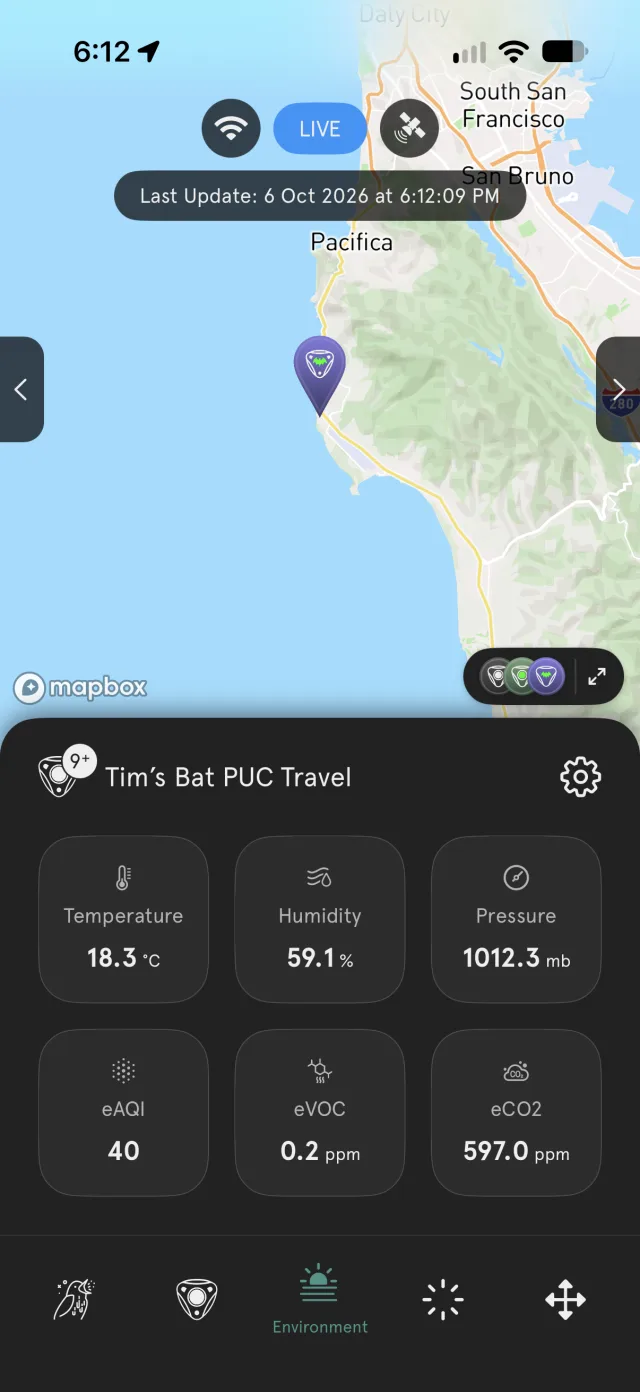
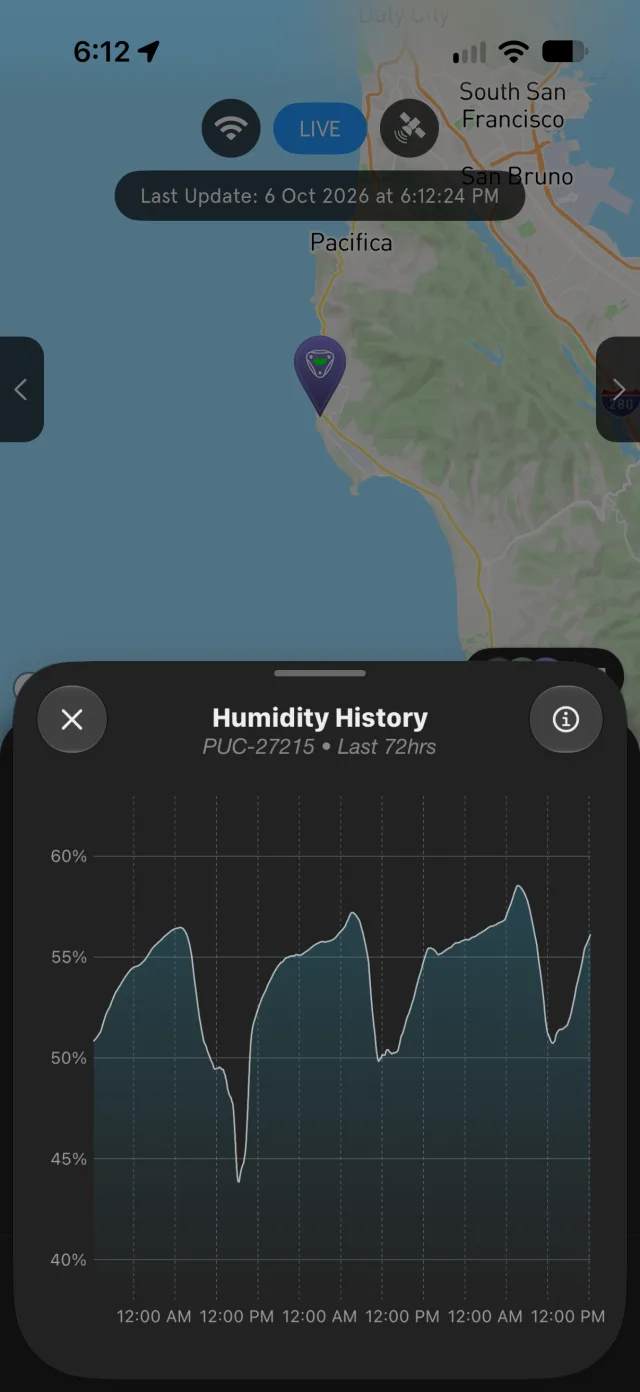
The Environment tab shows temperature, humidity, air pressure, eAQI (air quality index), eVOC (volatile organic compounds) and eCO2 (carbon dioxide estimate), from a Bosch BME688 environmental sensor. Tap a tile for its last 72 hours.
Temperature readings
Direct sunlight can heat the PUC's casing. Install it in a shaded spot to reduce solar heating.
The environmental sensors are well protected inside the PUC behind Gore-Tex-style vents. As a result they get less airflow than a purpose-built weather station, which can cause some lag in readings and some filtering of larger particulates, so readings may not match a dedicated station. You can correct a consistent error with Temperature Offset and Humidity Offset in Advanced Settings.
Air quality readings
If eAQI, eVOC or eCO2 values look unreasonable, tap Calibrate Environment Sensors near the bottom of Advanced Settings. Temperature, humidity and pressure readings aren't affected.
Light sensor
The Light tab shows readings from the PUC's AS7341 spectral light sensor: Clear, NIR (near-infrared), and eight color bands, F1 (violet) to F8 (red). The sensor's lens is on top of the PUC, in the center of the "PUC" logo. Values are scaled to mW/cm² equivalent.
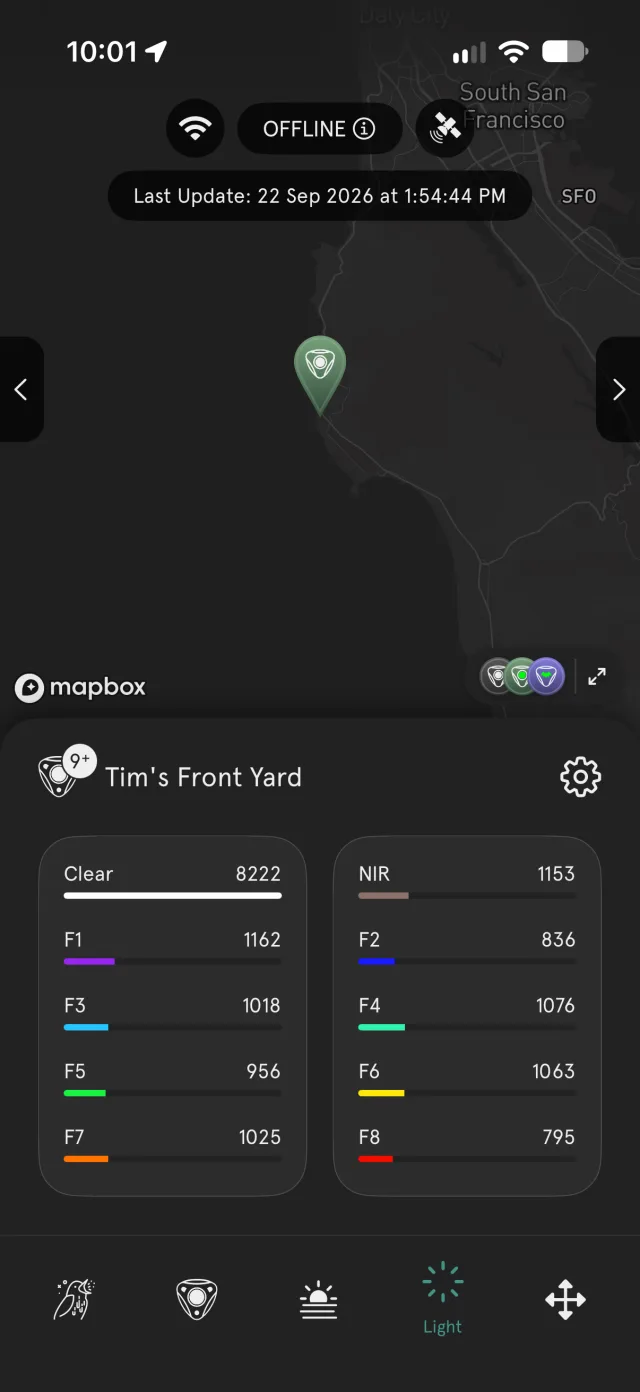
This is the sensor's spectral response, showing where each band sits:

Motion and orientation
The Motion tab shows the PUC's orientation from the side and front, as pitch and roll in degrees: a quick way to check how it's mounted.
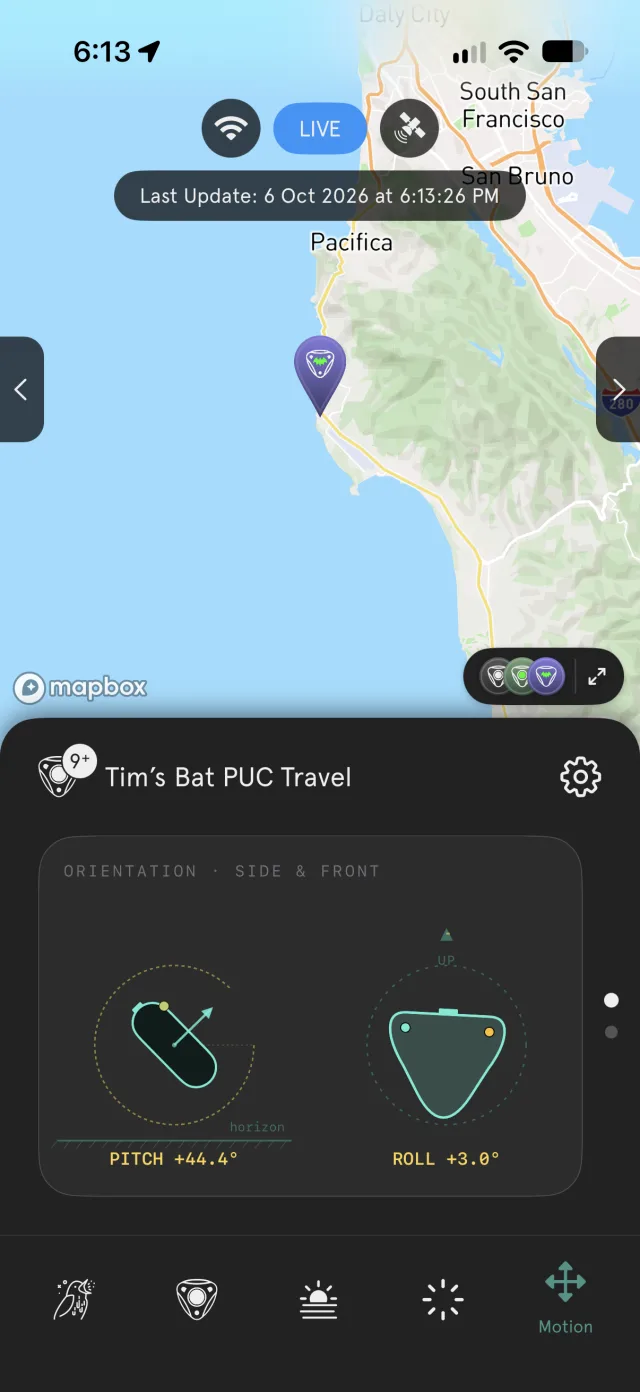
Behind it are a 3-axis accelerometer (ST LIS2DH12, reporting in milli-g, where 1,000 mg = 1 g = 9.8 m/s²) and a 3-axis magnetometer (ST LIS3MDL, reporting in milligauss).
9. Troubleshooting Your PUC
Most problems come down to power, WiFi or settings. Start with the symptom that matches yours.
What the lights mean
The button on top of the PUC shows you what it's doing. About 15–30 seconds after you turn it on, it double-blinks to show which mode it's in; a single click of the button shows it again at any time.
| Light | What it means |
|---|---|
| Green, while holding the button | Powering on. |
| Red, while holding the button | Powering off. |
| Blue double-blink | Live: connected to the BirdWeather server. |
| Green double-blink | Recording: storing all audio and data to the SD card. |
| Purple double-blink | Uploading everything stored on the SD card to the BirdWeather server. |
| Blue, slow steady blink (about once a second) | WiFi setup mode: ready to be set up from the app. |
| Blue, circling | Looking for a WiFi network it knows. |
| Green, circling | Switching to offline (SD card) recording. |
| Purple, circling | Uploading from the SD card. |
| Orange/blue, circling | Erasing the SD card. |
| Orange | SD card missing, or an SD card error. |
| Red, flashing about 8 times on boot | Battery too low: the PUC powers off. |
| Red/blue, cycling after power-on | Updating its firmware. It takes under 5 minutes; please let it finish. |
Setup can't find my PUC
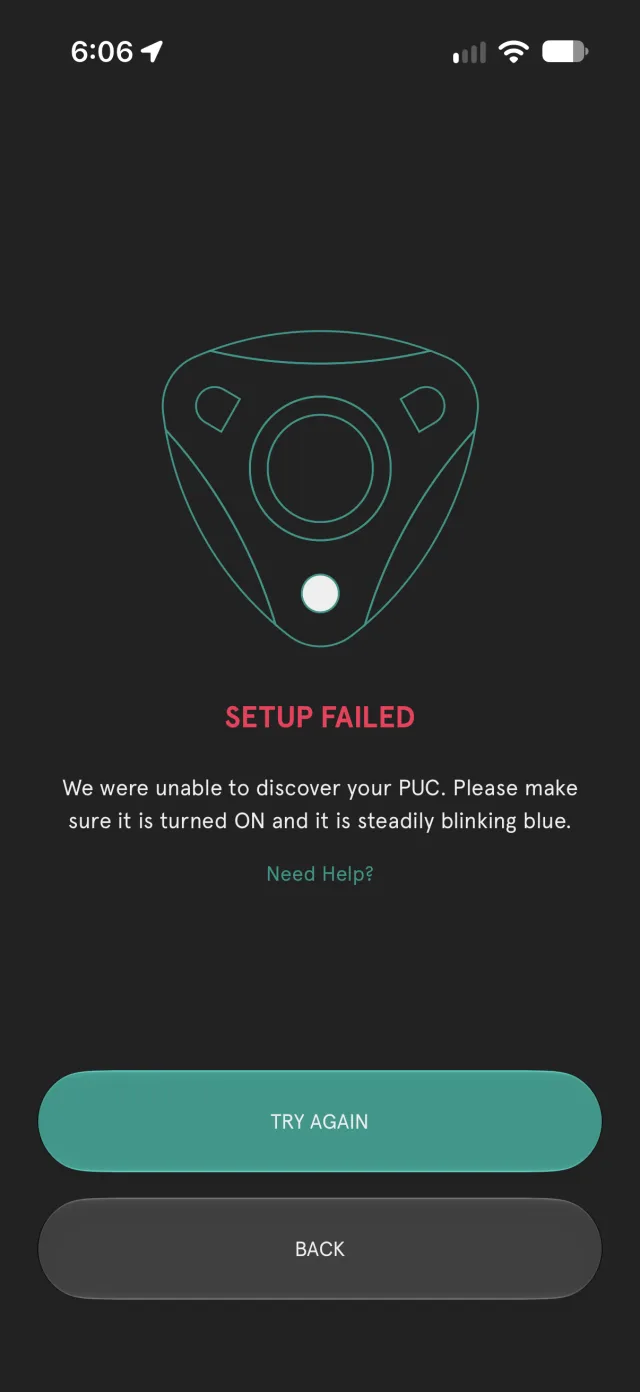
If the setup wizard says Setup Failed ("We were unable to discover your PUC"), work through these steps. Make sure your phone's Bluetooth is on first: the app finds the PUC over Bluetooth.
- Remove any batteries and plug the PUC into USB-C power (an adapter, or even your computer), just for the pairing process.
- Check the light is a slow, steady blue blink, not the blue circling pattern. If it's circling, double-click the button, then wait 10–20 seconds for the slow, steady blink.
- In the app, tap Setup my PUC, then Next a couple of times (the PUC is already in setup mode). Pick your WiFi network and enter its password.
- Still not found? Reboot your phone. Its Bluetooth can get into a muddle, and nothing clears it better than a restart.
- If setup still fails, tap the green Need Help? link that appears. It creates an email with a ZIP file of logs attached: send it to us and we'll look at what's causing the failure.
The PUC can only connect to 2.4 GHz WiFi. Some routers use the same name for their 2.4 GHz and 5 GHz networks; it's the 2.4 GHz one the PUC uses.
PUC offline, or keeps dropping offline
Most of the time this is power or WiFi related. The Status tab shows both.
Power: if you're new to your PUC and it keeps dropping offline, the likely culprit is batteries. A live station uploads every soundscape, day and night, which means a continuous power draw. Try a fresh set, or better, switch to USB-C power (see Batteries run out quickly). If you're on a power bank or charger that cuts out, try Power Bank Mode.
WiFi: tap the WiFi RSSI tile to see the last 72 hours of signal strength. If it often drops to 1 bar or none (below −70 dBm), move the PUC or your router closer together, or add a WiFi extender. Also see Dropping offline in Smart mode. To reconnect the PUC, see Changing networks.
To hear about it as soon as it happens, turn on Offline in Manage Station Notifications (see Settings reference).
Still having trouble? Email support@birdweather.com.
Batteries run out quickly
AA batteries are mainly meant for powering the PUC in the field, away from WiFi. By default, a live PUC uploads every soundscape continuously, day and night, which goes through batteries quickly, particularly alkalines.
If at all possible, power the PUC from its USB-C port (see Powering Your PUC). It will keep going 24×7 without you ever needing to touch it: every day will be like your first day on batteries.
If USB-C isn't an option:
- Use lithium-ion rechargeables. They typically have 2–3× the capacity of alkalines and hold their voltage right to the end.
- Set Recording Mode to Smart or Scheduled (see Recording Mode and schedules).
- Email us your PUC-####: we can adjust its settings to stretch battery life to around three days.
Dropping offline in Smart mode
Some WiFi routers don't cope well with Smart recording mode, which connects and disconnects to save battery power. If your PUC drops offline in Smart mode, switch Recording Mode to Continuous.
PUC won't power on or respond
- Remove any batteries and check for signs of leakage, particularly if alkalines were left in while the PUC ran on USB-C. If you see any, send us a couple of photos.
- Clean the PUC's USB-C port with a little rubbing alcohol and a soft-bristled brush. Even a little contamination can interrupt the power connection.
- Plug the PUC into your computer with a different USB-C cable (a data cable). Sometimes the data connection acts like a reset.
Still stuck? Email support@birdweather.com with your PUC-####.
No detections, or missing obvious bird calls
If you see no detections at all but your PUC shows as live, make sure Upload Live Audio to BirdWeather is on. We process the audio on our cloud servers, so with it off you'll get no detections.
If you're missing a bird you know is there, try lowering Probability in PUC Settings to around 1–1.5%. Probability is based on historical eBird checklists, so species that are rare at your location or time of year can be filtered out. The change is retroactive: within a couple of hours, if you heard, say, a Carolina Wren, it should appear in your species and detection lists. It may also let some other unlikely species through, so it's a trade-off.
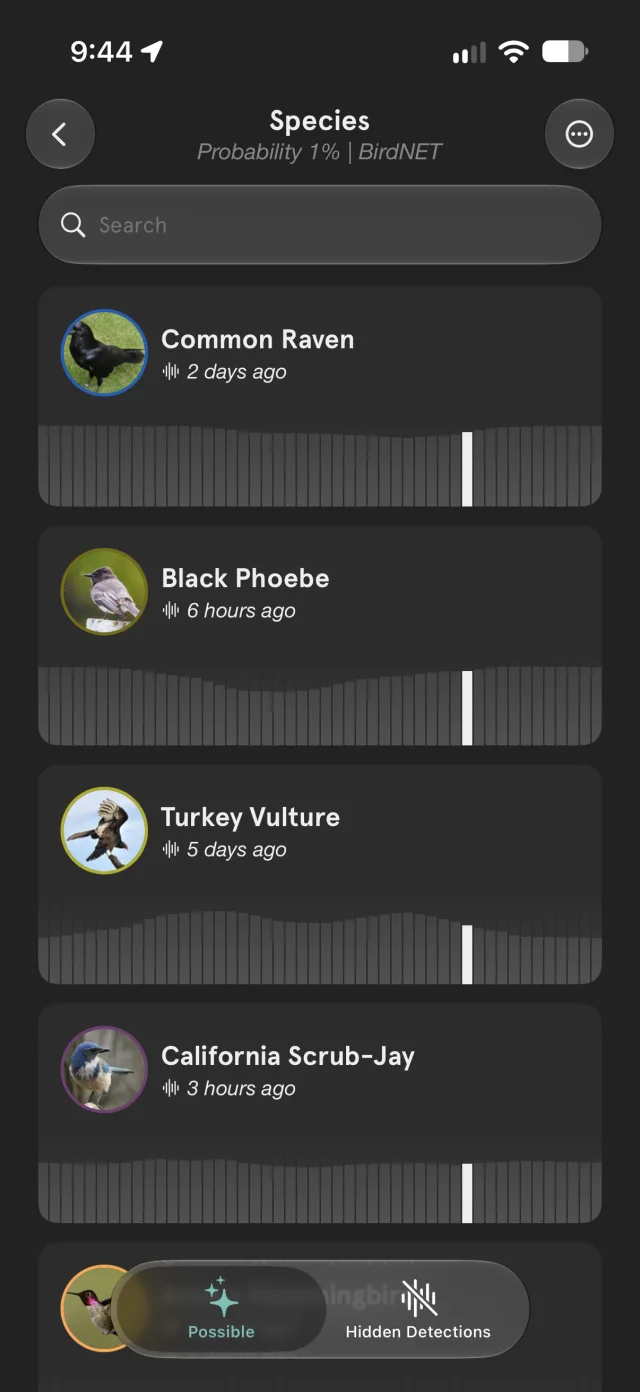
To look for a bird your settings may be hiding, scroll to the bottom of Detected Species and tap Somebody Missing? (or open Species (Possible | Missing) under BirdNET in PUC Settings). This opens the hidden species explorer:
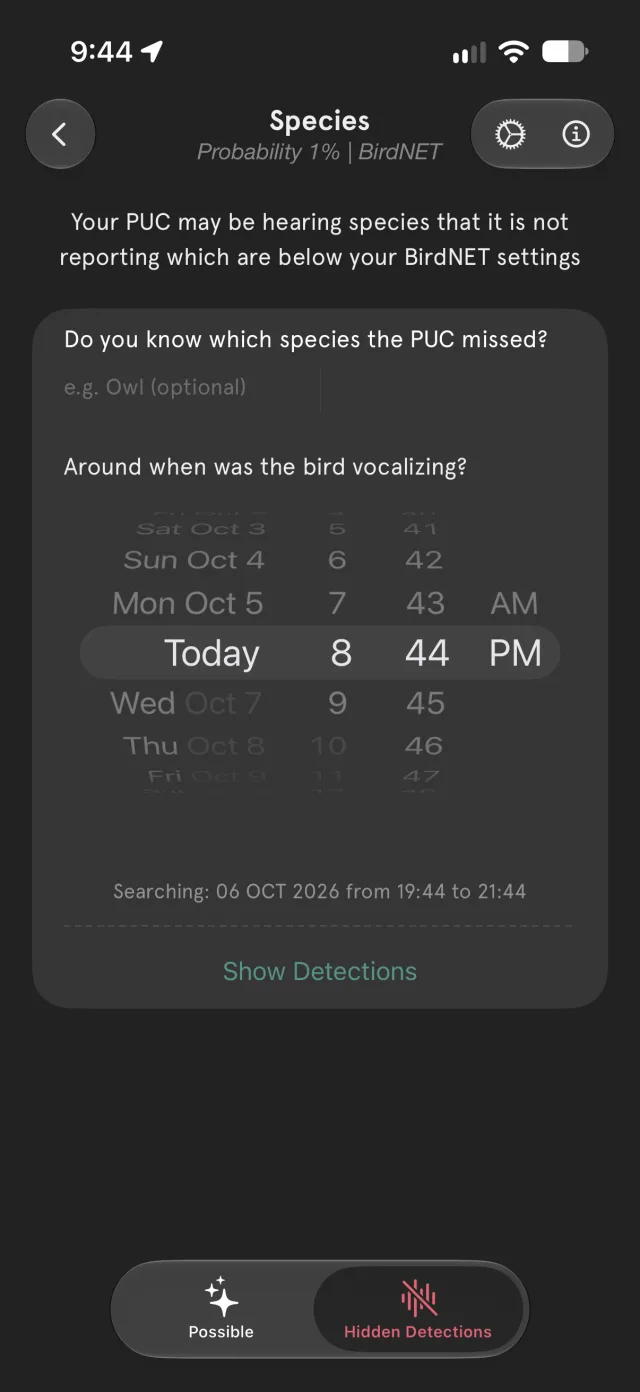
- Choose Hidden Detections at the bottom. Your PUC may be hearing species it isn't reporting because they fall below your BirdNET settings.
- Optionally, type the species you think the PUC missed (for example, Owl). Then set roughly when the bird was calling, and tap Show Detections. The explorer searches the hour either side of that time.
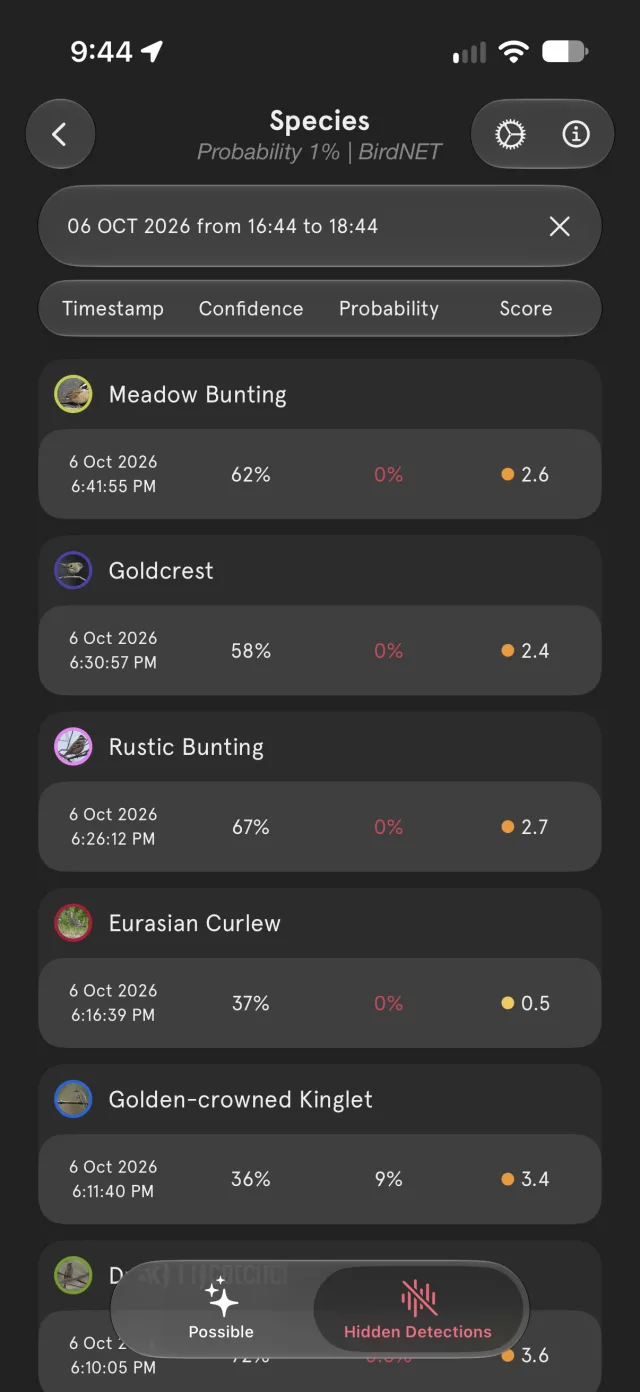
- You'll see the detections your settings hid, each with its confidence, probability and score.
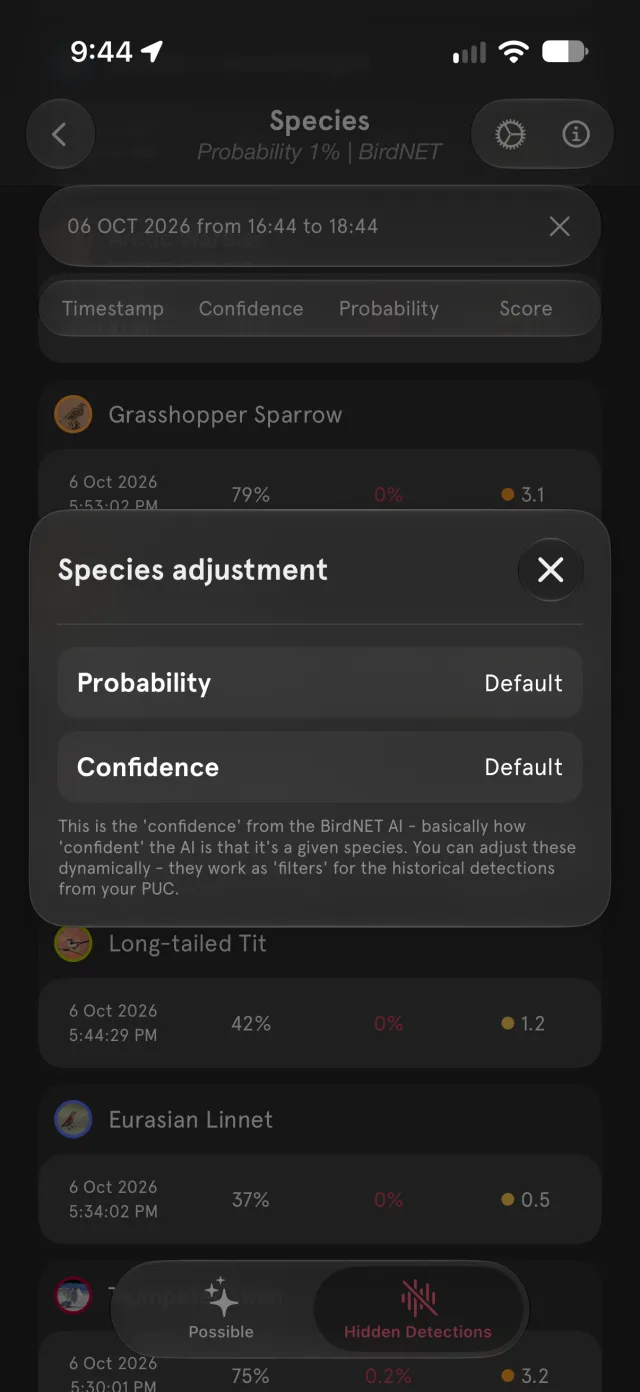
- Press and hold a detection and choose Override Settings. In Species adjustment, set your own Probability and Confidence for that species instead of the defaults. The new settings apply to detections from then on.
The explorer's other tab, Possible, shows the probabilities for the species your settings don't hide.
Wrong identifications
Like any AI, BirdNET can make mistakes. Press and hold an incorrect detection and choose Delete. You can also tap … in the Soundscape player and choose Delete soundscape.
Either way, this removes the entire soundscape and every detection in it.
To let us know about a wrong identification instead, choose Flag (press and hold the detection, or … → Flag soundscape in the player) and add any details you like.
PUC's location jumps around
That's GPS drift. Set GPS Mode to Static in Advanced Settings, and enter the latitude and longitude yourself if the PUC can't get a fix (see GPS modes).
Firmware updates
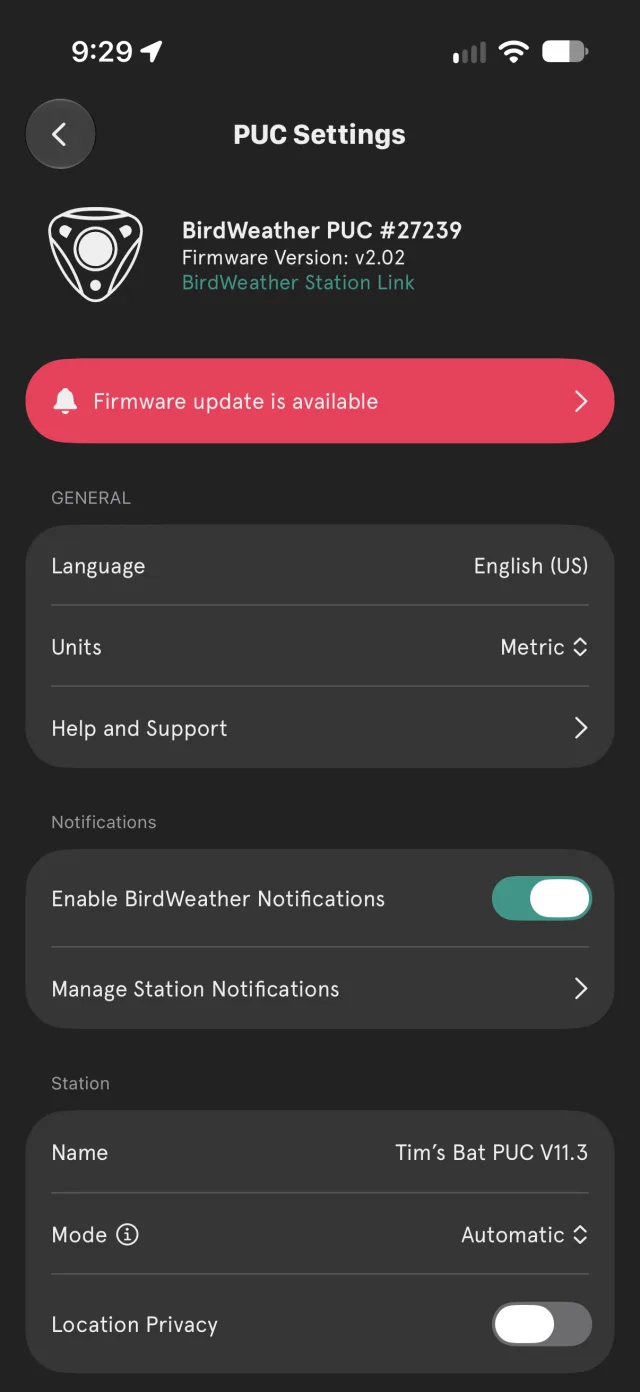
When there's a firmware update for your PUC, a red Firmware update is available banner appears at the top of PUC Settings. Tap it: the update installs automatically the next time the PUC restarts. To install it straight away, tap Reboot PUC at the bottom of PUC Settings, or turn the PUC off and on again with the button.
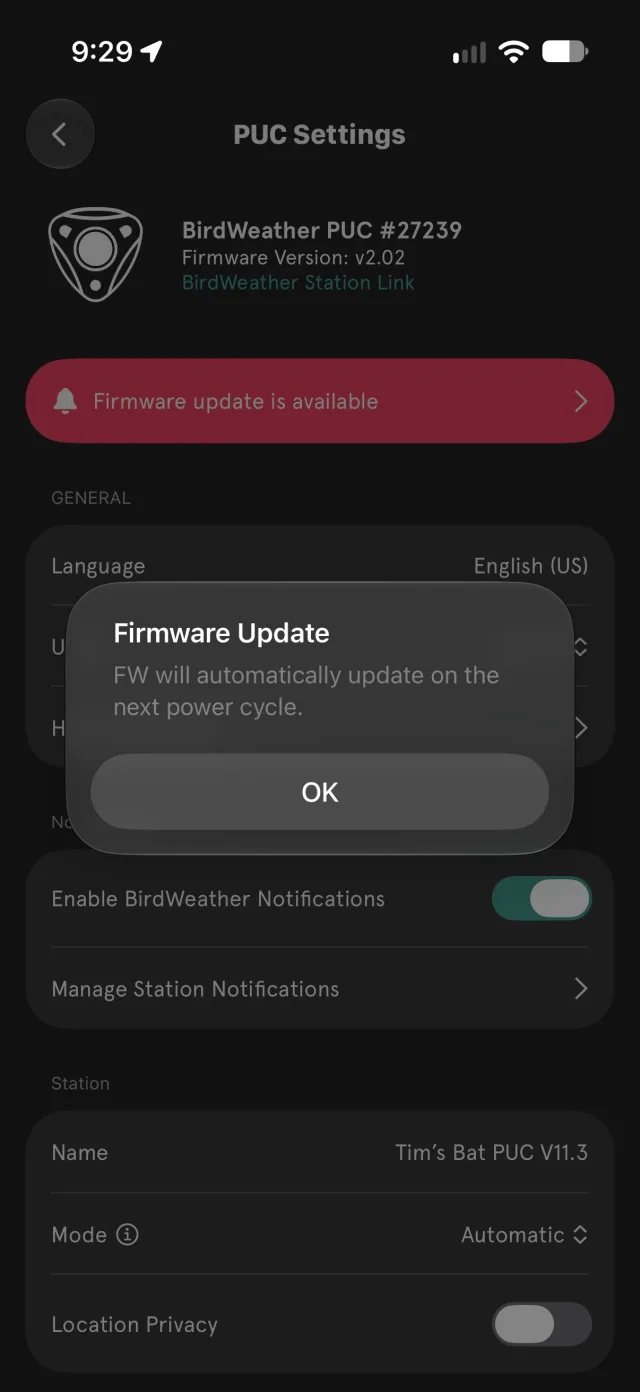
While it installs, the PUC's light cycles red/blue. It should take under 5 minutes; please let it finish.
Your PUC's firmware version is shown at the top of PUC Settings, and Firmware Release Notes in Advanced Settings lists what changed in each version.
Rebooting your PUC
If a change doesn't seem to take effect, or the PUC is misbehaving, use Reboot PUC at the bottom of PUC Settings (it only works while the PUC is live). Otherwise, turn it off and on again with the button.
10. Bat Edition
The Bat Edition PUC is the same BirdWeather PUC, now also listening above the range of human hearing. It records deep into the ultrasonic, capturing the echolocation calls of bats passing overhead and identifying them automatically.
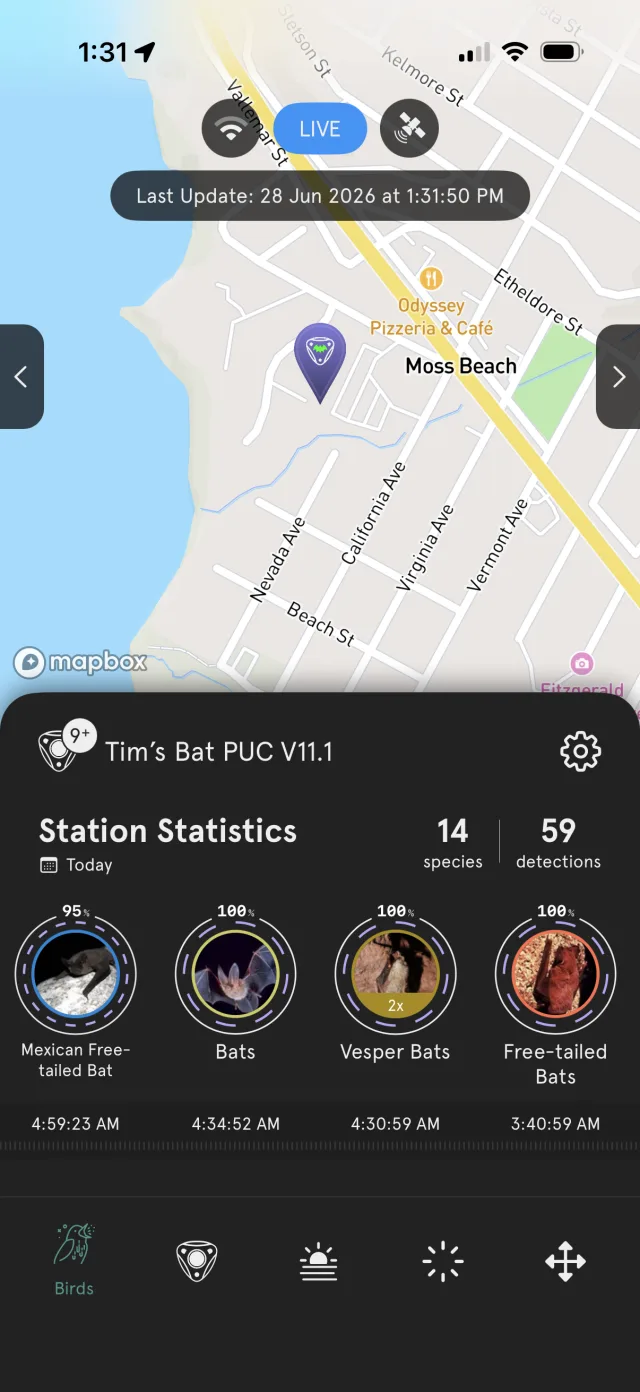
Everything else in this manual applies to the Bat Edition too. Bats are added alongside your birds: you choose whether the PUC listens for birds, bats or both, and bat detections appear in the same feed, on the same map and in the same app, marked in purple.
What you need
- The BirdWeather app: version 2.28.0 or later on iOS, or 1.32.0 or later on Android (see Get the app).
- Firmware V1.81 or later on the PUC. Bat detection begins with V1.81: until your PUC has updated, it hasn't been listening for bats, so you won't see bat detections yet. See Firmware updates.
- 3.6 / 3.7 V lithium-ion batteries, or USB-C power. The Bat Edition won't run on 1.5 V AA batteries (see Powering the Bat Edition).
Finding your Bat Edition settings
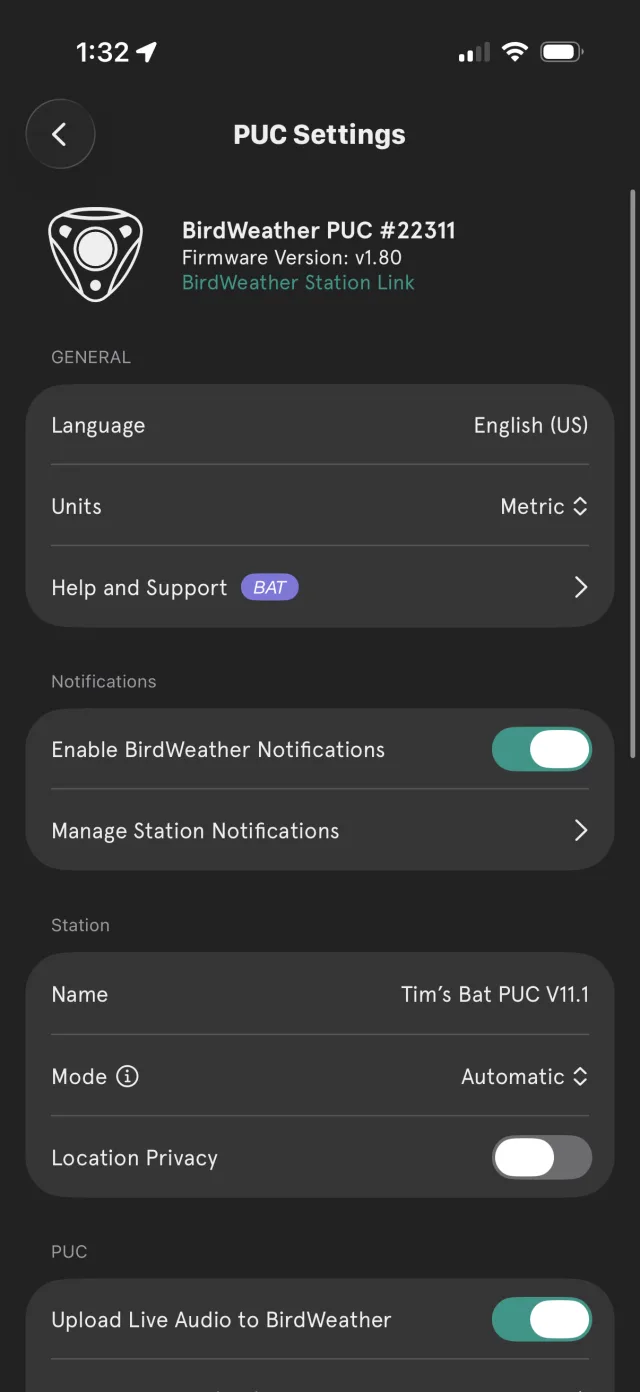
Two things in PUC Settings mark a Bat Edition PUC:
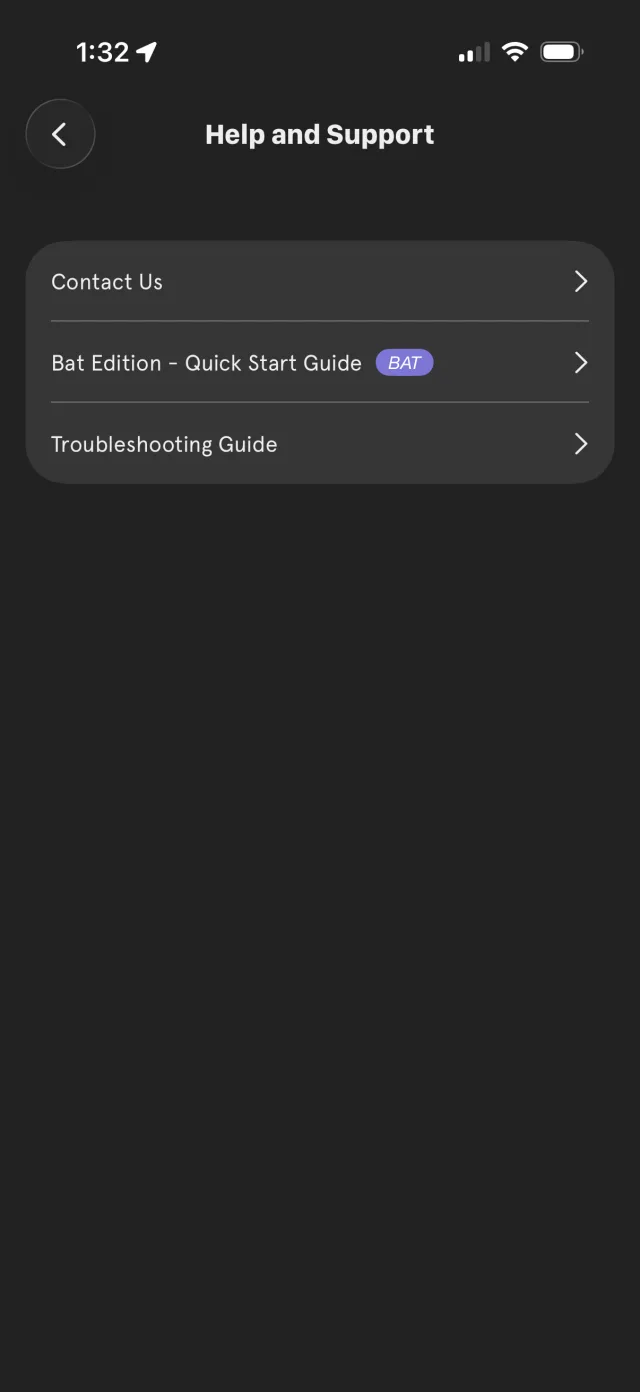
- A BAT badge next to Help and Support, which opens the Bat Edition quick start guide in the app.
- A BIRD + BATS section containing the Listening Mode control.
Listening modes
Every PUC ships in Birds Only mode, so nothing changes until you decide to listen for bats. In PUC Settings, find the BIRD + BATS section and tap Listening Mode:
| Mode | Best for | What it does |
|---|---|---|
| Birds Only | The classic experience (default) | Standard BirdNET bird identification. The ultrasonic range is ignored. |
| Birds + Bats | Most users | Listens for birds and bats at the same time: your full bird feed plus bat detections. |
| Bats Only | Dedicated bat monitoring | Focuses entirely on the ultrasonic band, for a station deployed specifically for bats. |
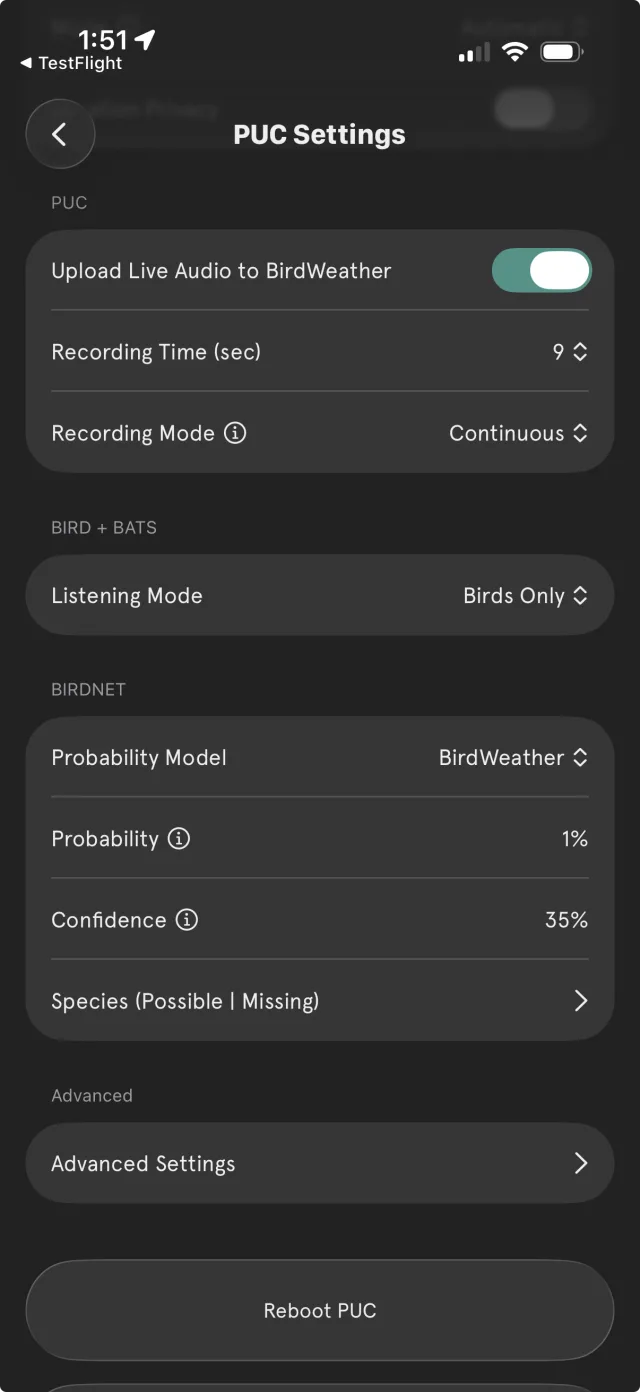
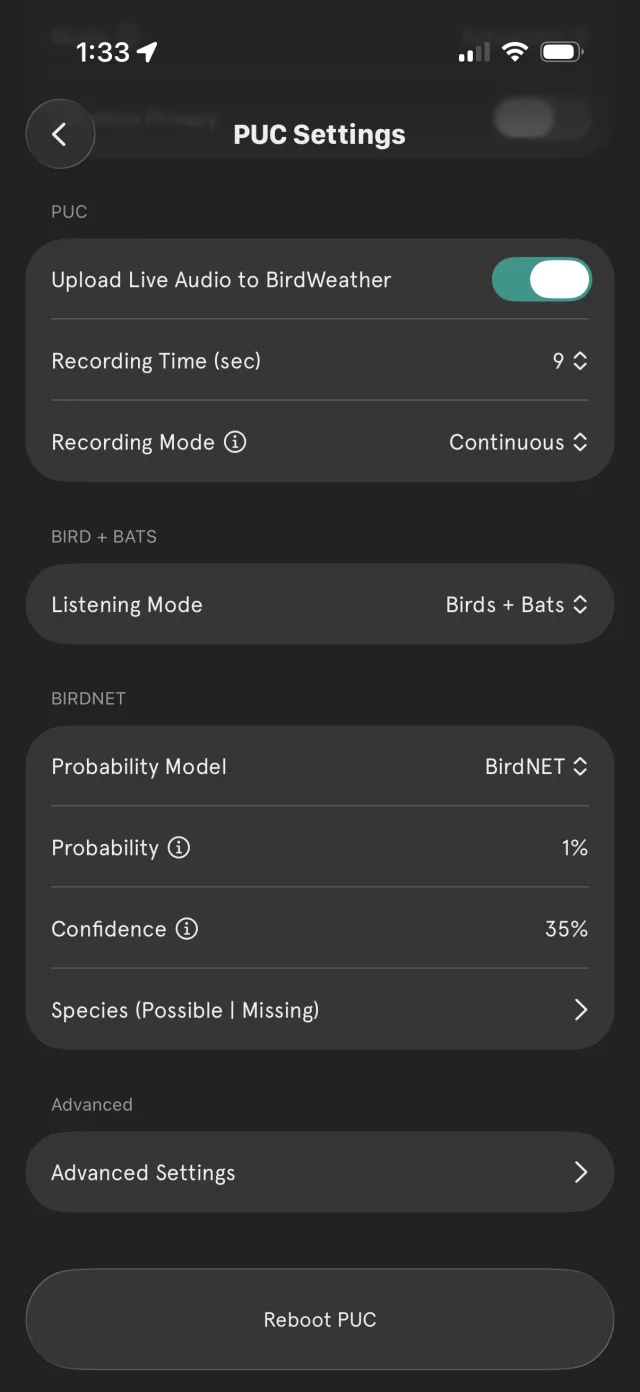
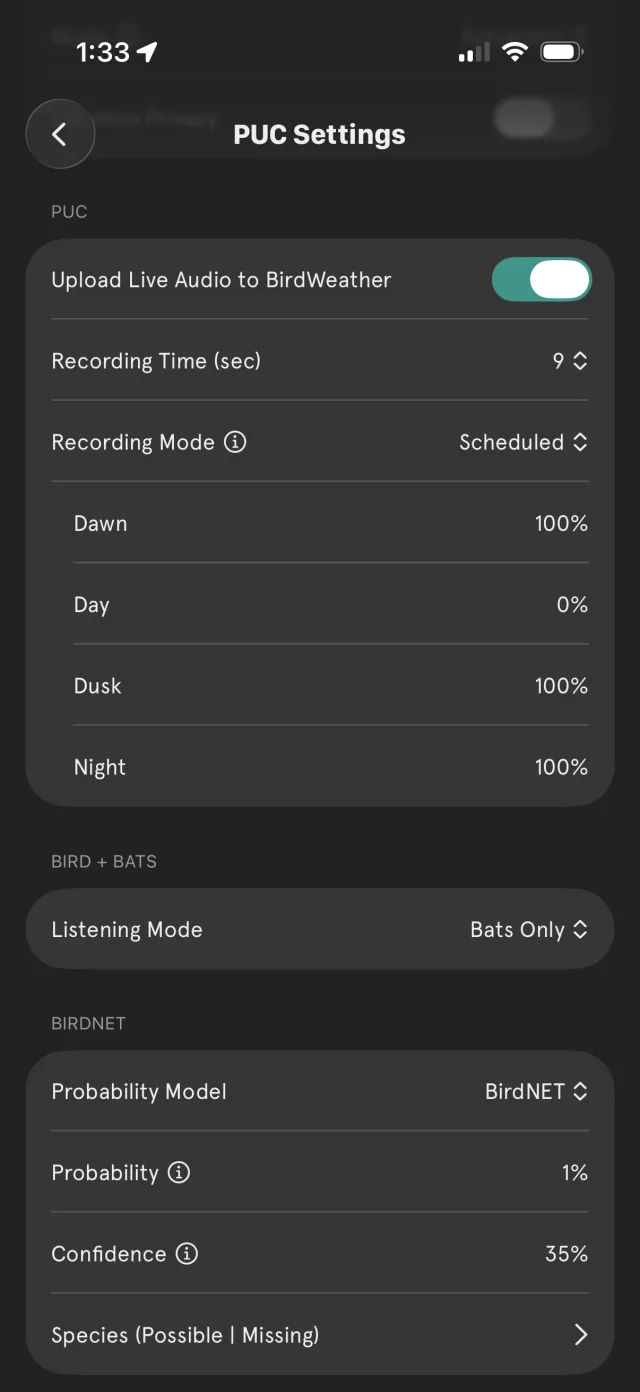
Bats are nocturnal, so a Scheduled recording mode pairs well with bat listening: weight recording toward Dawn, Dusk and Night to save power and storage (see Recording Mode and schedules).
Bat detections in the app
With bats enabled, bat detections join the same feed your birds appear in. Bat results carry a purple accent ring and map pin, so you can tell at a glance whether a detection is a bird or a bat. Tap any detection for its detail view, spectrogram and audio.
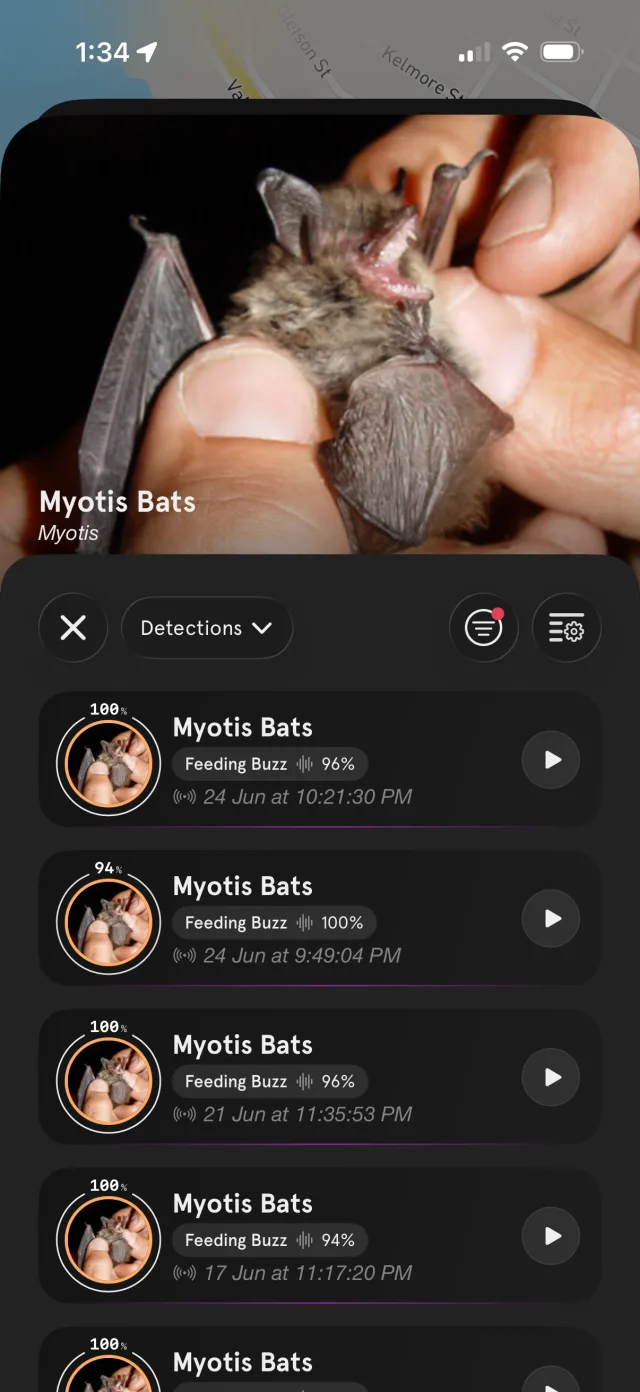
In Detected Species, bats are ranked alongside your birds. Opening a bat species shows each detection, tagged with the behavior the classifier identified and a confidence score.
Bat behaviors
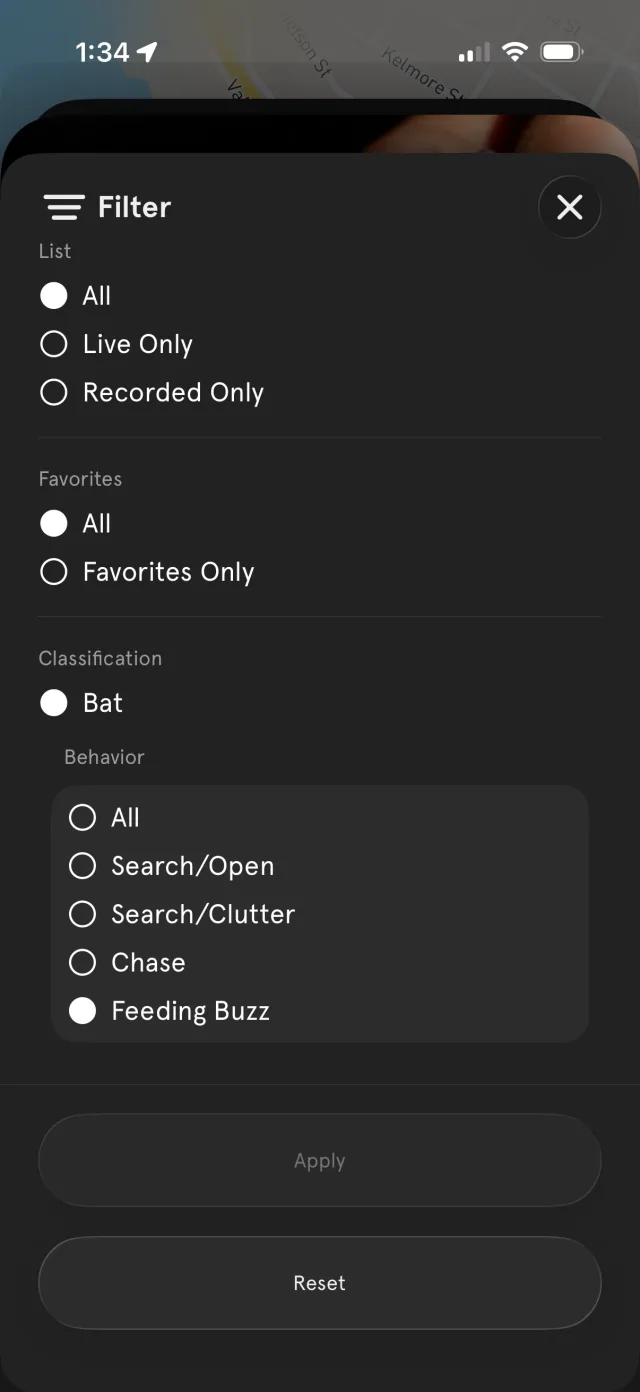
The Bat Edition identifies not just what a bat is, but what it's doing. Open the filter and, under Classification → Bat, narrow the feed to a specific echolocation behavior:
- Search / Open: a bat cruising open air, searching for prey.
- Search / Clutter: navigating among vegetation or other obstacles.
- Chase: actively pursuing an insect.
- Feeding Buzz: the rapid burst of calls at the moment of capture.
As a bat closes in on prey it calls faster and faster: from a relaxed handful of pulses per second while cruising, through the chase, to the rapid burst of a feeding buzz. Each detection's ring in the feed echoes this rhythm, from long, slow marks for an open-air search to a near-solid ring for a buzz.
Behavior is detected for any bat call, whether or not the species itself can be named, so even an unidentified bat can be logged as a Feeding Buzz.
Ultrasonic spectrograms
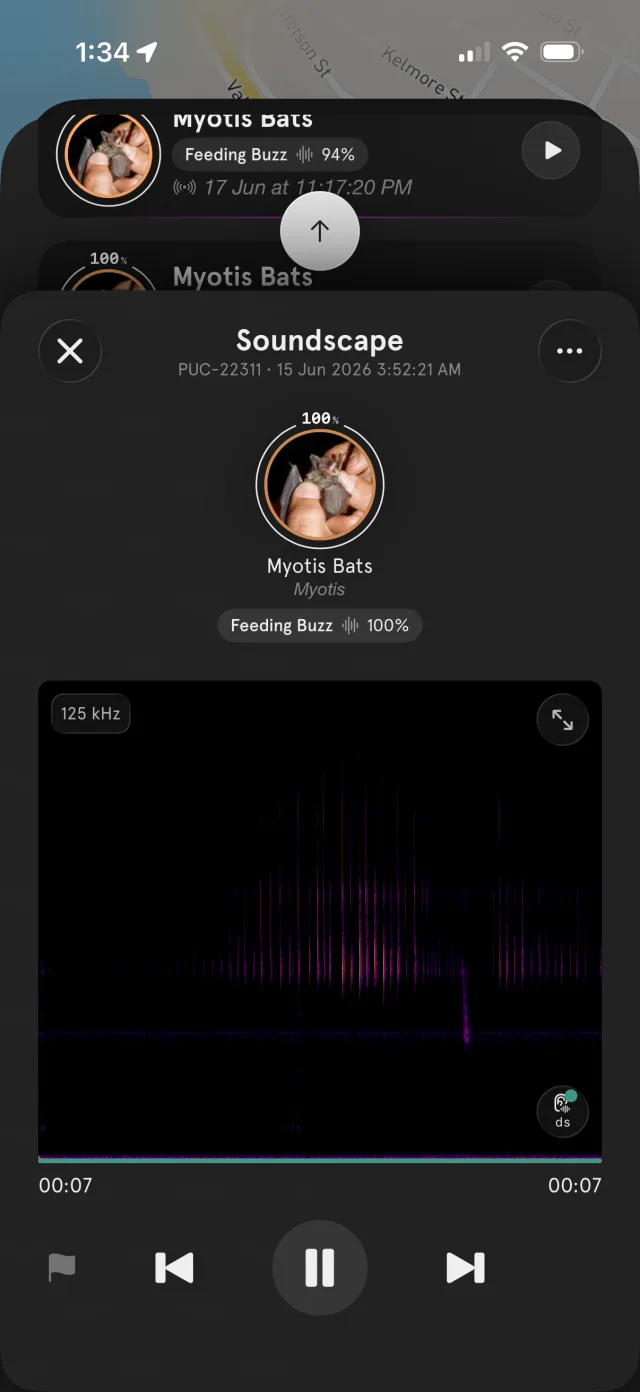
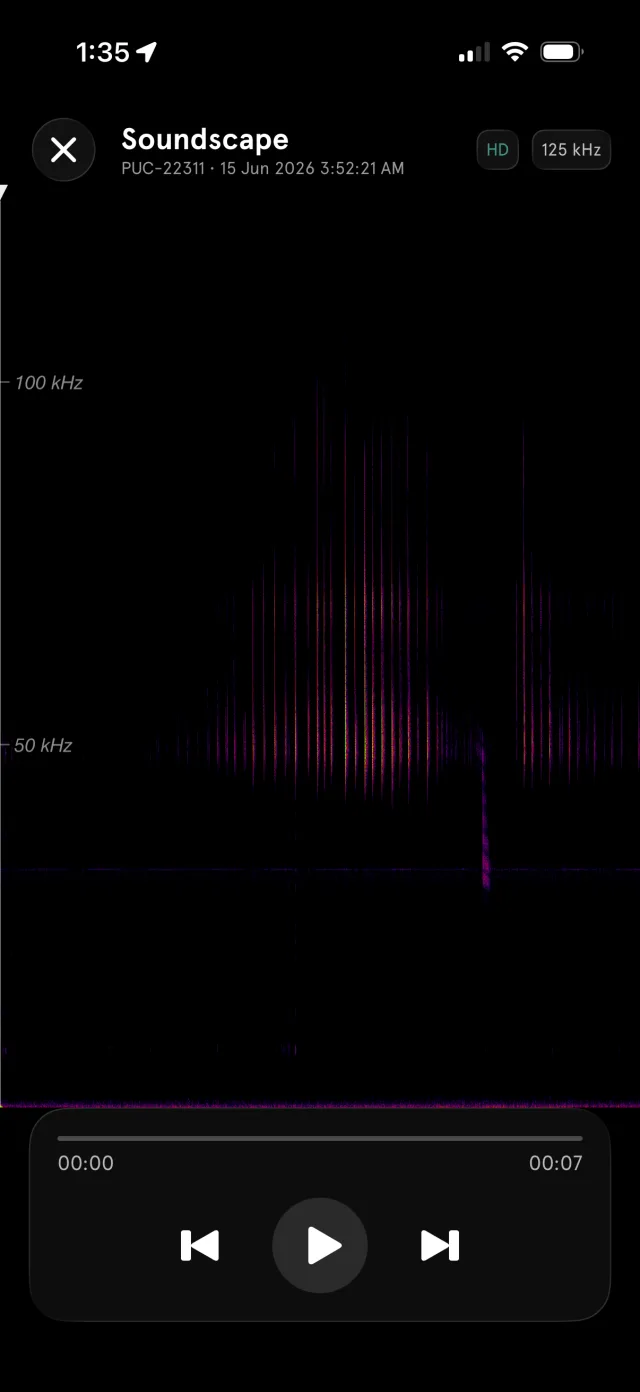
Bat calls live far above the range you can hear, so the Bat Edition spectrogram reaches up to 125 kHz, well above the calls of over 99.9% of bats.
The detection view
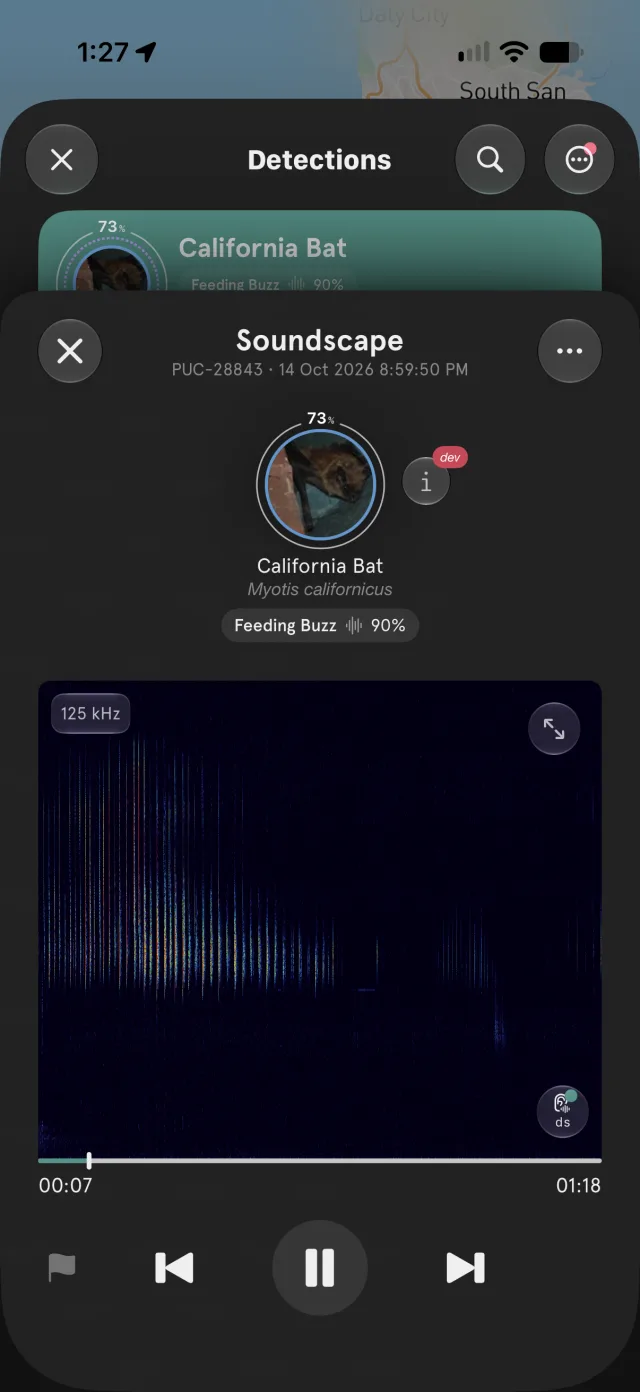
Tap a bat detection to open its Soundscape view: the species, its behavior tag and confidence, and the spectrogram with its frequency range (e.g. 125 kHz) in the corner. Play the call (see Bat playback options below), or expand it to full screen.
Bat playback options
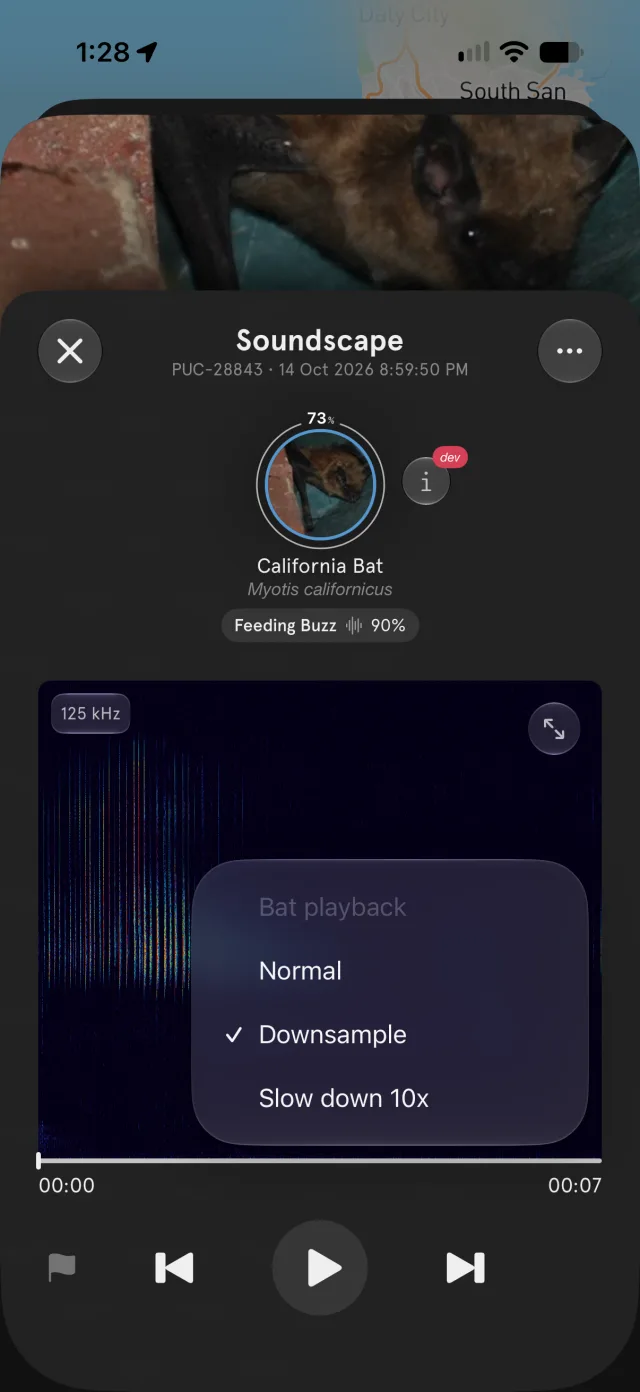
Most bat calls are too high-pitched to hear, so the app lets you choose how a bat recording is played. Tap the ear button in the lower-right corner of the spectrogram to open the Bat playback menu. The button's label shows the current choice (ds for Downsample).
- Normal: plays the recording normally.
- Downsample (the default): the recording is downsampled to fit within 32 kHz and plays in real time, so a 6-second clip still takes 6 seconds.
- Slow down 10x: plays the recording at one-tenth speed, so the same 6-second clip takes 1 minute.
Full screen and zoom
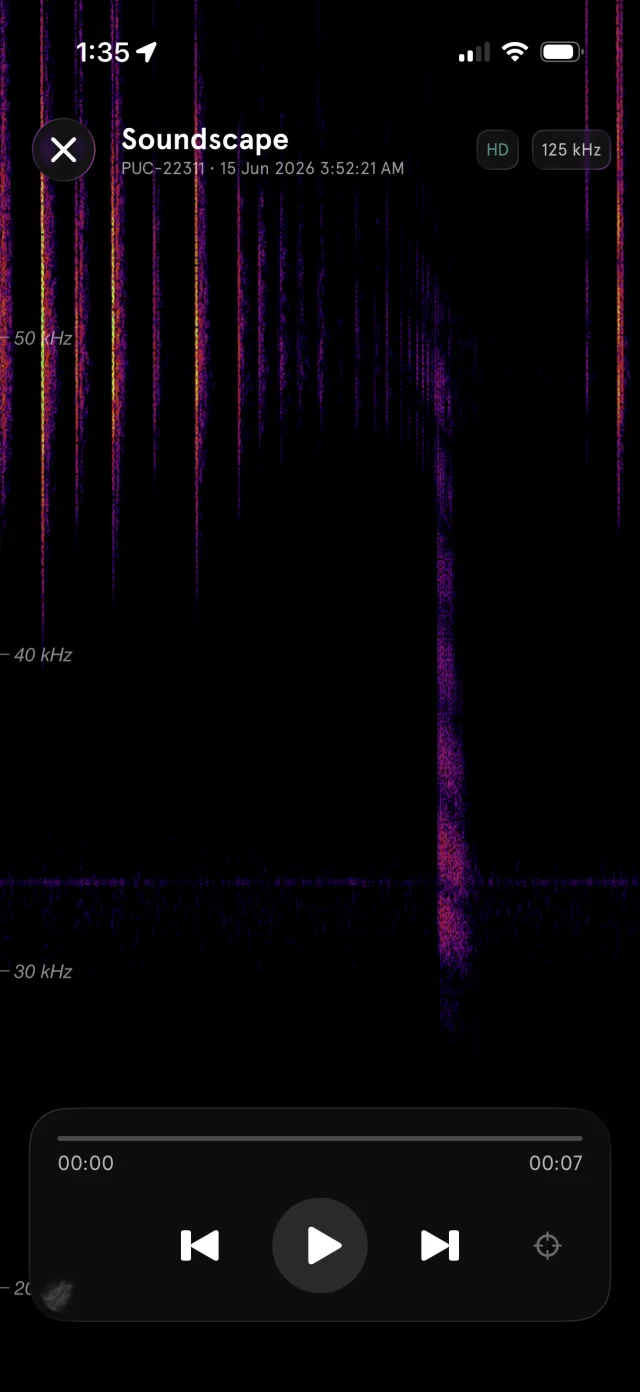
In full screen, toggle HD for finer detail and pinch to zoom into a frequency band. The full view shows the whole call sweeping down from above 100 kHz; zooming into 30–50 kHz shows the fine structure of individual pulses, the detail the classifier uses to tell species apart.
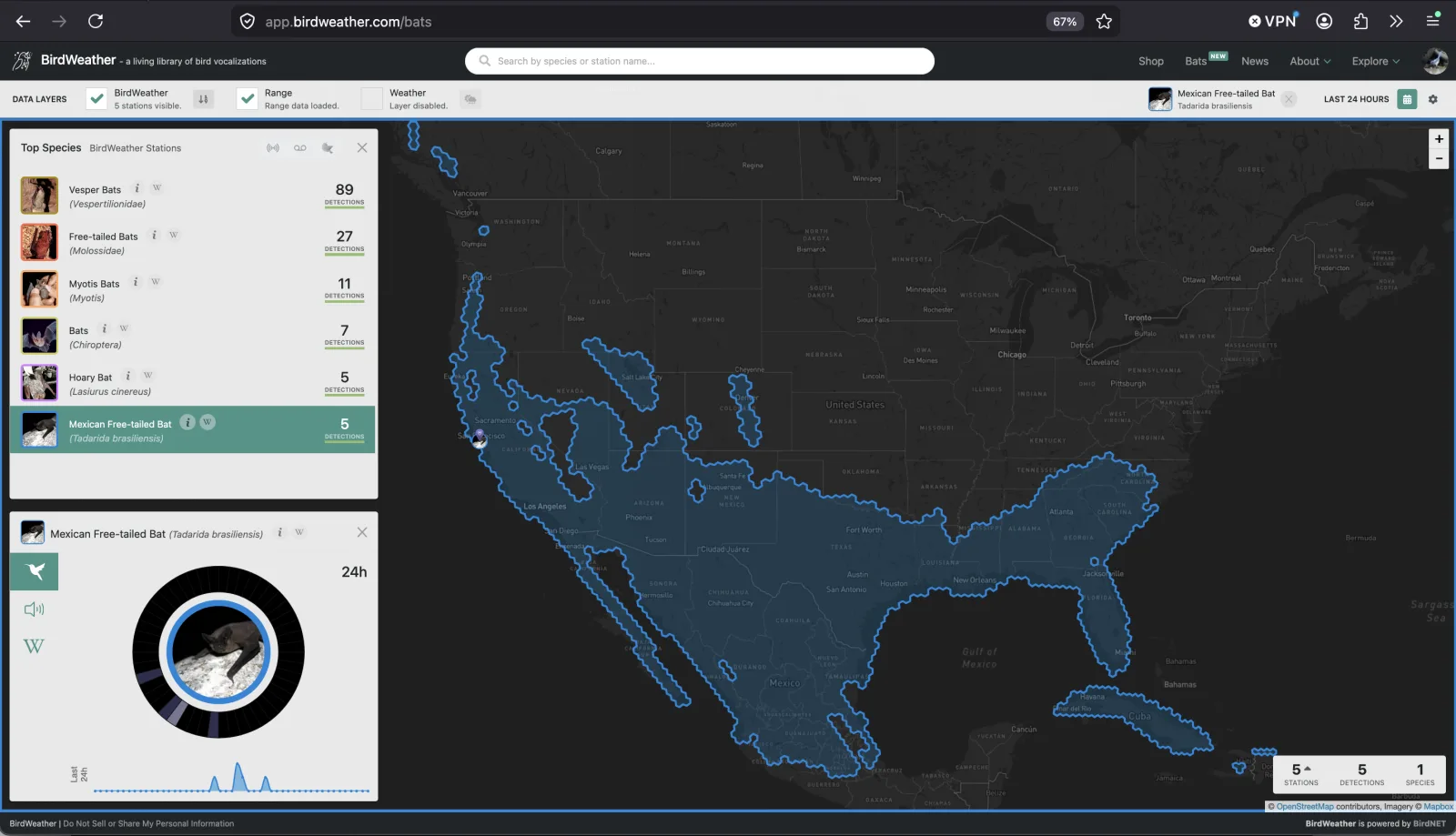
Bats on the Live Map
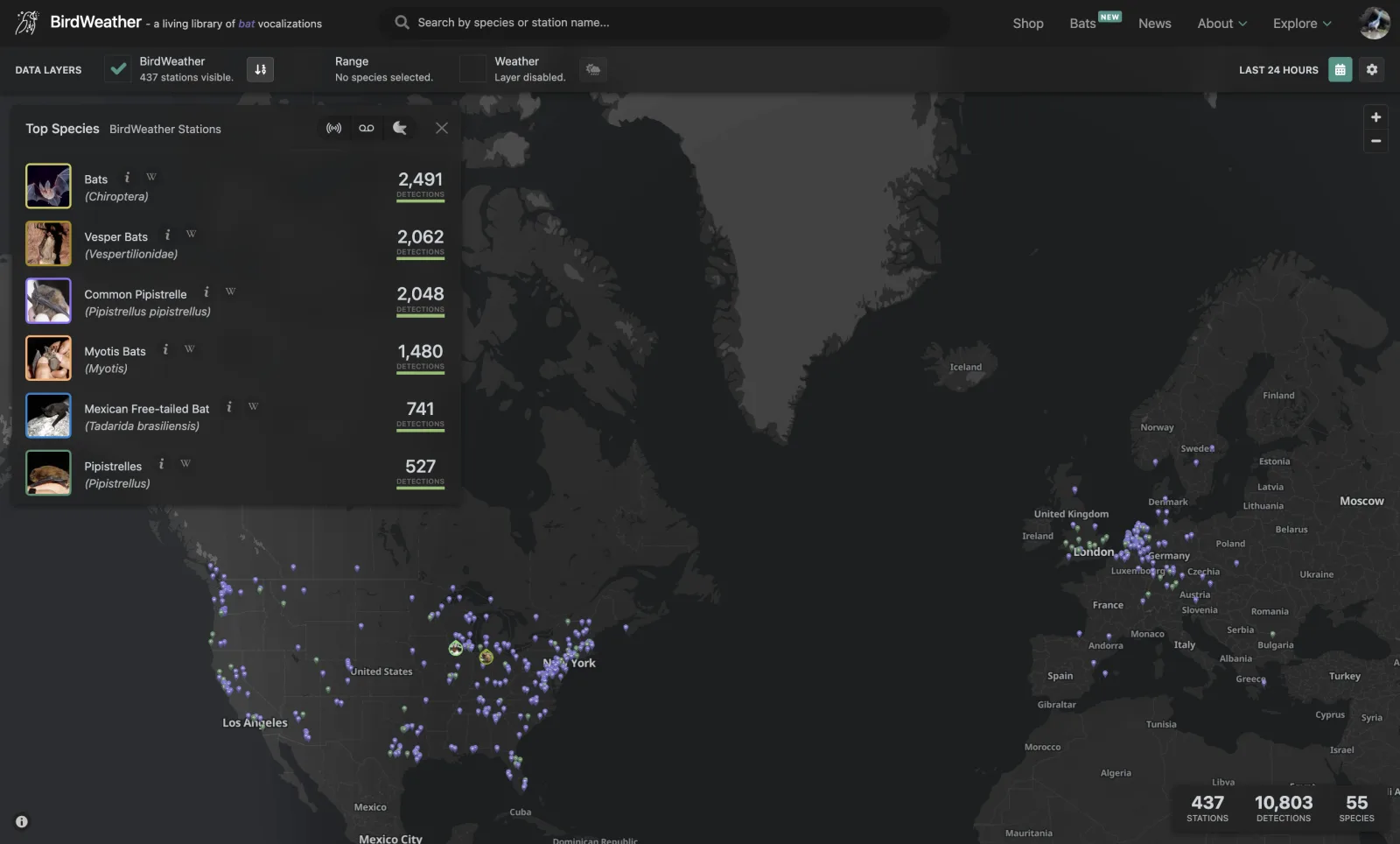
The Live Map has a dedicated bat mode:
It opens filtered to bats, with live Top Species for the stations in view, from broad families like Vesper Bats (Vespertilionidae) and Free-tailed Bats (Molossidae) down to named species.
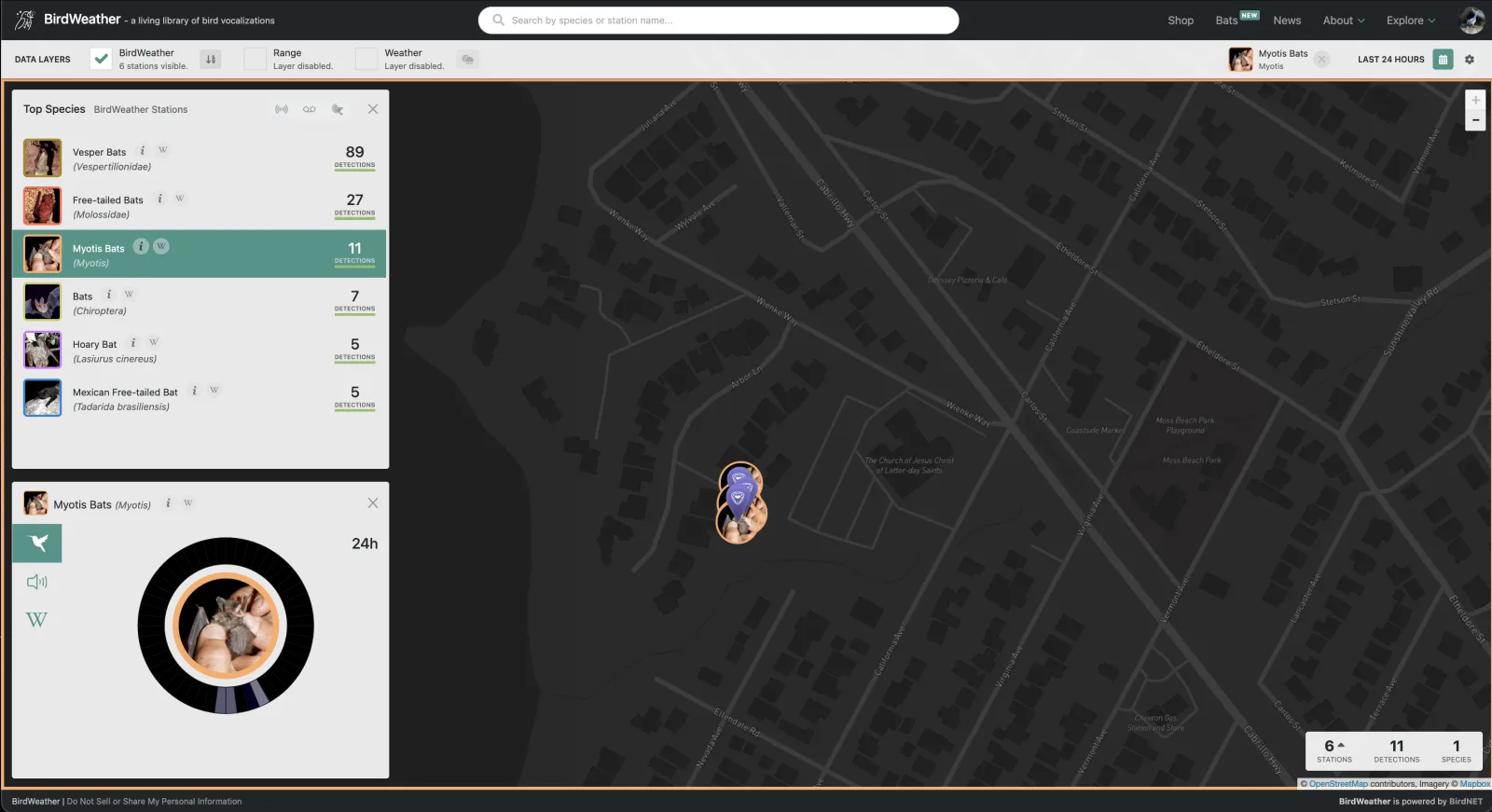
Station activity: zoom to a station to see which bats it's hearing and how often, with its detections over the last 24 hours.
Species ranges: turn on the Range layer and select a species to overlay its known distribution, useful for judging which species are plausible at your location.
How the bat classifier works
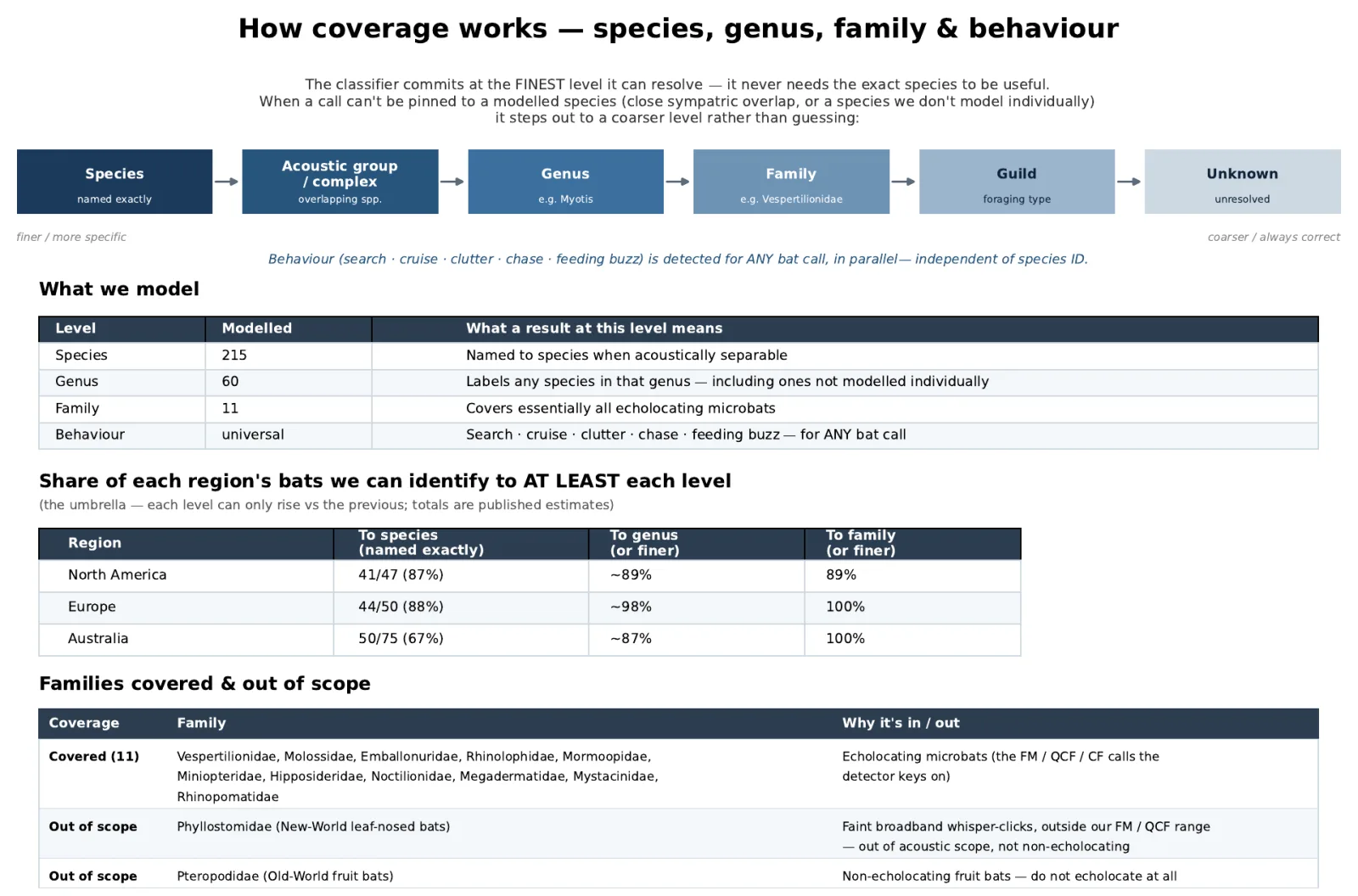
The bat classifier identifies species from the shape of their echolocation calls, on a simple principle: commit at the finest level it can actually resolve, and never guess.
Many bats are hard, sometimes impossible, to separate by sound alone, because different species share nearly identical calls. Rather than inventing a precise species it can't support, the classifier steps out to a coarser level it can stand behind:
- Species: named exactly, when the call is acoustically separable.
- Acoustic group, genus or family: when species overlap too closely, it reports the group, the genus (e.g. Myotis) or the family (e.g. Vespertilionidae).
- Behavior: detected for any bat call, independently of the species ID.
A genus- or family-level result isn't a failure: it's the honest answer. That's why you'll see entries like Vesper Bats or Myotis Bats rather than a falsely precise species name.
What's supported
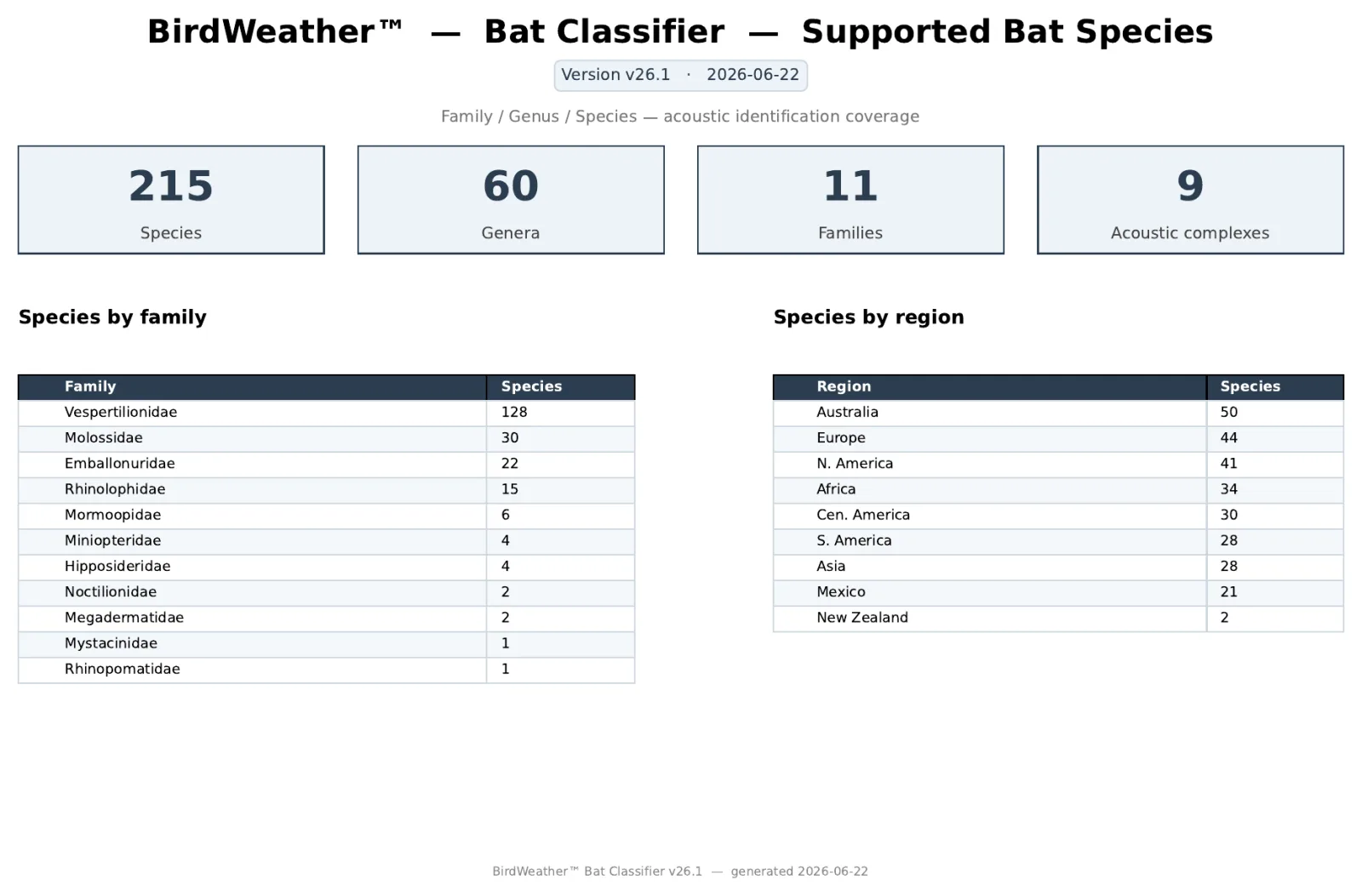
The current classifier (v26.1) models 215 species across 60 genera and 11 families, covering essentially all echolocating microbats worldwide, with the strongest coverage where BirdWeather is most active.
| Region | To species | To genus (or finer) | To family (or finer) |
|---|---|---|---|
| North America | 87% | ~89% | 89% |
| Europe | 88% | ~98% | 100% |
| Australia | 67% | ~87% | 100% |
Share of each region's bats identifiable to at least each level.
Two bat families are intentionally out of scope: Phyllostomidae (New World leaf-nosed bats), whose faint broadband clicks fall outside the detector's range, and Pteropodidae (Old World fruit bats), which don't echolocate.
Powering the Bat Edition
Unlike the standard PUC, the Bat Edition is designed around 3.6 / 3.7 V lithium-ion rechargeable batteries. The removable design lets you reach the microSD card and replace the batteries when they eventually wear out.
You can power and charge the Bat Edition from any USB-C power source. For 24×7 operation, run it continuously from an outdoor-rated USB-C adapter, with the batteries as a backup if power is interrupted:
- AC (mains): a.co/d/00AycSO5
- Solar: a.co/d/9gla2wW
We tested a number of batteries and landed on Keeppower (P1413TC): they live up to their capacity claims, have excellent built-in protection, and include USB-C charging ports so you can also charge them outside the PUC. They're available from Alibaba and illumn.com, among others.
11. Support & Warranty
Questions this manual doesn't answer? We're glad to help.
Contacting support
Email support@birdweather.com for the quickest response, or open Help and Support in PUC Settings.
Include your PUC-#### (shown at the top of PUC Settings), so we can check your PUC's history and configuration straight away.
Warranty
The PUC comes with a 1-year warranty. Email support@birdweather.com with any warranty concerns.
Returns
If you're not happy, you can return your PUC within the first 30 days for a full refund (minus shipping). Please email support@birdweather.com.
FCC and CE compliance
FCC compliance: this device complies with Part 15 of the FCC Rules. Operation is subject to the following conditions:
- This device may not cause harmful interference.
- This device must accept any interference received, including interference that may cause undesired operation.
CE compliance: this product complies with the essential requirements of the relevant European health, safety and environmental protection legislation.
Happy listening, from the BirdWeather team